
Product Release Notes, Autumn ’25 Roundup
With the changing seasons comes a fresh wave of innovation inspired by our customers’ feedback. This autumn, we’ve introduced new capabilities across the HP Workforce Experience Platform (WXP)1 and its related product portfolio—covering employee engagement, analytics, remediations, and security—to make it easier to gather insights, take action, and optimize your digital workplace.
From enhanced Pulse templates to the new Driver Inventory Insights report, this release is packed with features that help you work smarter and faster. Let’s dive into what’s new.
Employee Engagement and Sentiment
Pulse Templates
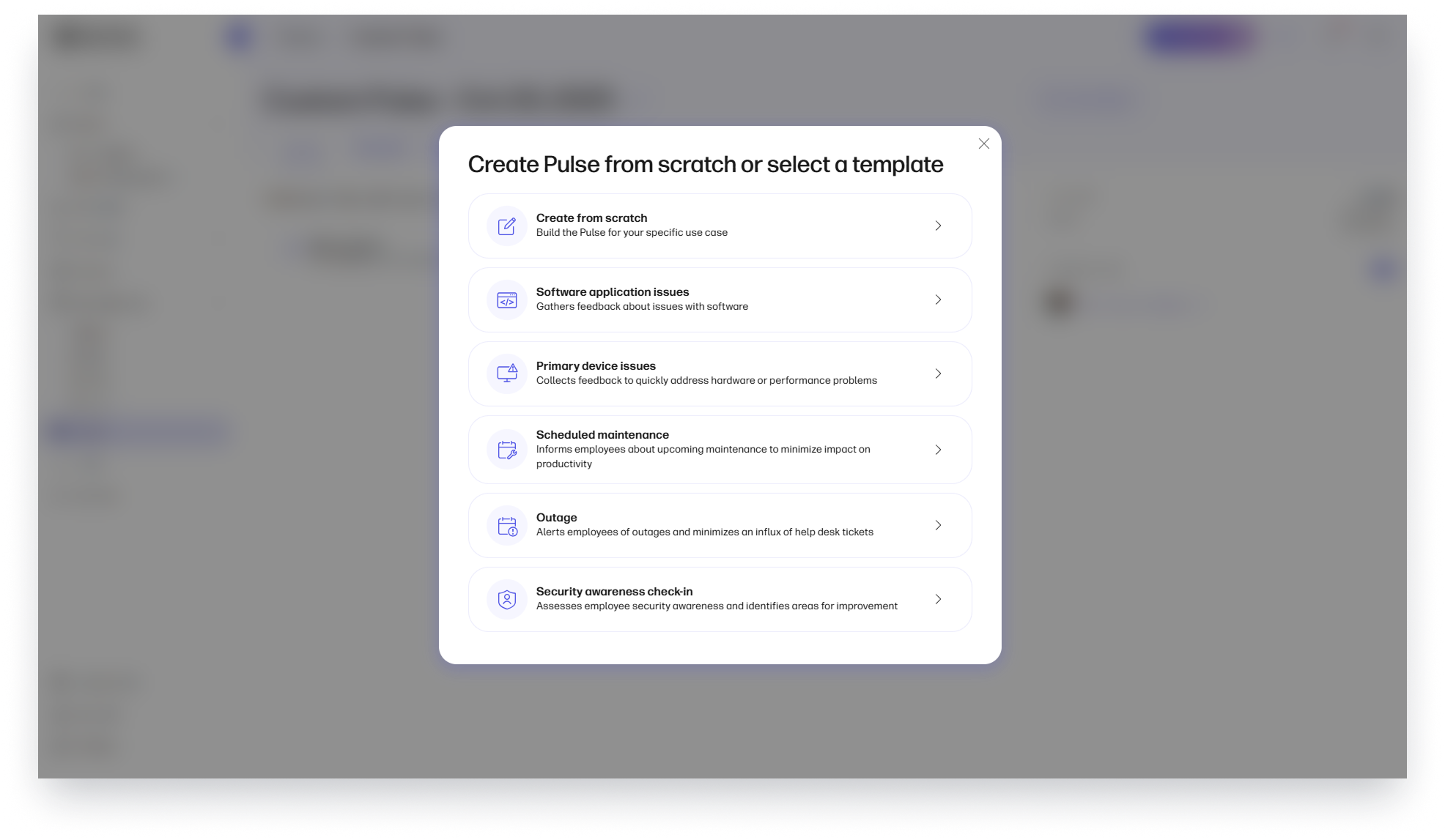
Creating pulse surveys just got easier. WXP now offers pulse templates with pre-defined questions and notifications based on common customer use cases. These templates help you launch surveys faster, maintain consistency, and still allow customization to suit your organization’s needs, so you can gather meaningful feedback with less setup.
Steps to access:
- From the left navigation menu, select Pulses.
- Then click on Create.
- Select Custom Pulse.
- Choose your preferred template.
or
- On the WXP Home page, click on an alert.
- Then click on Send Pulse.
- Select Start.
- Choose your preferred template.
Sentiment Pulse Enhancements
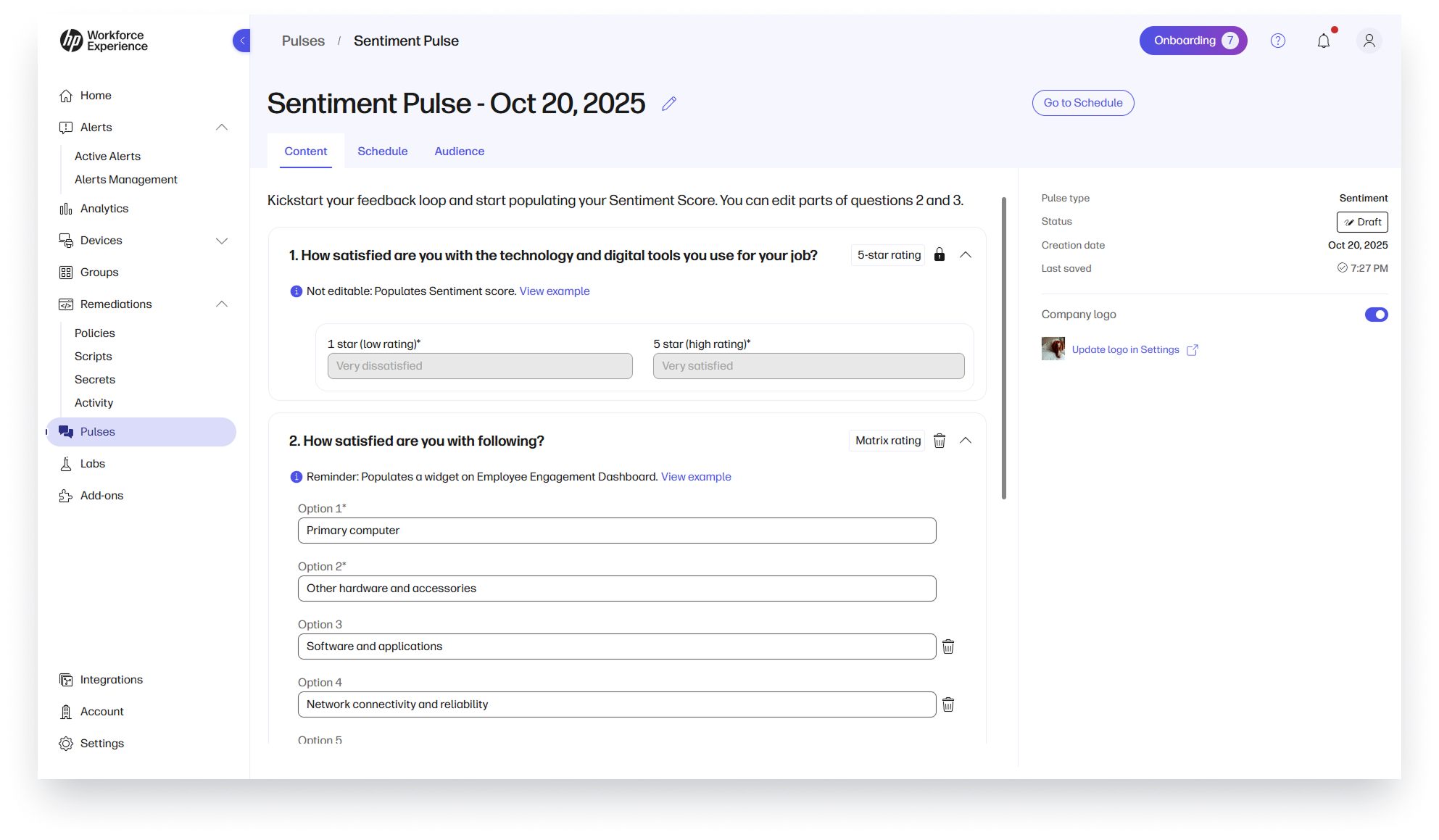
Tailor your Sentiment Pulse surveys to better reflect your organization’s feedback goals.* You can now lightly customize some question wording and answer choices—making surveys more relevant and aligned with your communications style. Please note that all enrolled devices need to be updated to the latest client version 5.25.86 to access this feature.
Steps to access:
- From the left navigation menu, select Pulses.
- Click Create.
- Select Sentiment Pulse.
*Note: Only applicable to Workforce Experience Platform Pro and Elite plans.
Investigate Issues Triggering Alerts or Recommended Actions
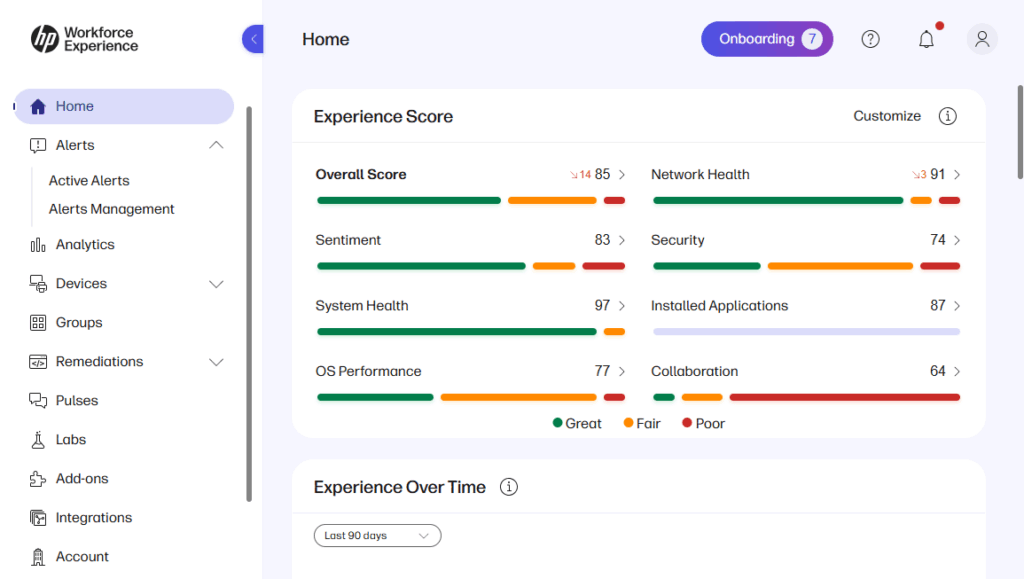
Speed up root cause analysis by sending surveys directly from the Alerts or Recommended Actions pages.* This integration lets IT gather user feedback in context, helping teams take targeted action, resolve issues faster, and improve employee experience.
Steps to access:
- On the WXP homepage, click on the Alert you would like to investigate.
- Filter the Alert details page to your desired audience device list.
- Click Send Pulse.
*Note: Only applicable to Workforce Experience Platform Pro and Elite plans.
Collaboration Spaces Dashboard
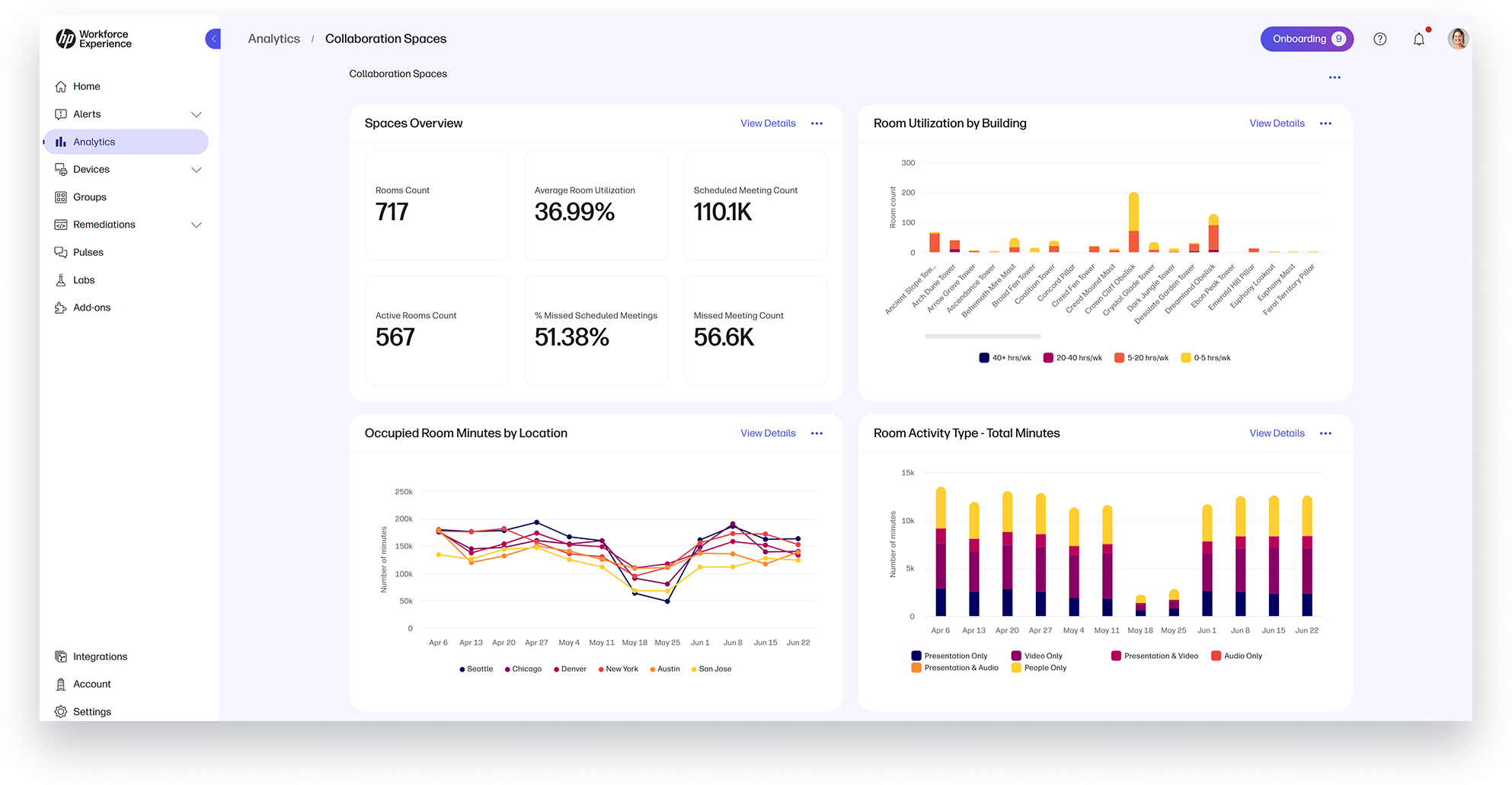
Gain visibility into how meeting rooms and collaboration spaces are used with the new Collaboration Spaces dashboard.* View KPIs and utilization summaries across buildings, room types, and capacities to identify inefficiencies, highlight over- or under-utilized spaces, and make data-driven decisions to optimize space usage.
Steps to access:
- From the left navigation menu, click Analytics.
- Under Dashboards, select Collaboration Spaces.
*Note: Active WXP Collaboration (formerly HP Vyopta) license required.
Video Endpoint Details Page
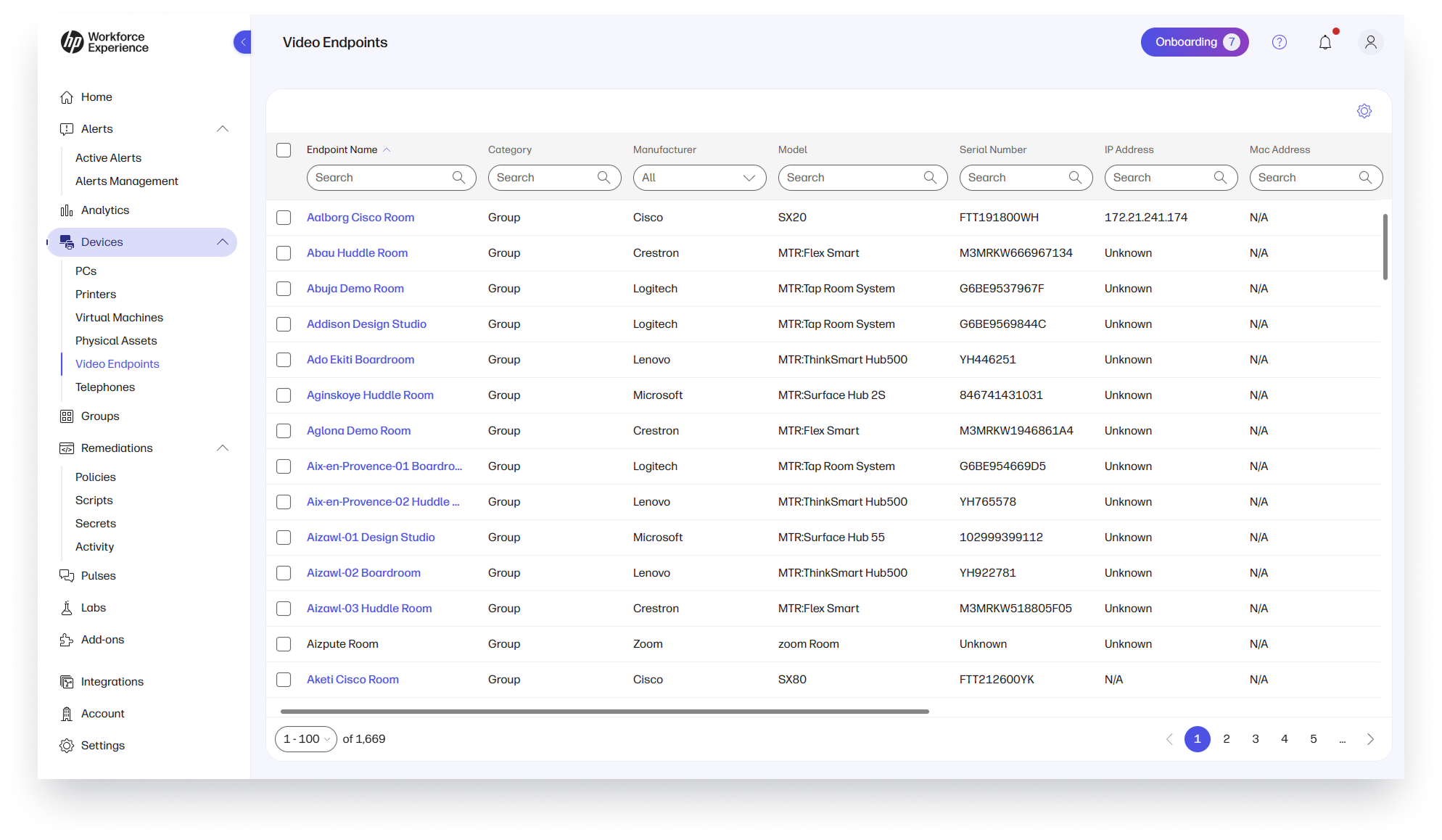
Get detailed information and call history for video endpoints directly in WXP.
With the standardized UI, it’s easier to assess performance and troubleshoot across all device types, including video endpoint and PCs.
Steps to access:
- From the left navigation menu, click on Devices.
- Select Video Endpoint.
- Select any video endpoint to open its detail page.
*Note: Active WXP Collaboration (formerly HP Vyopta) license required.
Remediations
Passing Parameters to Scripts
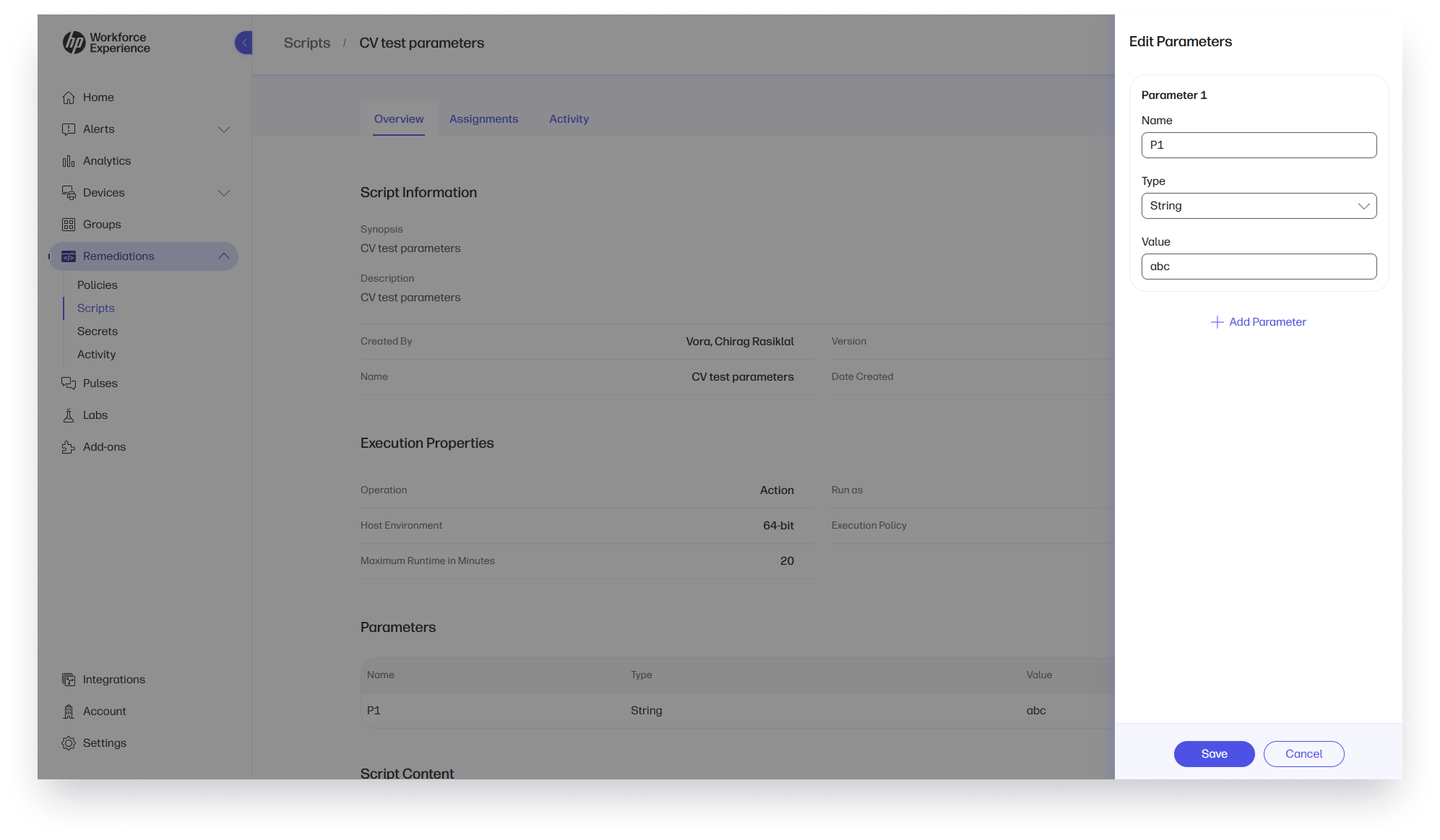
Make your scripts more versatile. You can now pass parameters at the script or assignment level, allowing for greater flexibility. This eliminates the need to create separate scripts to modify one portion of their functionality.
Steps to access:
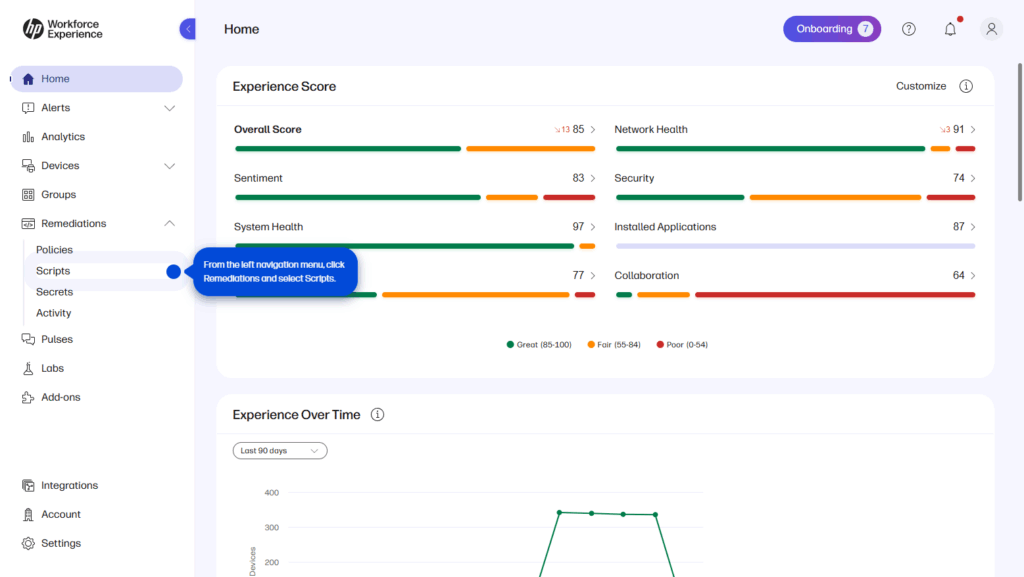
- From the left navigation menu, click Remediations.
- Select Scripts.
- Select a script and specify parameters and the expected value type to be passed.
- Once a parameter is added, a default value can be specified at the script and/or assignment level when adding an assignment.
- Once the expected parameters are configured, a parameter value may also be passed when running a remediation script from an alert.
*Note: Only applicable to HP Workforce Experience Platform Pro and Elite plans.
Script Output
PowerShell scripts now return both standard and error output directly in the WXP console, making it easier to track successful execution in the Script Activity page.
Steps to access:
- From the left navigation menu, click Remediations.
- Select Scripts and click on the Assignments tab.
- Click on an assignment name to view its details and select the Activity tab.
- Select an activity to view details of each device upon which a script was executed, including two new columns showing the script’s output and any errors.
*Note: Only applicable to HP Workforce Experience Platform Pro and Elite plans.
Driver Update Policies by Category
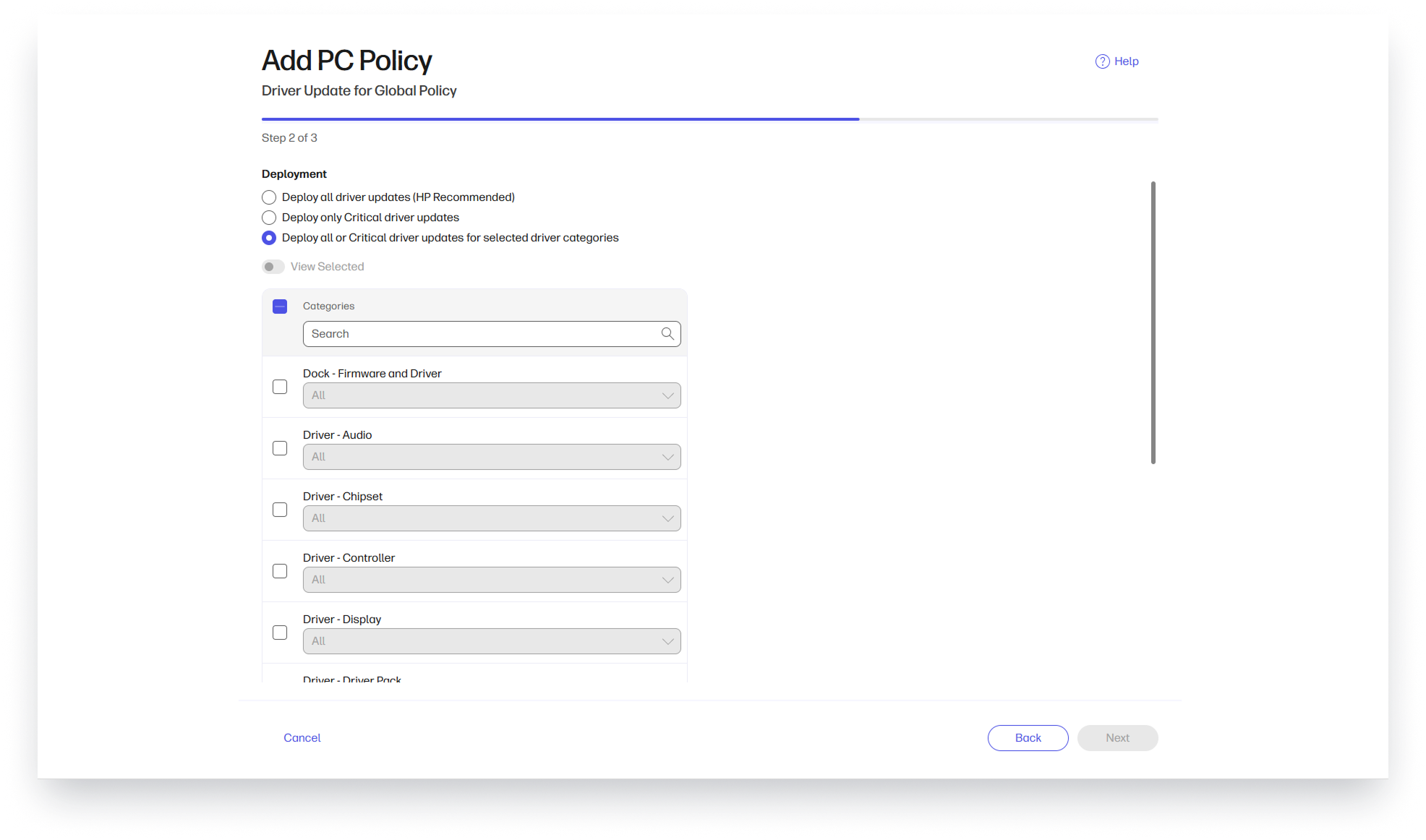
Configure Driver Update Policies by specific driver categories—such as Network, Audio and Display—for more precise targeting based on your organization’s needs. This improved granularity helps ensure better management of driver-related security and stability.
Steps to access:
- From the left navigation menu, click Remediations.
- Select Policies, then the PCs tab.
- Click Add to create a new Policy.
- For the Type, select Driver Update. Then fill out the other required fields.
- On the next page of the Policy Creation wizard, select Deploy All or Critical Driver Updates for Selected Driver Categories.
*Note: Only applicable to HP Workforce Experience Platform Pro and Elite plans.
Driver Update Policies by Platform

Configure driver update policies at both the global and platform-specific levels to address varying needs based on device platforms. This enhanced targeting helps your organization better manage driver security and stability.
Steps to access:
- From the left navigation menu, click Remediations.
- Select Policies, then the PCs tab.
- Click Add to create a new Policy.
- For the Type, select Driver Update. Then fill out the other required fields.
- For the Scope, Platform may now be selected in addition to Global.
*Note: Only applicable to HP Workforce Experience Platform Pro and Elite plans.
BIOS Update Policies Use Softpaqs for G9 and Newer Platforms

Gain faster access to BIOS updates for G9 and newer HP devices by using Softpaqs instead of Windows Update capsules—while still maintaining the ability to apply the updates without having to authenticate the update payload.
Steps to access:
- From the left navigation menu, click Remediations.
- Select Policies, then the PCs tab.
- Click Add to create a new Policy.
- For the Type, select BIOS Update. Then fill out the other required fields.
- Complete the wizard and assign the policy to one or more groups.
- When the policy runs on clients, it is now based on BIOS Update Softpaqs available rather than Windows Update capsules for G9 and newer platforms.
Analytics
Driver Inventory Insights
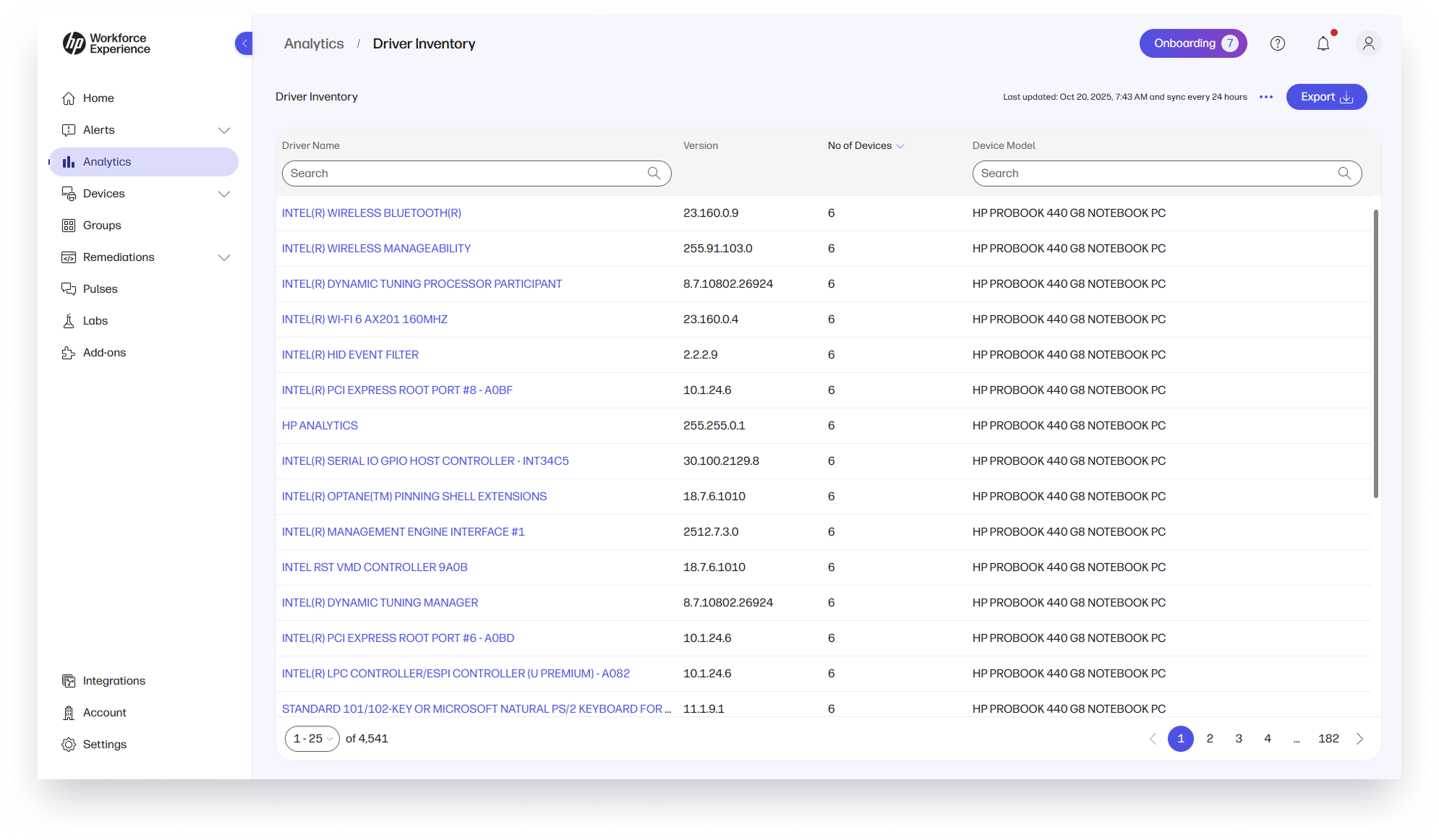
Gain the latest detailed information on the hardware and software drivers installed on the devices in the fleet—including driver versions, installation dates, and driver categories—helping you manage and maintain driver compatibility in the fleet.
Steps to access:
- From the left navigation menu, select Analytics.
- Click on Modern Reports.
- Click on Driver Inventory report to view detailed driver inventory information of all enrolled devices.
Favorites and Report Scheduling
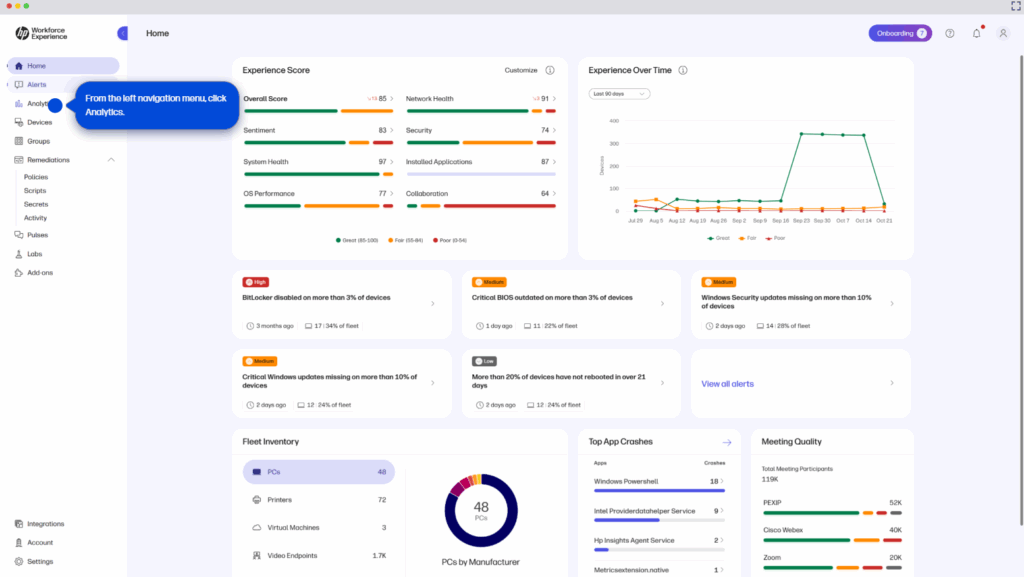
Quickly access your important or most used reports by marking them as favorites—allowing you to find and view these reports without navigating through multiple clicks. You can also schedule reports to be emailed automatically at specified intervals (daily, weekly, or monthly) to ensure stakeholders receive timely updates and users stay informed about the key metrics and trends.
Steps to access:
- From the left navigation menu, click Analytics.
- Click on Modern Reports.
- To favorite a report:
a. Find the report you want to favorite and click on the star icon.
Or
Click on the report you want to favorite.
b. From the context menu, select Add to Favorites. - To schedule a report:
a. Click on the report you want to schedule.
b. From the context menu, select Schedule Report. - Enter the Schedule name, start date and time, and repeat frequency. Click on Schedule to finalize.
Endpoint Security
HP Protect and Trace with Wolf Connect Activation Status
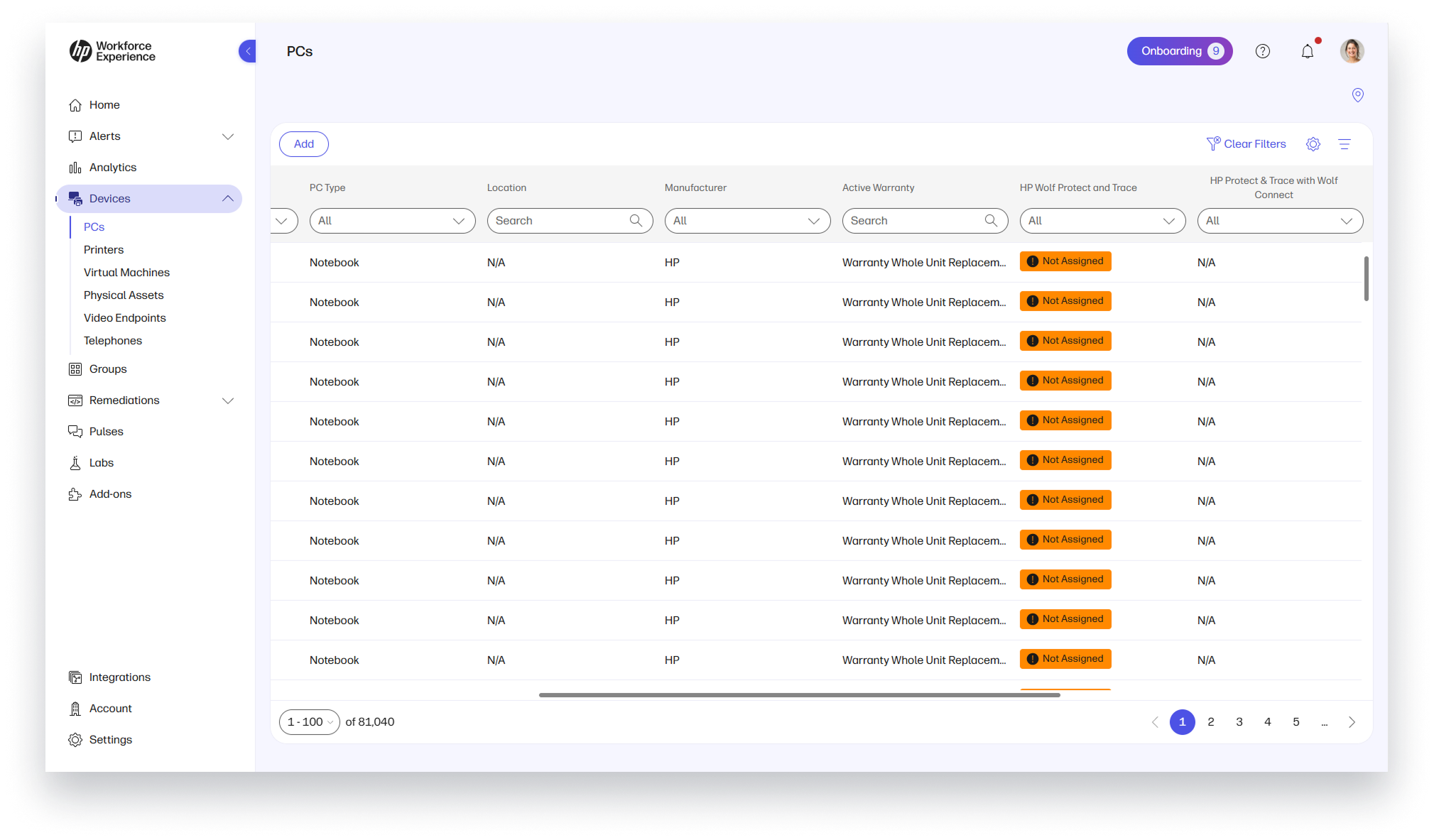
Monitor the activation status of Wolf Connect cellular service directly from the Device List page—no need to manually inspect each device.* This enhancement streamlines operational oversight by providing a centralized view, significantly improving efficiency in service status tracking.
Steps to access:
- From the left navigation menu, click Devices and select device type.
- For each device, the HP Protect and Trace with Wolf Connect activation status is now visible.
*Note: Active HP Protect & Trace with Wolf Connect license required.
Core Platform Experience
Dark Mode
Customize your view and reduce eye strain with dark mode—great for low-light environments and enhanced visual presentations.
Steps to access:
- Click on the profile picture.
- Select Dark Theme or System Preference.
Internationalization
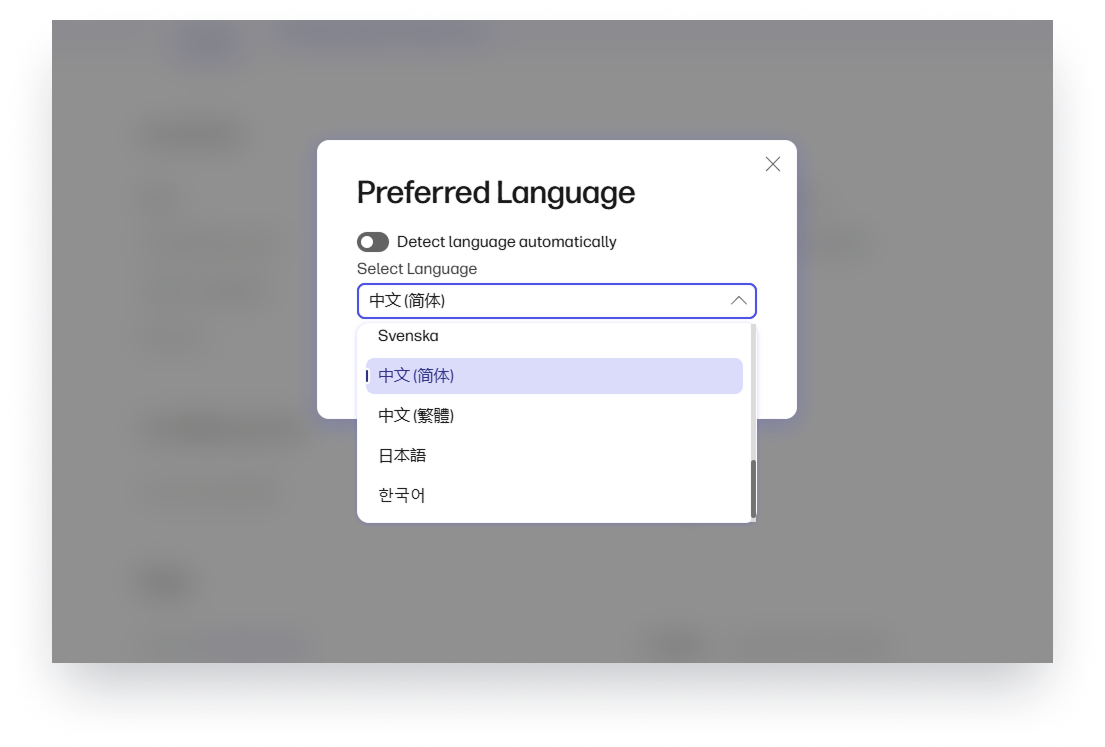
WXP continues to add to supported languages. This quarter we have included Japanese and Complex Chinese—making it easier for global teams to use the platform.2
Steps to access:
- Click on the profile picture.
- Select User Profile.
- Select your preferred language from the Preferences section.
Self-Signup Flow
Create your own tenants by using a license key provided by the onboarding teams.
Steps to access:
- Navigate to https://workforceexperience.hp.com/signup and fill out the form to create the tenant.
Font Size
Font sizes have been optimized for better readability on high-resolution displays.
Partner Experience
Partner Alerts Management
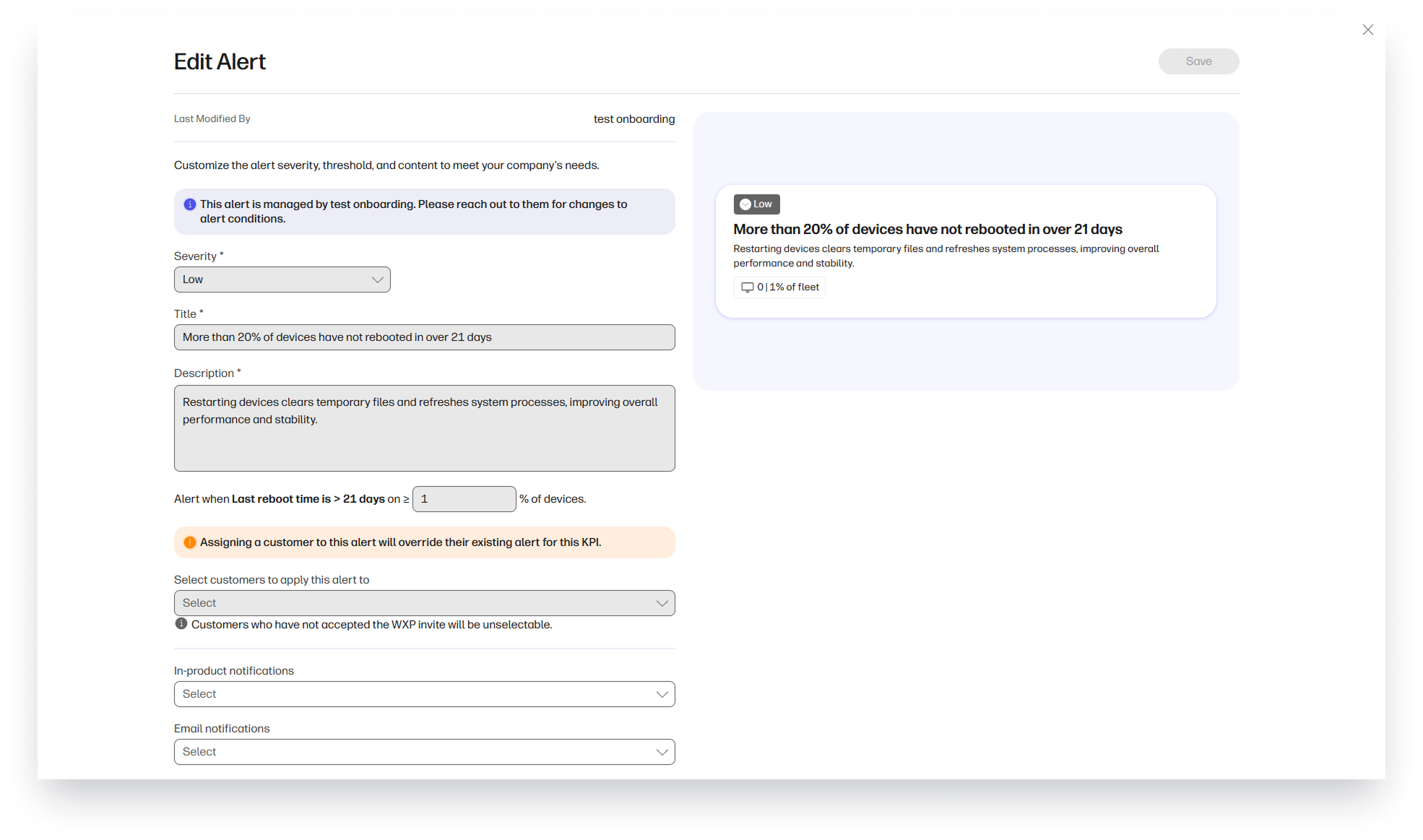
Manage alert rules across all your customers.* You can apply a single alert rule to multiple customers, duplicate rules to fine-tune thresholds for each one, and customize severity levels to match individual needs. Choose the notification channels that work best for your team to ensure alerts reach the right people—helping you stay focused on what matters most for each customer.
Steps to access:
- From the left navigation menu, select All Customers.
- Click on Alerts Management.
- Click on any of the predefined alert rules to begin customizing the settings.
* Please note that you can manage alerts only for customers that have HP Workforce Experience Platform Pro and Elite plans.
Assign Paid Licenses to Customers During Account Creation

You can now assign pre-purchased licenses during customer onboarding, speeding up activation and simplifying license management. It also simplifies license management, helping you onboard and support your growing customer base more efficiently.
Steps to access:
- From the left navigation menu, select Customers.
- Click Add.
- Enter your customer information and click Next.
- From the Plans dropdown, select a WXP plan.
- Select an existing license from the Licenses dropdown.
- Click on Add to finalize the creation of a new customer account.
Unbranded BIR Reports
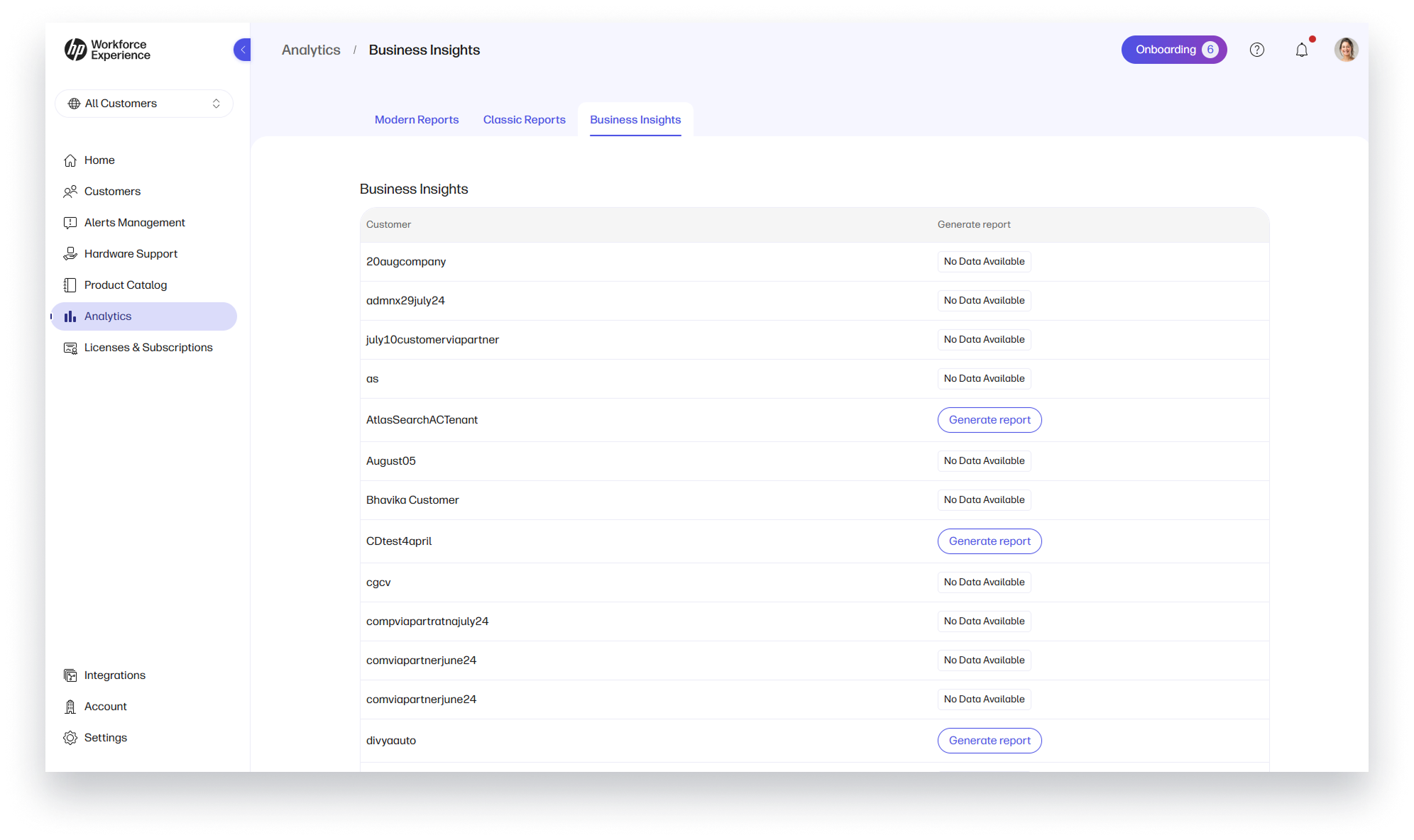
The Business Insights Reports (BIR) for your customers are now unbranded. This allows you to seamlessly incorporate their content into your own customer-facing materials and presentations, maintaining your brand identity while delivering valuable insights.
Steps to access:
- On the left navigation menu, select Analytics.
- Select the Business Insights tab.
- Click on Generate Report to generate a BIR for a specific customer.
- The system will notify you when the BIR is ready to download via email and in-platform notification.
Remote Desktops
The following feature enhancements are part of HP’s remote desktops product portfolio. These capabilities are not currently managed through WXP. Instead, they are delivered through HP Anyware and related solutions. To access and manage these features, customers must have active HP Anyware licenses, which enable secure, high-performance remote desktop experiences.
Desktop Name in Client
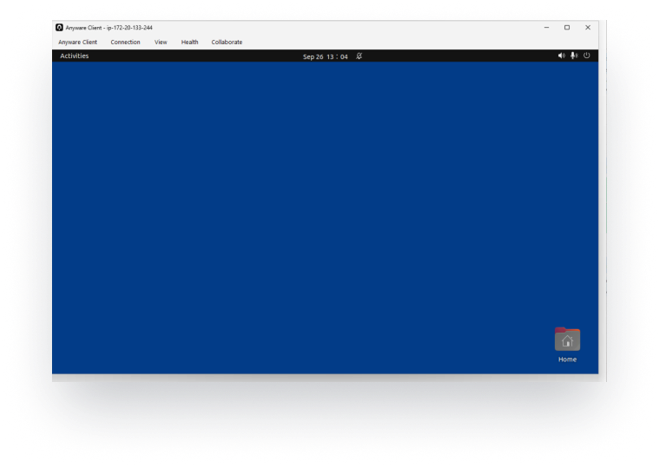
The HP Anyware client now displays the name of the remote desktop—enabling users to easily identify which remote desktop they are connecting to.* This is especially helpful for users with access to multiple remote desktops.
Steps to access:
Enable this feature in the HP Anyware client using the configuration, as it is turned off by default. Full details can be found in the Administrators’ Guide under Session Host Name Display.
*Note: Active HP Anyware license required.
Wacom tablets extension
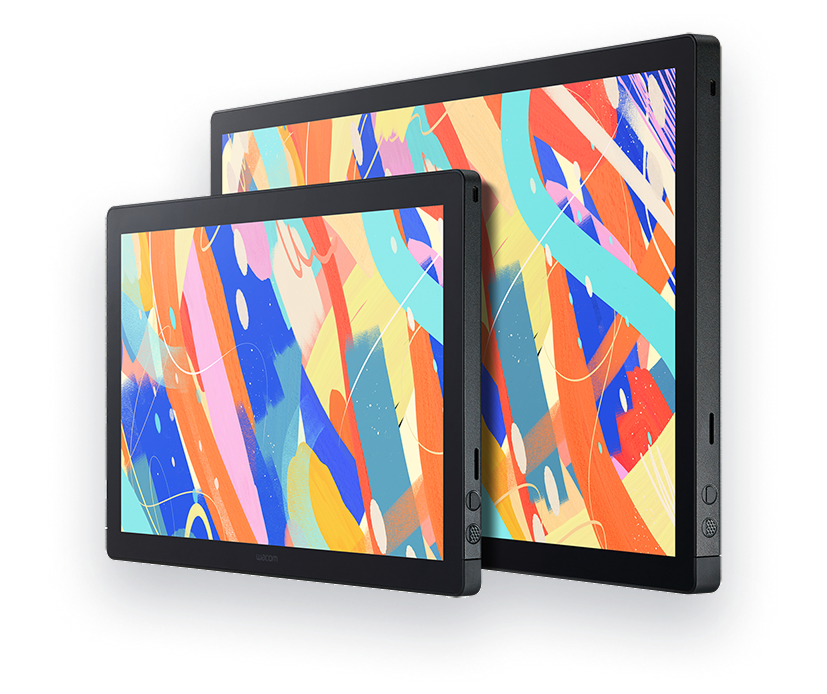
We’ve expanded support for newly released Wacom tablets—including the Cintiq 16, 24, and 24T (touch) —for Windows, Linux, and macOS hosts.* These tablets are essential tools for professionals in design, visual effects, broadcasting, and other creative industries. We’ve also added support for Cintiq tablets on macOS remote desktops, which previously only supported Intuos Pro models. To improve usability and reduce setup errors, tablets can now auto-connect, making configuration easier for end users.
Steps to access:
Tablet support is integrated into the HP Anyware client, which means no additional configurations are required for the latest tablets. To enable automatic connection, simply open the HP Anyware client, go in the Settings menu, select USB Auto Forward.
*Note: Active HP Anyware license required.
SOC2 Type 1 compliance
SOC 2 attestation gives you confidence that Anyware Manager Enterprise meets globally recognized standards for security, confidentiality, privacy, and availability.* It verifies that HP consistently manages, stores, and processes customer data with a repeatable and secure approach—providing peace of mind for both customers and partners.
*Note: Active HP Anyware license required.
Edge Gateway
Edge Gateway provides secure, VPN-free access to remote desktops, without sacrificing performance or user experience.* It’s designed to optimize latency between the user and their remote desktop, ensuring smooth and responsive sessions.
Steps to access:
Please read Overview of Edge Gateways for details on how to install and configure from Anyware Manager Enterprise.
*Note: Active HP Anyware license required.
Role Based Access Control – Custom Roles
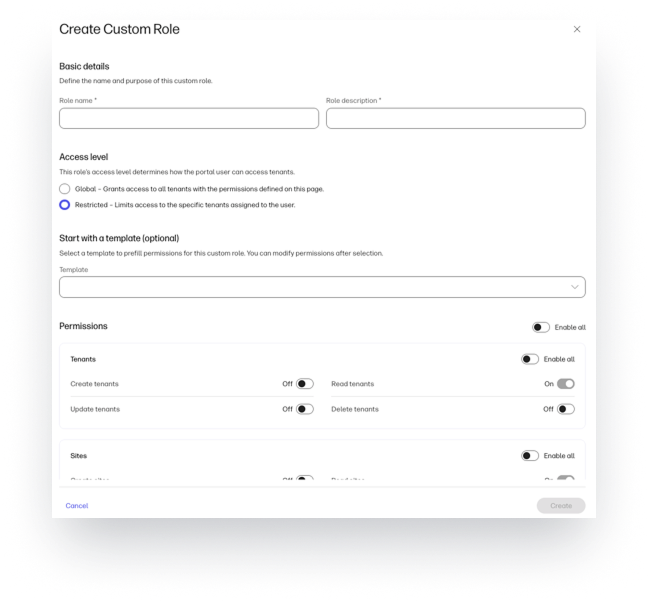
Enhance built-in system roles with custom role options, giving you the flexibility to define permissions and access levels tailored to specific job functions.*
Steps to access:
- In Anyware Manager Enterprise, navigate to Accounts and click on Roles & Permissions. Read Adding a Custom Role for full details.
*Note: Active HP Anyware license required.
Performance Metrics and License Utilization Metrics
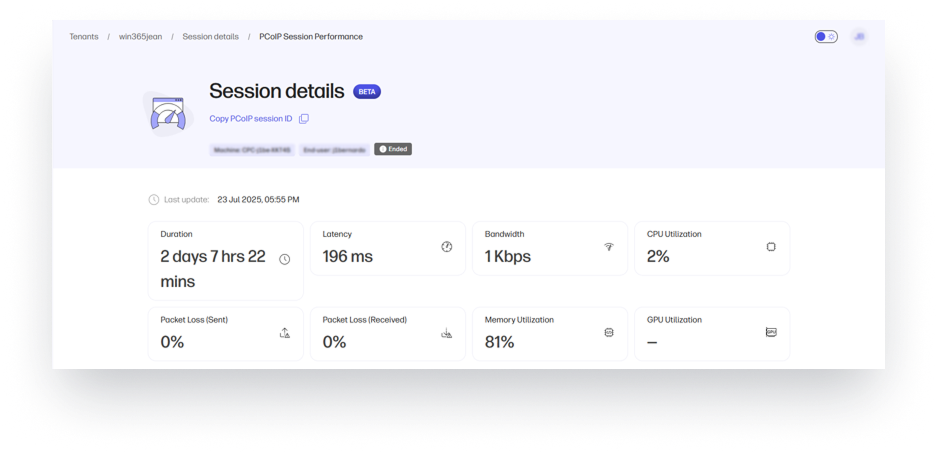
We’ve added detailed telemetry to help IT teams monitor user performance during remote desktop sessions. This includes metrics like bandwidth, latency, packet loss, memory usage, session duration, and more—available for both current and historical sessions. These insights make it easier to troubleshoot issues quickly and effectively.
We’ve also introduced telemetry for license utilization, showing current concurrent sessions and peak usage over the past 30 days. Since Anyware licensing is based on concurrent users (not named users), this data helps you right-size your investment and optimize license management.
Steps to access:
- From Anyware Manager Enterprise, access session telemetry using the Session Details tab under Logs. To follow all the steps, read Viewing Session Telemetry.
*Note: Active HP Anyware license required.
Schedule Agent Updates at Pool Level
Schedule updates of Anyware Agents and Monitor at machine pool level for granular version control.
Steps to access:
- From the Tenants dashboard in Anyware Manager Enterprise, automatic updates of agents and monitors ,can be scheduled at both the tenant and pool levels. Pool-level schedules apply to machines associated with the pool machines belonging to a pool. For the full procedure, read Scheduling Agent Updates at the Pool Level.
Support for End-to-end Trust Evaluation
Version 25.10 introduces support for continuous, end-to-end trust evaluation and policy enforcement between Trusted Zero Clients, the Anyware Trust Center, and Anyware Agents (Windows Standard & Graphics, Linux Standard & Graphics).* This ensures that trust policies are consistently applied before and during remote desktop sessions. To enable this feature, the Anyware Agent must be connected to the same Trust Center as the Trusted Zero Client.
Steps to access:
Refer to the Zero Trust policy enforcement section of the Anyware Trust Center Administrators’ Guide
*Note: Active HP Anyware license required.
HP Workforce Experience Platform is a comprehensive and modular digital employee experience solution that enables organizations to optimize IT for every employee’s needs.
Subscribe for future product release updates and the HP Workforce Experience Blog to learn how to optimize your IT capabilities today.
If you want to learn more about the HP Workforce Experience Platform, we would love to speak to you! Simply fill out the form below, and a team member will be in touch.
- The Workforce Experience Platform (WXP) is available in various tiers and for multiple term license durations, and some features require optional add-on solutions. WXP is for commercial customers and some features and capabilities may require additional purchase of HP services and/or commercial hardware capable of supporting the HP Insights agent for Windows, Mac, & Android. WXP is ISO27001, ISO27701, ISO27017 and SOC2 Type2 certified for Information Security. Activation and restrictions may apply. Select HP solutions require an HP Insights agent for Windows, Mac, & Android, available for download at https://workforceexperience.hp.com/software. For full system requirements and services that require the agent, please visit https://workforceexperience.hp.com/requirements. The agent collects telemetry and analytics around devices and applications that integrate into the Workforce Experience Platform. Internet access required. WXP Collaboration (HP Vyopta) license required for audio and video collaboration technology monitoring. HP Anyware license or compatible third-party virtual machine license required for virtual machine monitoring. Print capabilities are available to select beta customers in the US only. WXP Print Management is planned to be available in a future release in various tiers as an add-on solution in various term licenses.
- Language localizations don’t apply to Print capabilities. Print capabilities are available to select beta customers in the US only. WXP Print Management is planned to be available in a future release in various tiers as an add-on solution in various term licenses.
From the blog
The latest industry news, interviews, technologies, and resources.








Frequently asked questions
Here's everything you need to know about WXP.
- What is the HP Workforce Experience Platform (WXP)?
- How does WXP work?
- Can WXP be customized to fit specific business needs?
- How is WXP modular?
- Is WXP compatible with different vendors and operating systems?
- How does WXP integrate with other IT tools to provide a more comprehensive solution?
- What is a Workforce Experience score?
- How is AI used within WXP?
- How can I buy WXP and find out about new releases?