
Product Release Notes, Summer ’25 Roundup
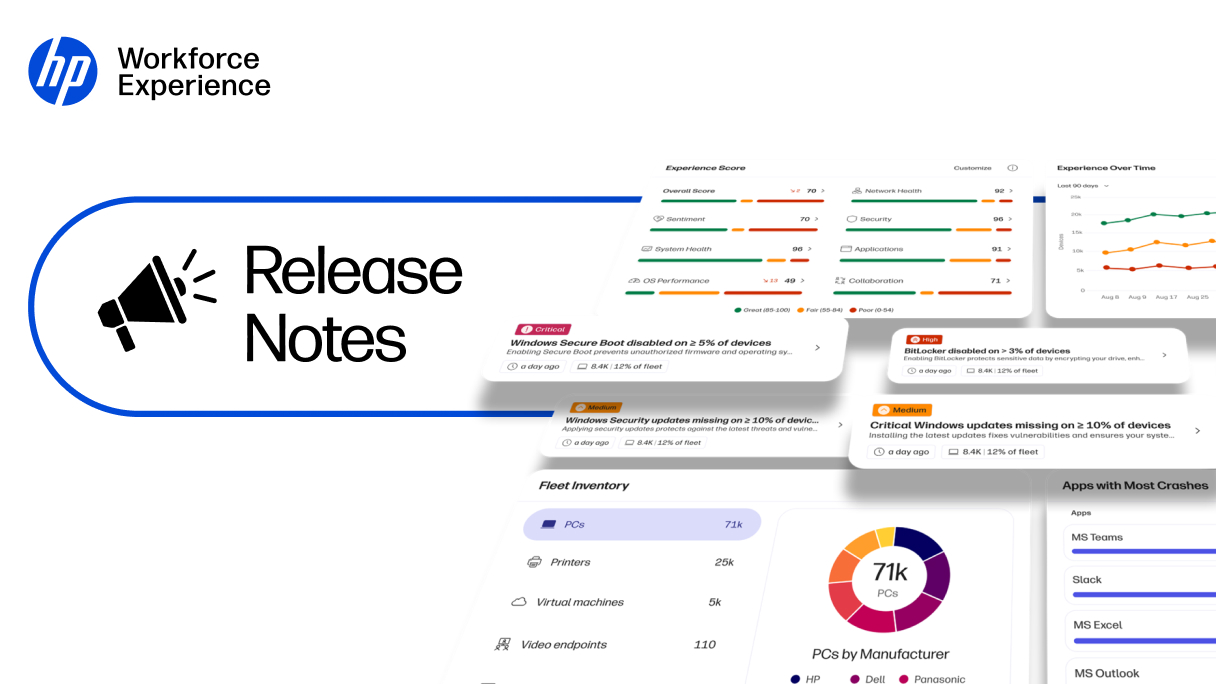
Imagine a workplace where technology doesn’t just support daily tasks but transforms the employee experience for the better. That’s the vision driving the latest updates to the HP Workforce Experience Platform (WXP)1. You’ve asked for tools to dig deeper into employee sentiment, simplify integrations, and take control of your fleet, and we’ve delivered. This summer, we’ve rolled out enhancements like advanced engagement analytics, a refreshed developer portal, and streamlined printer onboarding,2 all designed to help you build a smarter, more connected digital workplace.
These updates empower IT teams with insights, partners with greater flexibility, and employees with a seamless experience. Let’s dive into what’s new and how these features can transform the way you work.
Employee Engagement and Sentiment
Improved Transparency for Sentiment Scores*
Understanding employee sentiment should be straightforward. WXP now provides greater transparency into how Sentiment Scores are calculated in Sentiment Pulse. Sentiment Scores only populate after receiving a statistically significant number of responses. You’ll see exactly how many responses are needed for a score to populate. This threshold is calculated based on the number of devices your organization has enrolled in WXP, and ensures your Sentiment Score reflects meaningful feedback.
Steps to access:
- On the WXP homepage, hover over the Sentiment Score in the Experience Score Widget.
*Note: Only applicable to Workforce Experience Platform Pro and Elite plans.
DEX Sub-score Weight Customization
On-demand webcast: Join WXP product leaders for an in-depth look into key updates.
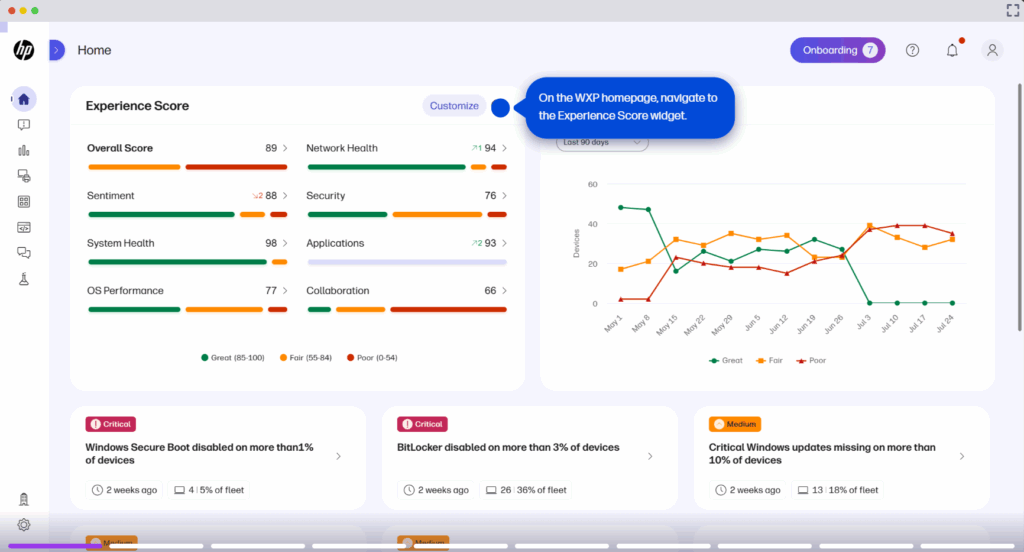
Your digital experience metrics should reflect what matters most. With DEX Sub-score Weight Customization, you can fine-tune how the overall DEX score is calculated—aligning it with your organization’s goals and priorities for more targeted assessments of user satisfaction and device performance.
Steps to access:
- On the WXP homepage, navigate to the Experience Score widget and select Customize.
- Adjust the weights of each category by either:
- Sliding the bar to your desired value, or
- Typing in the percentage directly.
- Ensure the total percentage equals 100%.
- Preview the updated score in the right-side panel.
- Click Save to apply changes.
Collaboration Score in Experience Score Widget
Collaboration insights are now front and center. Collaboration score is now included as a sub-score in the Experience Score widget,* giving you a more complete view of your digital ecosystem.
Steps to access:
- On the WXP Homepage, navigate to the Experience Score widget.
- Collaboration score is displayed as a sub score in the Experience Score widget.
*Note: Active HP Vyopta license required.
Core Platform Experience
RBAC – Custom Roles

Managing access should be simple and secure. Faster, smarter, and simpler Role-Based Access Control (RBAC) is here to simplify role management and empower your team with precise access control, all in a faster and more intuitive interface. The redesigned RBAC experience lets you create Custom Roles in a single step using built-in templates, making it easier to navigate hundreds of permissions across the platform.
Steps to access:
- On the left navigation menu, click on Accounts.
- Select Roles and Permissions.
- Click Add.
RBAC – Test Roles
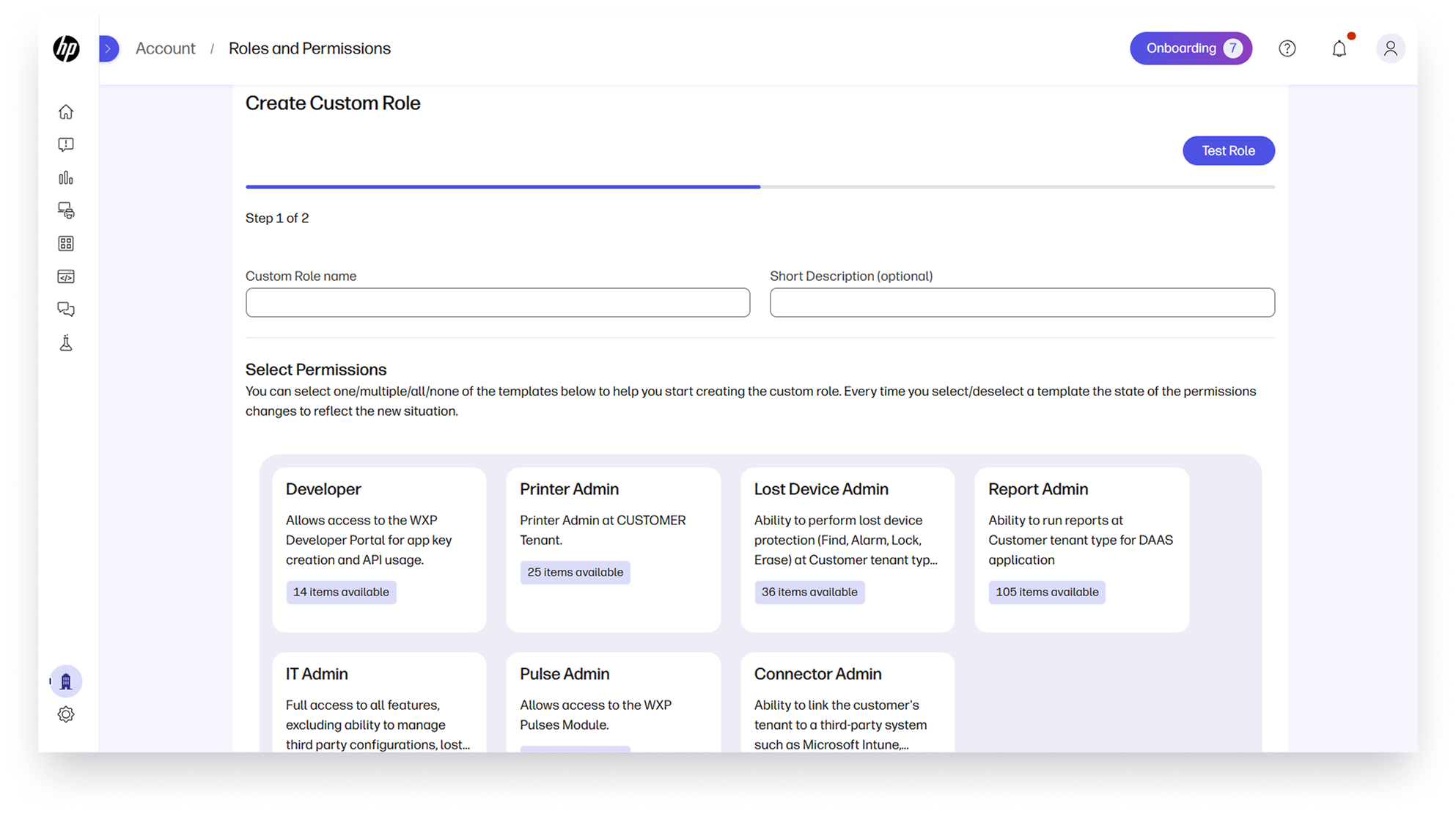
Accelerate role setup, boost access management, and increase security with ease. The new Role Testing Mode allows you to test Custom Roles instantly—either before creation or from the Roles list—without switching accounts.
Steps to access:
- On the left navigation menu, click on Accounts.
- Under Roles and Permissions, choose one of the following:
- Click Add. Create a Custom Role. Before saving the new role, click on Test Role on the top.
- From the roles list, click the three dots and select Test Role.
- When done, click Revert Testing Role at the top.
Internationalization

WXP now supports multiple languages, including Spanish, German, French, Dutch, Italian, Danish, Finnish, Norwegian, Swedish, Portuguese, and Brazilian Portuguese—making it easier for global teams to navigate and engage.2
Steps to access:
- Click on your user profile picture in the top right.
- Select your preferred language from the Preferences section.
Status Page
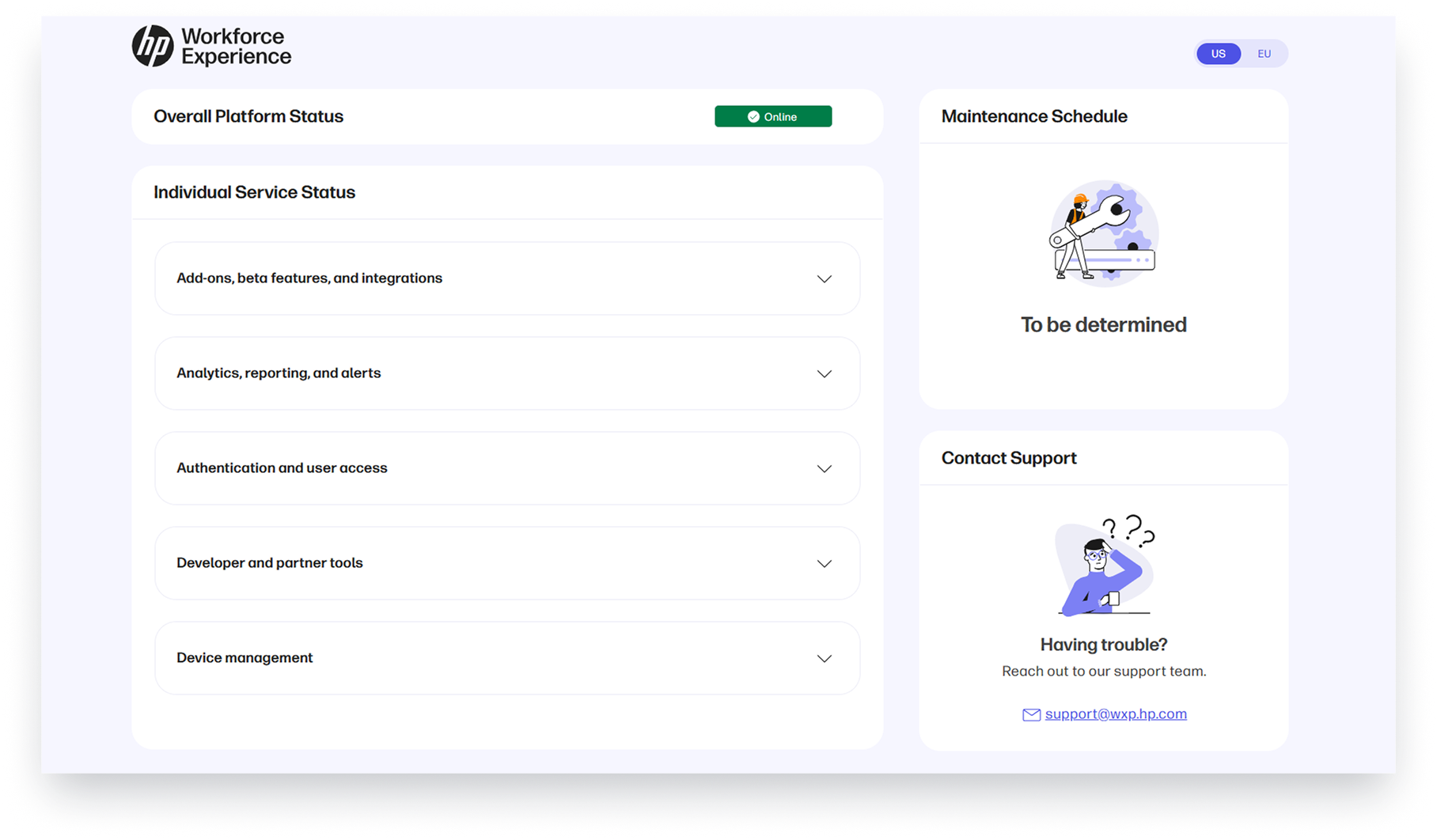
The WXP Status Page is a publicly accessible webpage that keeps you informed about the platform’s health. It provides:
- Real-time visibility into the operational status of WXP components.
- Clear communication of scheduled maintenance and ongoing incidents.
- Customer subscription support for updates.
- High availability and independence from core microservices.
It ensures transparency, builds trust, and keeps users informed—even during service disruptions.
Steps to access:
- Navigate to https://workforceexperience.hp.com/status
Outage Banners
Stay in the loop. Outage banners will appear at the top of the platform to notify you of any service disruptions affecting the platform or any of its services.
Preview and Export logs
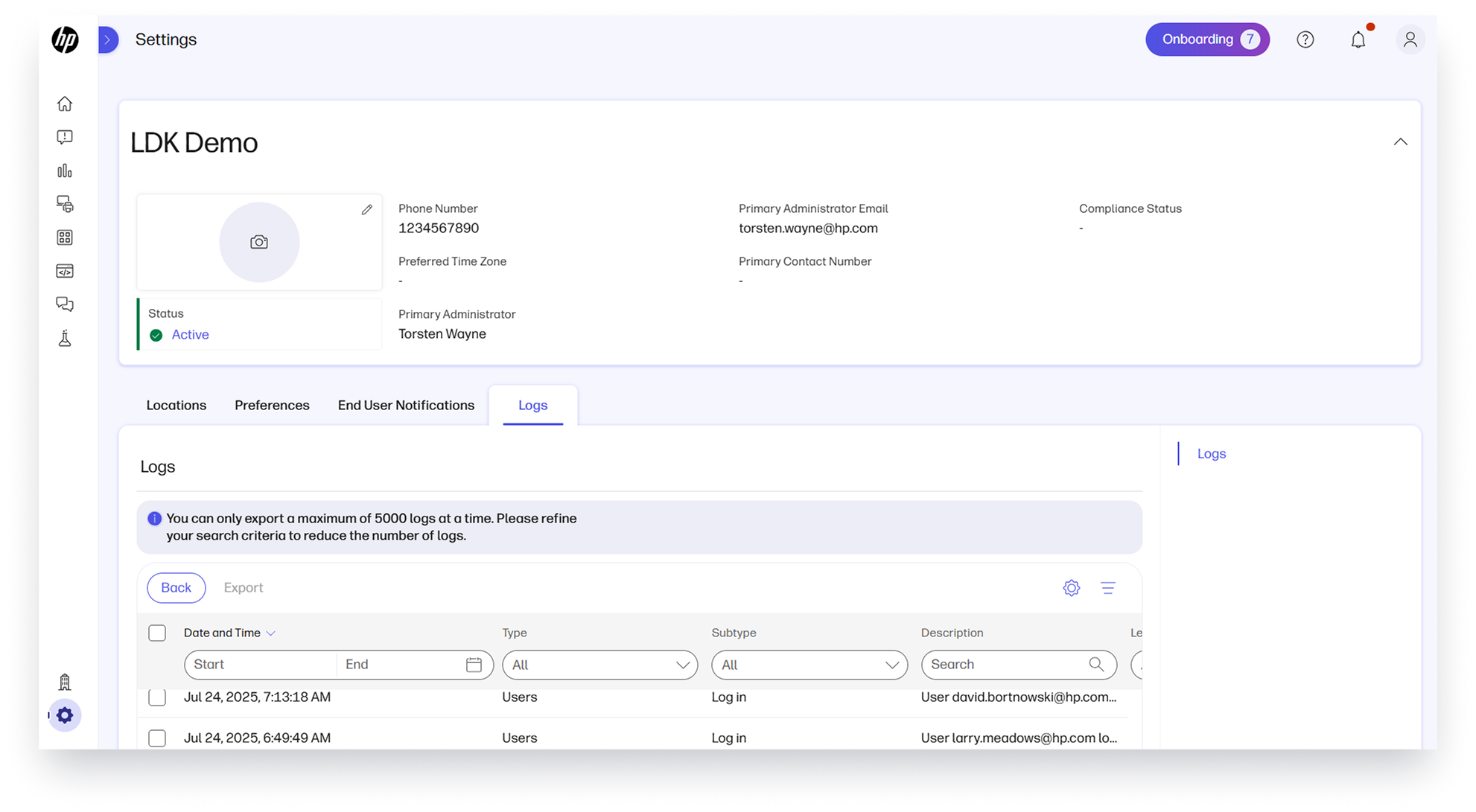
Export with confidence. You can now preview logs before exporting to ensure you’re capturing exactly what you need.
Steps to access:
- On the left navigation menu, select Settings.
- Click on the Logs tab, then select Preview and Export.
Accessibility Fixes
We’re committed to inclusivity. WXP is becoming more accessible for users with disabilities, with ongoing improvements to support screen readers and other assistive tools.
Steps to access:
To enable screen readers and other accessibility tools, go to your device’s Settings, navigate to the Accessibility section, and turn on the features that best support your needs.
Add-ons Discovery Page
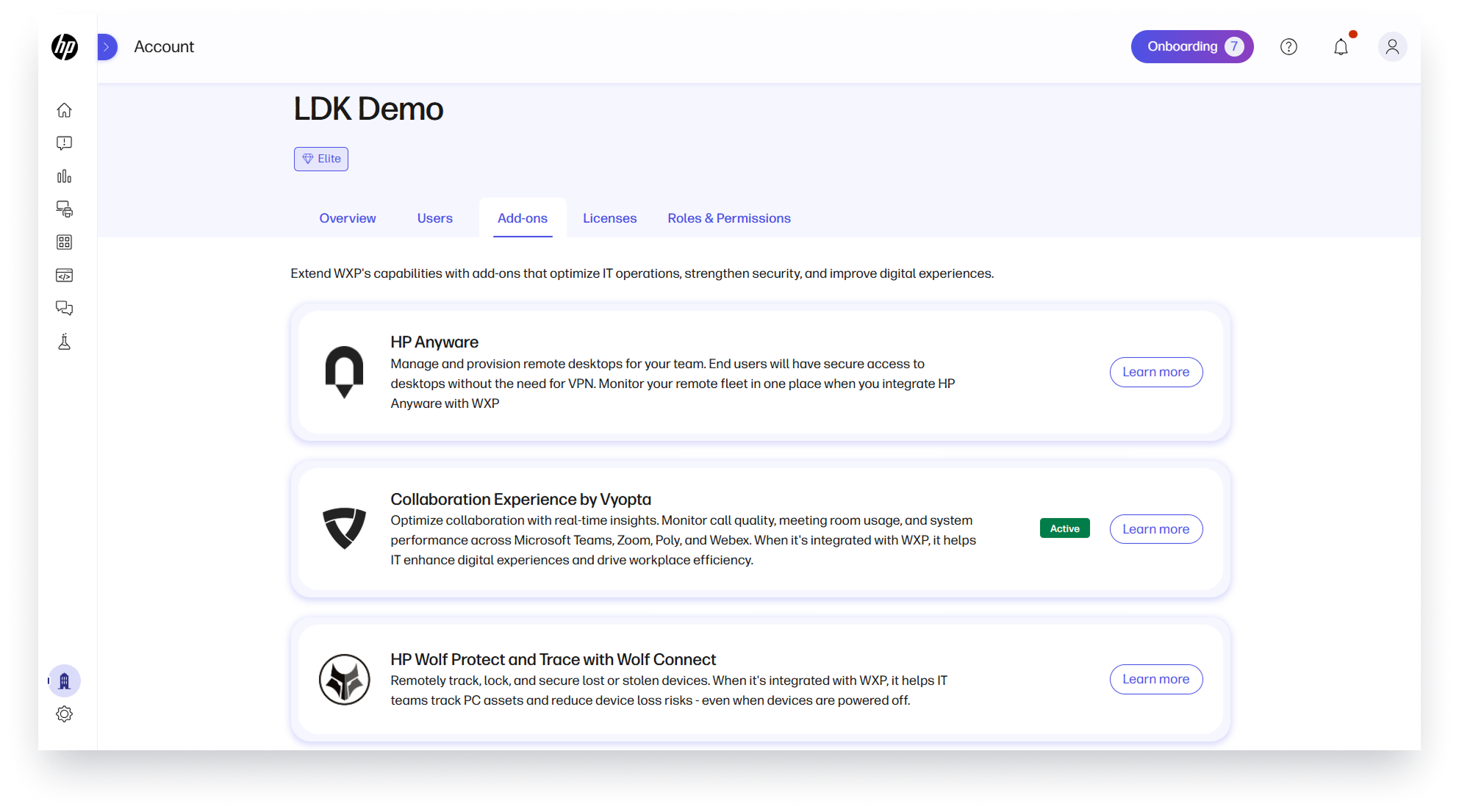
Discover powerful solutions that integrate with WXP—like HP Anyware, Wolf Protect and Trace, and Collaboration Services—all in one place.
Steps to access:
- On the left navigation menu, select Account and click on the Add-ons tab.
Tier-based Home Page
Your homepage widgets are now tailored to your WXP plan—surfacing the most relevant insights and tools based on your subscription level. This ensures a more personalized and focused experience, aligned with the capabilities available to you.
Steps to access:
- Explore WXP home page.
Access Banners
Customers who are using our previous Proactive Insights platform will now see access banners on the top of the platform, providing timely guidance and updates for smoother transition from Proactive Insights to WXP.
Developer Portal
Documentation Updates and Tables Added to HP WXPQL
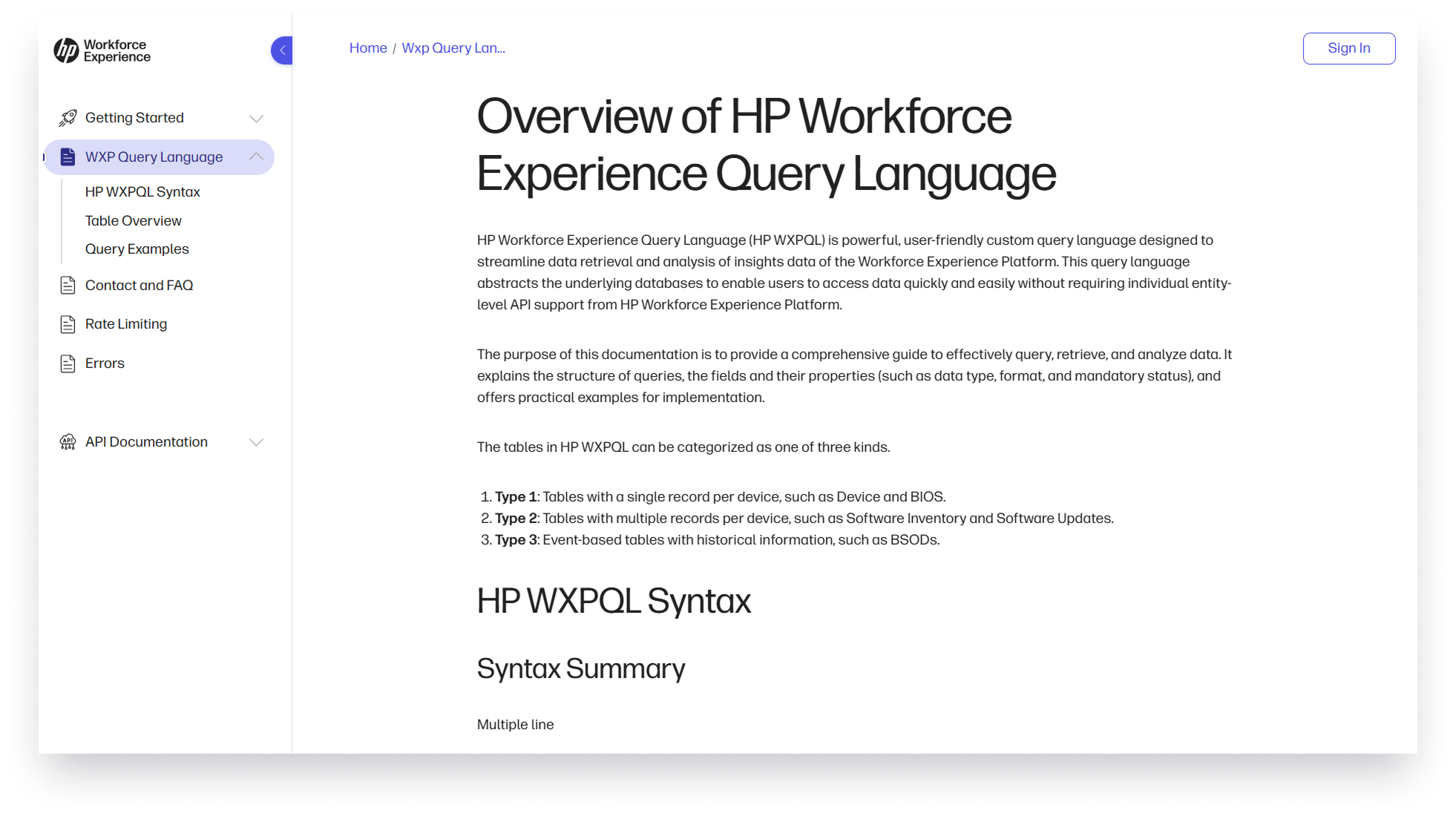
Work smarter with data. The WXP Developer Portal now includes updated documentation and new tables like DeviceDEXScore, BIOSSettings, ChromeAUE, NetworkInventory, SoftwareUtilizationSummary, and Sustainability—making it easier to find the information you need and work more efficiently with WXP data.
Steps to access:
- Visit the HP WXPQL page on the Developer Portal.
Third-Party Integrations
WXP ServiceNow Integrations are Certified for Yokohama Release of ServiceNow
ServiceNow Event and Device integrations have been certified for the Yokohama version of ServiceNow. Customers that are currently using the applications do not need to take any action.
Steps to access:
- Visit the WXP Device Management App or Event Management App in the ServiceNow Store.
- Request Application.
To connect in WXP:
- Log in to WXP.
- From the left navigation menu, select Integrations.
- Select the Service Now card.
- Select Device or Event Management.
- Enter credentials (Instance, Username, Password).
- Click Connect.
Splunk Connector
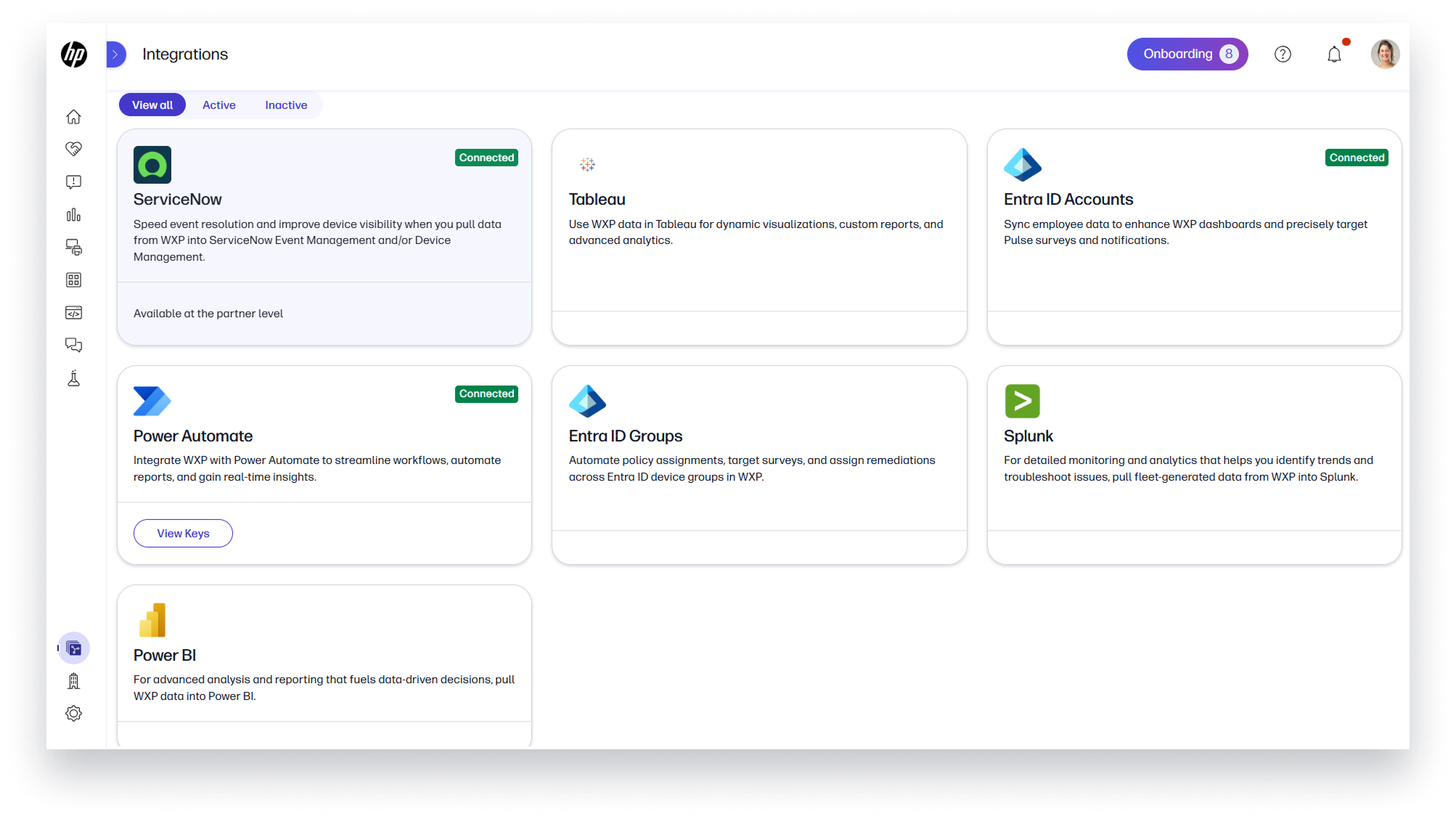
You can now seamlessly bring WXP data into your Splunk environment—enabling unified visibility across enterprise systems, faster root cause analysis, and powerful visualization, analytics, and reporting.
Steps to access:
- On the left navigation menu, click on Integrations.
- Select the Splunk Connector card to activate the connector.
View more details in our knowledge base.
PC Support Services
Premium and Premium+ Care Packs
Customers with eligible devices can now view their Premium and Premium+ Care Packs in the PC Details screen.
Steps to access:
- Log into a tenant with a supported device.
- On the left navigation menu, click on Devices.
- Select PCs.
- Click on the serial number of a PC.
- Scroll to the bottom of the Overview tab.
- If the device has a Premium or Premium+ care pack, then the Warranty and Service Coverage section at the bottom of the page will show the care pack.
Hardware Support Labeling Updates
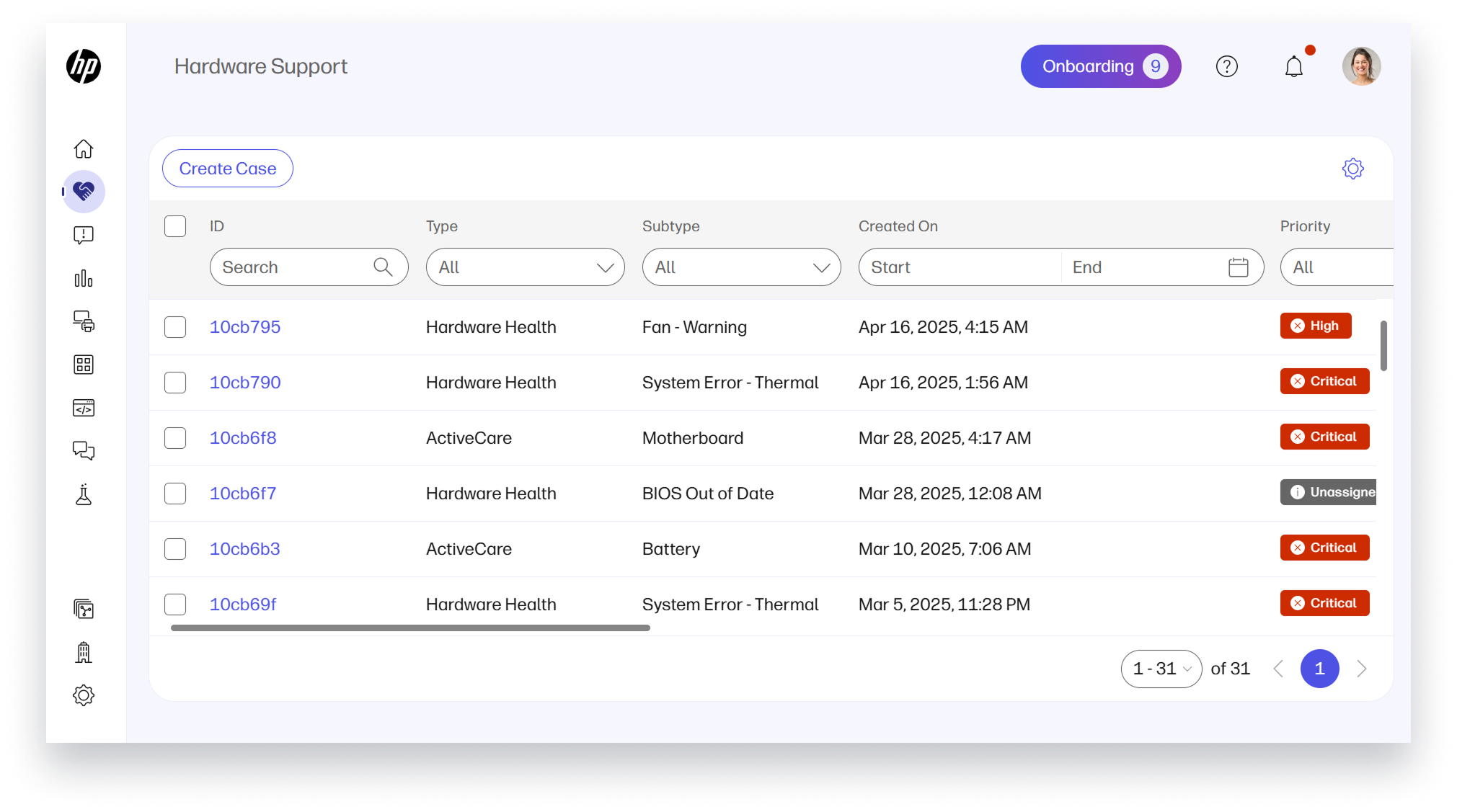
We’ve made various terminology updates across WXP for clarity. Active Care is now labeled as Hardware Support. Additionally, an Active Care type of incident has been renamed to Manually Created. Proactively detected incidents are still labelled with the Hardware Health type.
Steps to access:
- Log into a tenant with a supported device.
- On the left navigation menu, click on Hardware Support.
- Click on the Create Case button to report a hardware issue on a covered device.
- Select the device that is experiencing issues and fill in the required incident information to create a Manually Created incident record.
Company PIN Enrollment for Premium/Premium+/Active Care devices
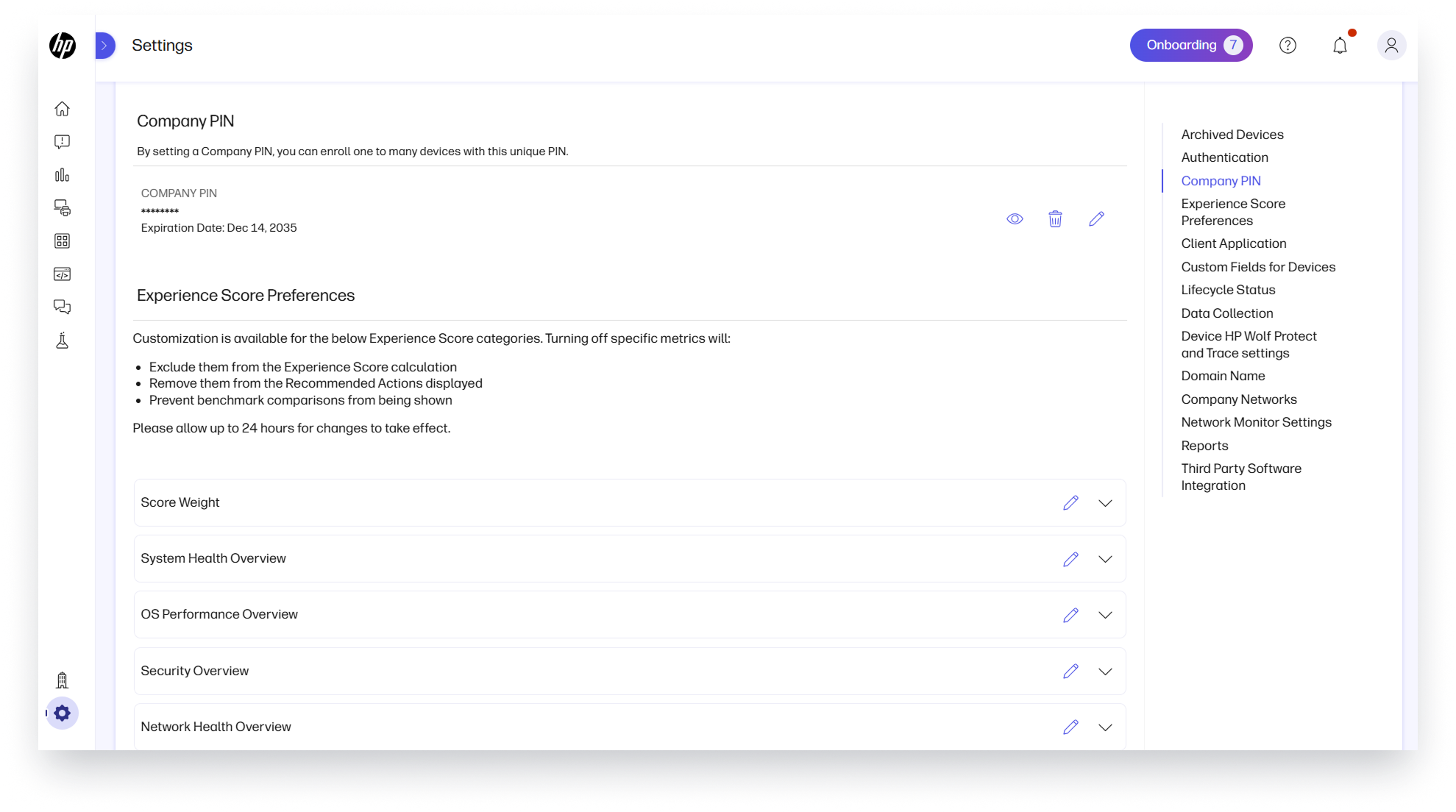
Devices with Premium, Premium+, or Active Care services can now be enrolled directly into the desired tenant using the Company PIN method. Previously, Active Care devices could only be enrolled through an automated process and had to be transferred to the correct tenant by an HP or partner admin.
Steps to access:
To find the Company PIN for the tenant:
- On the left navigation menu, select Settings.
- Click on the Preferences tab.
- Select Company PIN in the right-hand list.
Partner Experience
WXP Plan Custom Upgrade URL
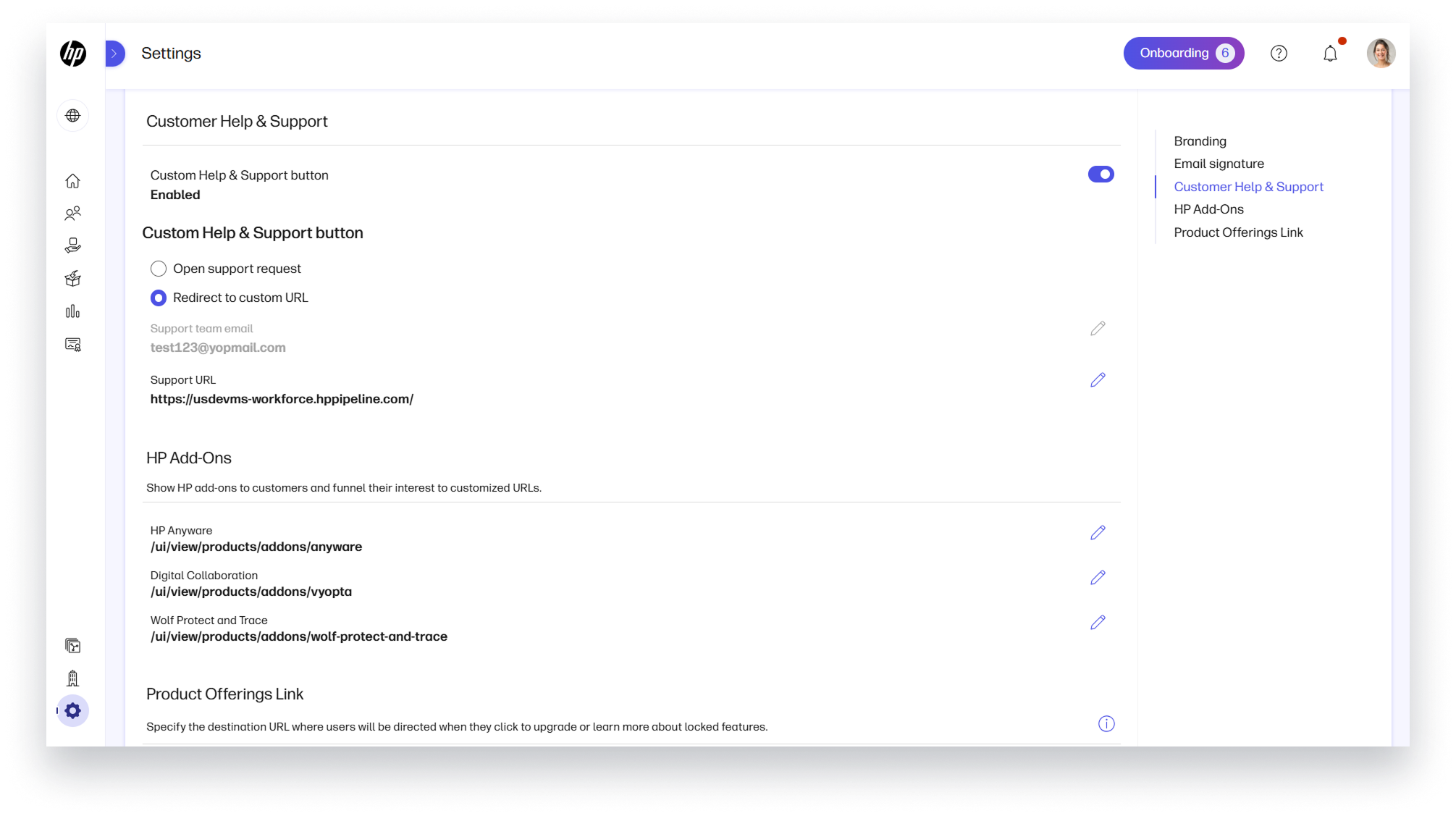
Guide your customers’ upgrade journey with flexibility and control. You can now customize the upgrade URL across the platform to direct customers to your own pages—ensuring a seamless experience that aligns with your brand. This gives you greater control over how customers explore higher-tier WXP plans, while helping maintain consistency and trust throughout their journey.
Steps to access:
- On the left navigation menu, select Settings.
- Click on the Customization tab.
- Edit the URL in the Product Offering field.
- Click Save to apply the change.
Self-Service Proof of Concept Support for WXP Service Partners*
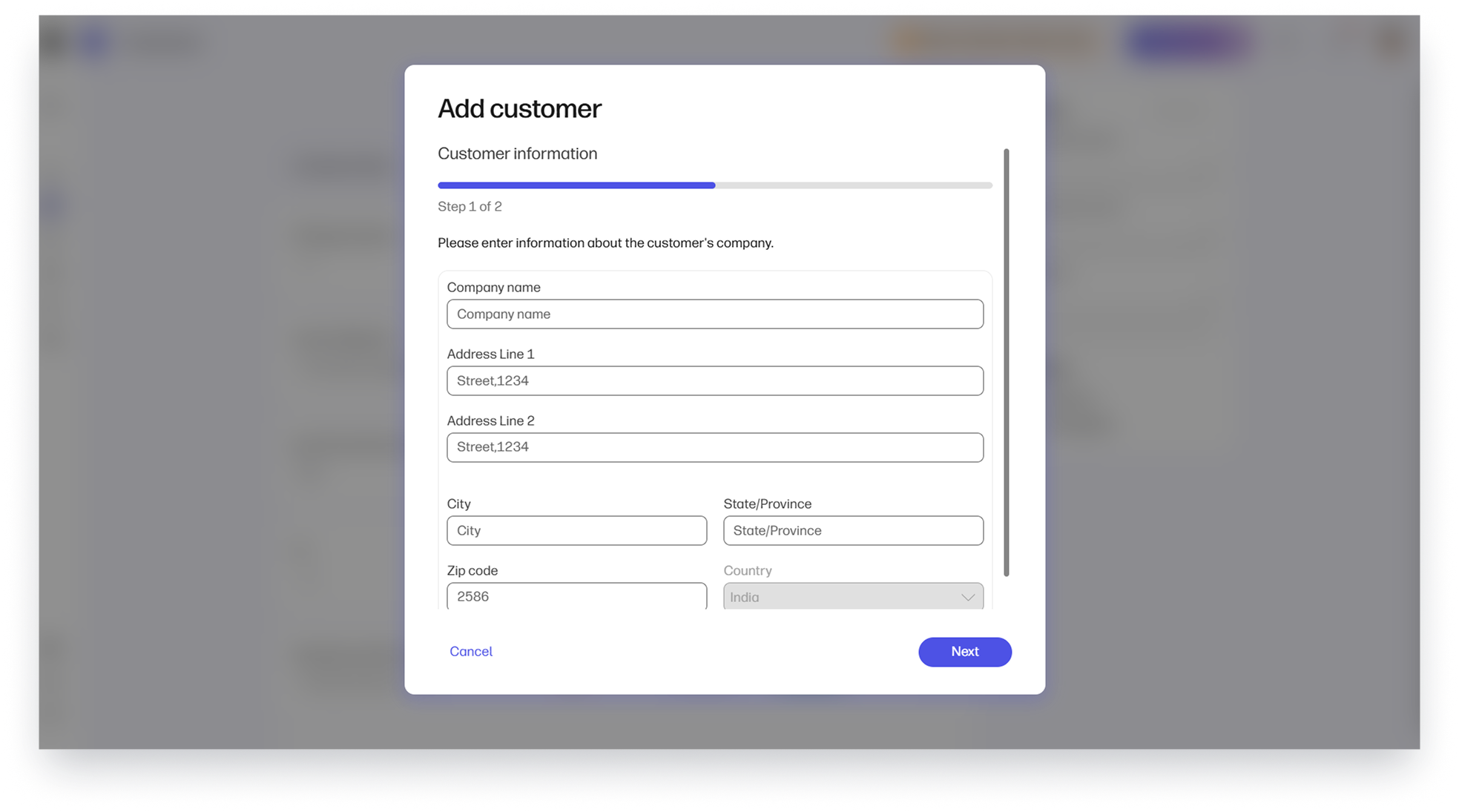
Easily add WXP Pro trial plans for new customer accounts—no approvals required.
This allows you to run proof of concepts (POCs) on your own timeline and streamline onboarding without unnecessary delays. By reducing friction during critical moments, you can deliver a smoother, more responsive experience for your customers.
Steps to access:
- On the left navigation menu, select Customers.
- Click on Add.
- Enter customer details.
- Select WXP Pro Trial from the Plans dropdown.
- Click Submit and start engaging with your customer to finish their onboarding.
*Only applicable to WXP Service Partners
WXP Add-ons Visibility Control
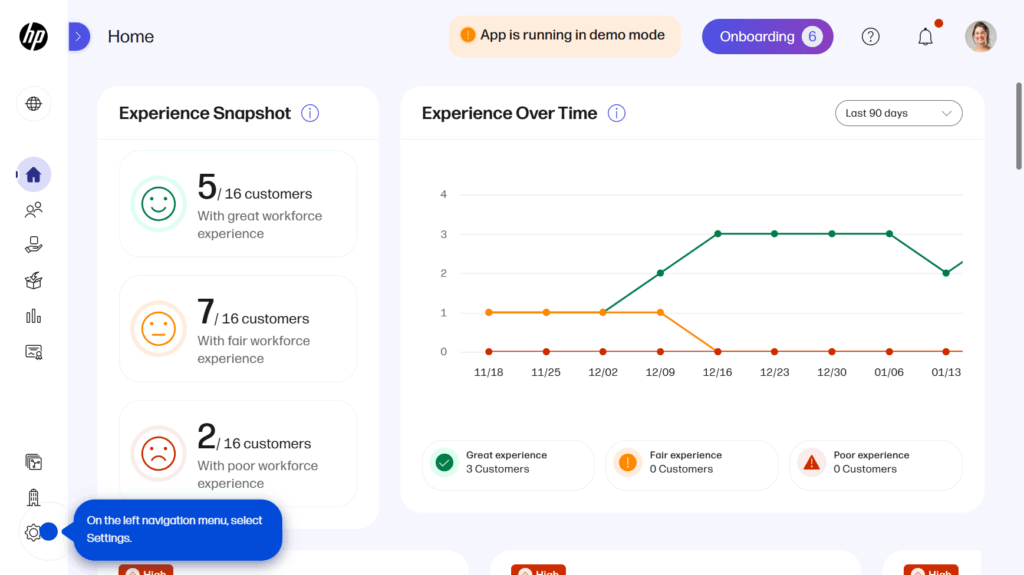
You can now adjust the visibility of add-ons and customize where add-on marketing cards redirect your customers. Choose to hide add-ons entirely or direct customers to your own pages, ensuring consistent branding and capturing all service opportunities. This feature empowers you to manage the customer purchasing journey.
Steps to access:
- On the left navigation menu, select Settings.
- Click on the Customization tab.
- On the Add-ons section, click on Edit.
- Toggle add-ons on and off.
- Specify your desired URL for any add-on that is turned on.
- Save changes.
Multiple WXP Plans for Partners
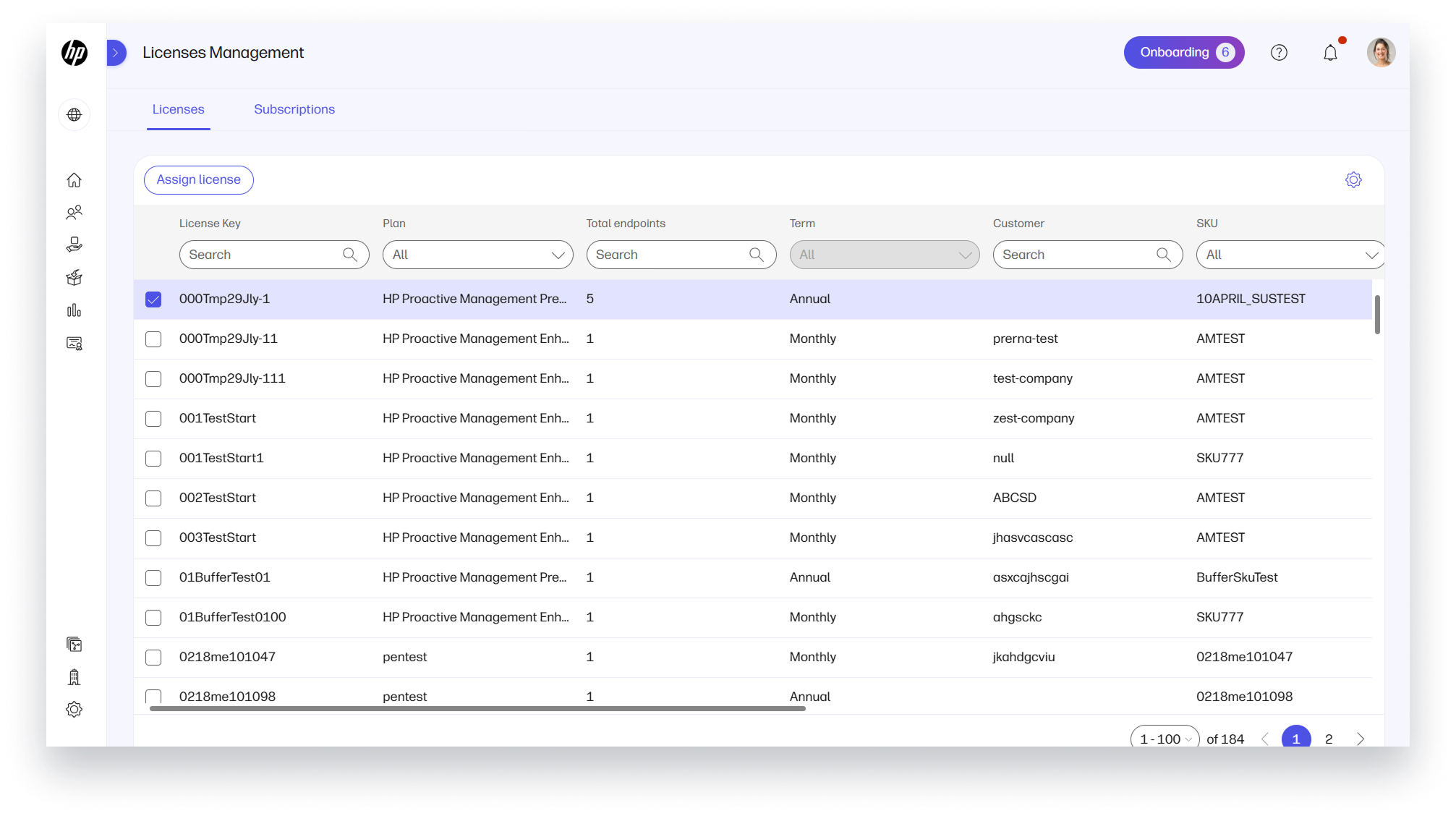
Manage licenses across all three platform tiers directly within the Partner experience.
Assign and revoke licenses with ease, supporting mixed customer environments seamlessly. Each customer’s experience automatically adapts to their specific plan tier, ensuring proper feature access while maintaining a unified view for effortless oversight and administration.
Steps to access:
- On the left navigation menu, select Licenses & Subscriptions.
- On the Licenses tab, select a recently purchased license in New state.
- Click on Assign License.
- From the dropdown, select a customer that does not already have a paid license.
- Click Save.
Printer Fleet Services (Beta)
Cloud Onboarding (Bulk and 1×1)
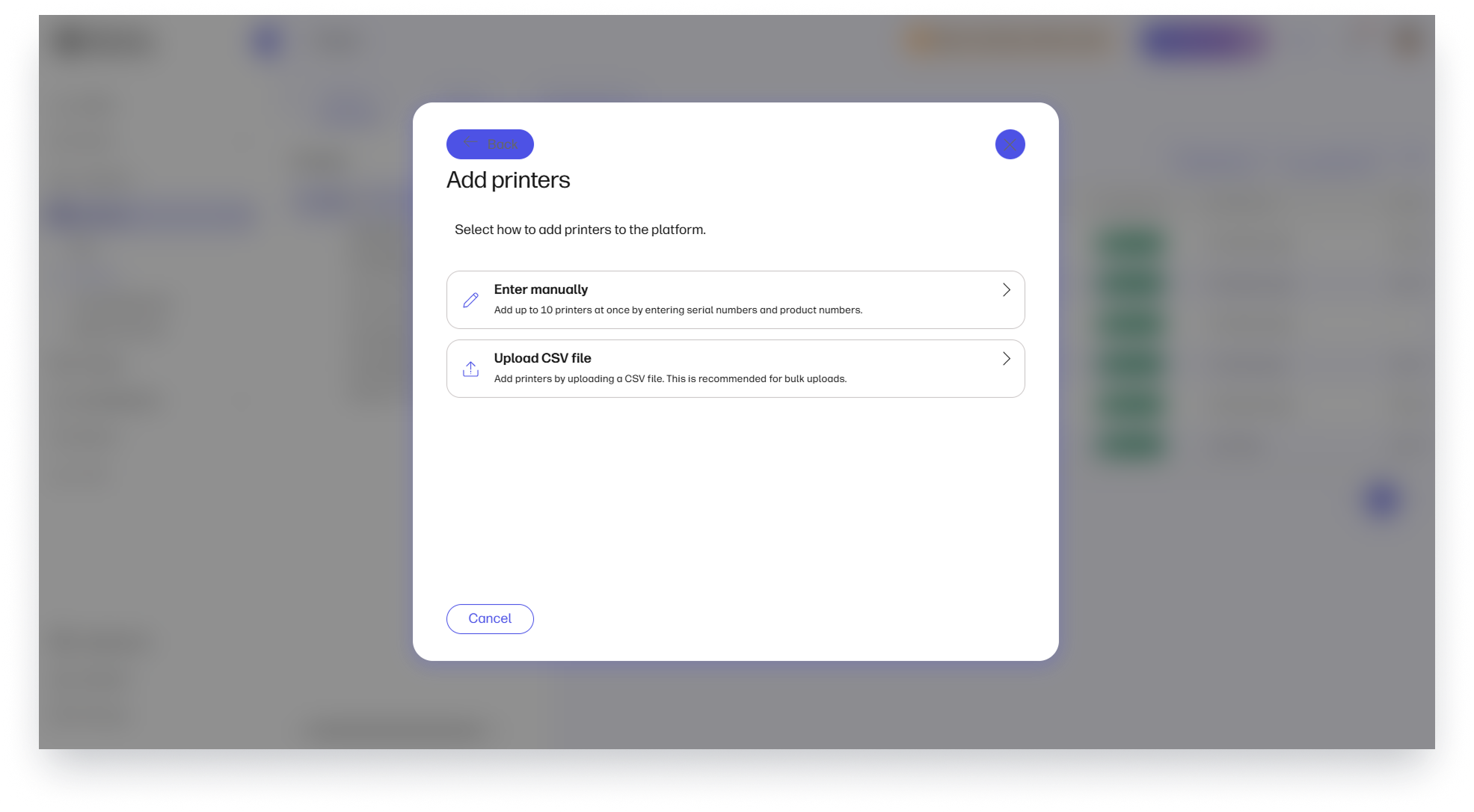
Customers in the Printer Fleet Services beta program can now onboard printers directly to the cloud, eliminating the need for any on-premise services like the WJA Fleet Proxy. This enhancement moves our capabilities closer to Zero Trust principles and simplifies deployment.
You can choose between two onboarding options based on your fleet size:
- 1×1 Onboarding:
Manually enter the product and serial numbers, then enable devices via EWS.
Best for small-scale deployments.
- Bulk Onboarding:
Upload a CSV file with product and serial numbers, then enable devices via Doppler (also known as the MPS Onboarding Tool or MOT).
Ideal for large-scale deployments.
Steps to access:
- On the left navigation menu, select Devices and click on Printers.
- Click on Add Printers.
- Select Connect through the Cloud.
- Select Upload CVS File for bulk uploads.
Printer Admin and Report Admin Roles
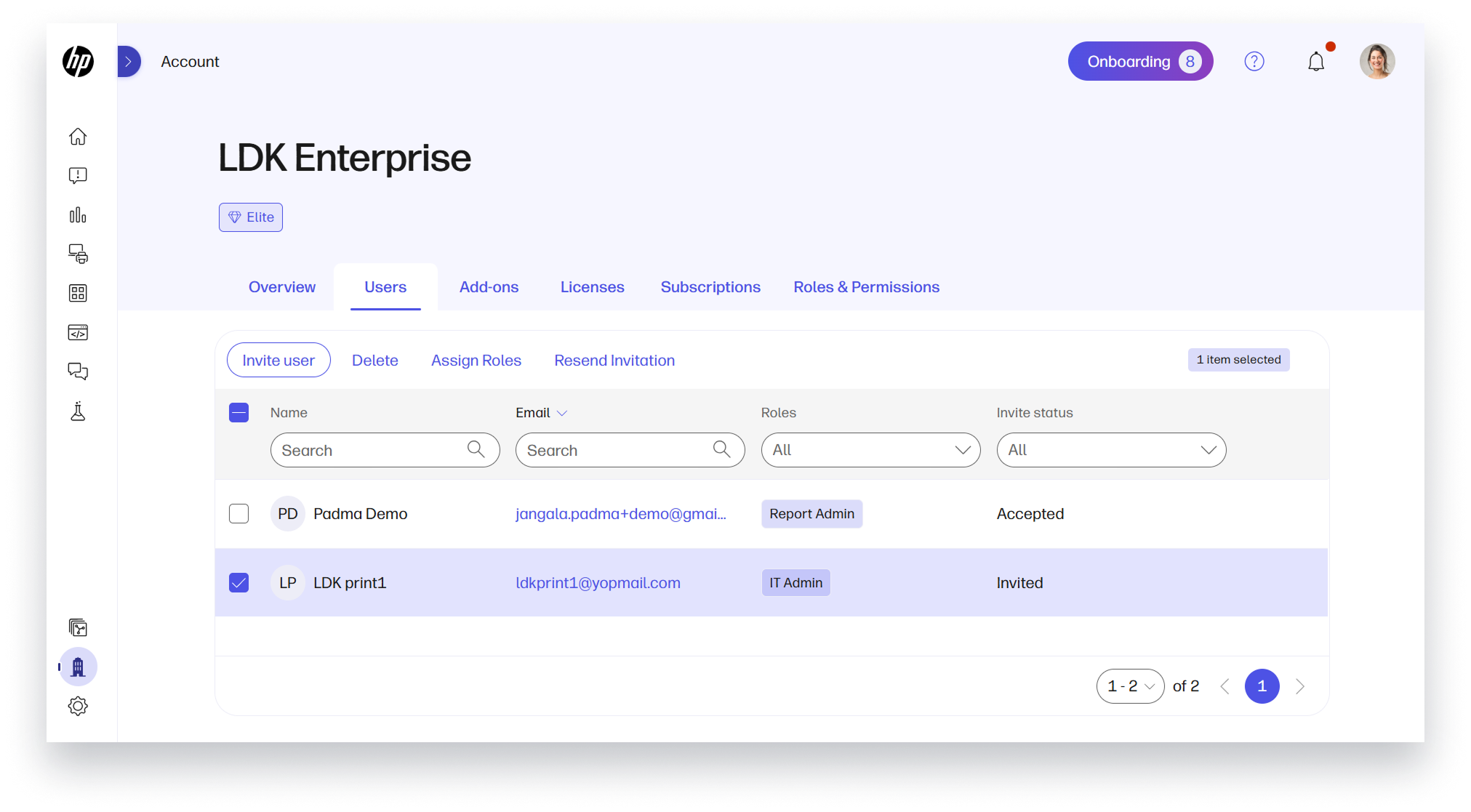
For customers who are participating in the Printer Fleet Services beta program, we have simplified the experience by enabling a “Print Only” and ”Report Only” experiences. The Printer Admin role provides a streamlined interface tailored for managing and securing printers—without unrelated menus or widgets that don’t apply to their job. Report Admin provides read-only access, enabling managers and team members to view reports without increasing risk by granting too many users Printer Admin privileges.
Steps to access:
- On the left navigation menu, select Account.
- Select the Users tab.
- Select a user to Assign Role as Printer Admin or Report Admin.
Essential Security Settings – EWS Password Update
Security just got simpler. Customers who are participating in the Printer Fleet Services beta program can now update the Embedded Web Server (EWS) password directly from the device details page—no extra steps needed.
Steps to access:
- On the left navigation menu, select Devices and click on Printers.
- Select the printer(s) you want to configure.
- At the bottom of the page, open the Select an Action dropdown, choose Configure Device, and click Continue.
- Under Security Options, check the box for Embedded Web Server (EWS) Admin Password and expand the section.
- Choose to either enter your own password or generate one automatically.
- Click Continue to save the new password for the selected printer(s).
Additional HP Models for Firmware Manager
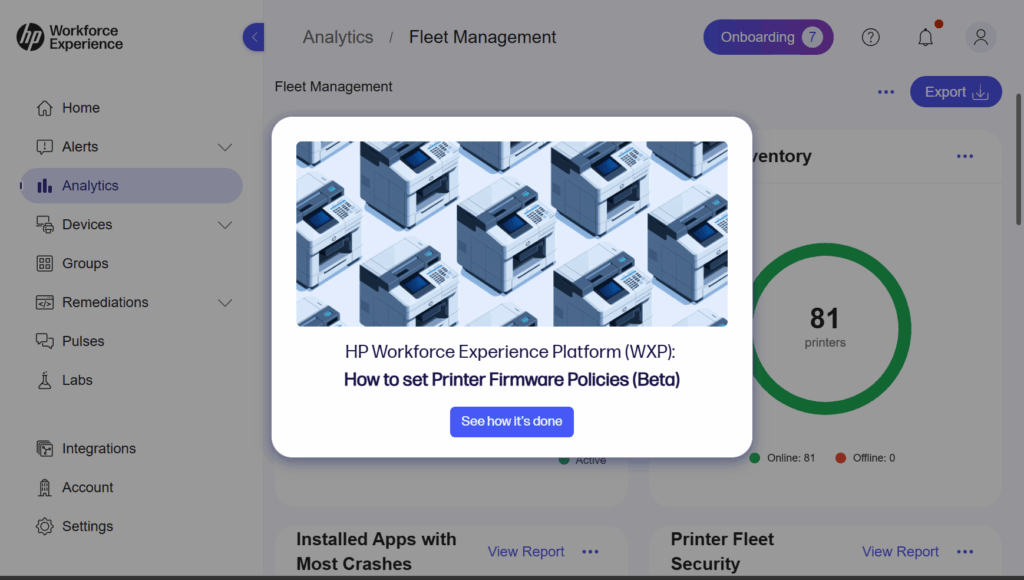
For customers in the Printer Fleet Services beta program, WXP supports firmware updates for select HP printers, with ongoing expansion to include more models over time.
Steps to access:
- On the left navigation menu, select Devices and click on Printers.
- Click on a printer from the device details page.
- Select the Policies tab.
- Click on Create.
- Name your policy. Choose a descriptive name that makes it easy to identify later. Consider including details like the department or printer type.
- Choose the policy settings you wish to apply. Type Firmware in the search bar to view all firmware-related policy options.
- Select whether you want devices to update to the latest version or a specific version.
- Choose when updates should occur: Immediately, or on a schedule.
- Click Done. Your newly created policy will now appear on the Policies page.
Improvements to the Device Details List
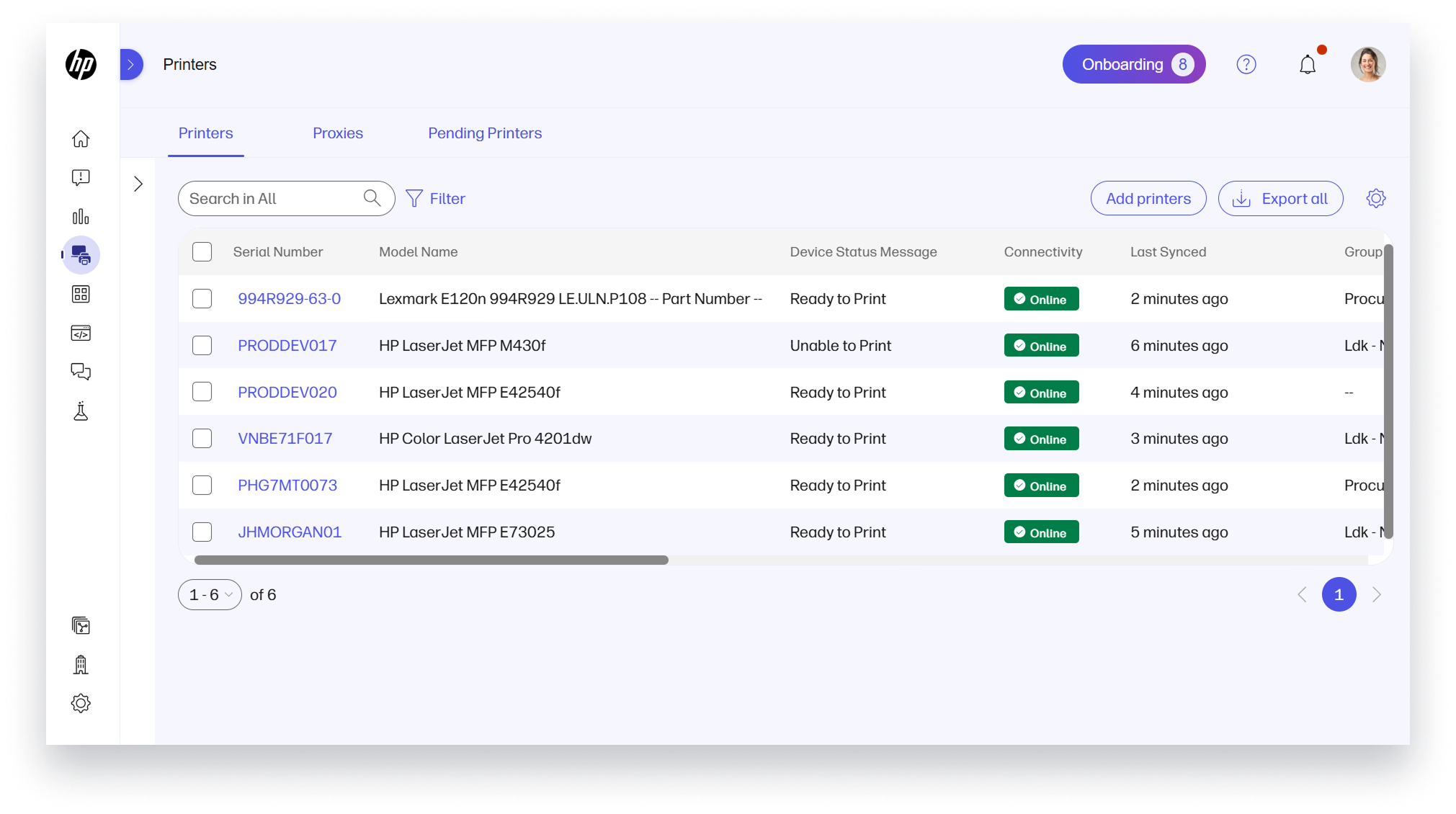
Customers in the Printer Fleet Services beta program can now make inline adjustments directly within the device detail table and customize column widths to better view full printer model names and fit more data on screen. Additionally, connectivity tags are now color-coded, making it easier to distinguish between online and offline printers at a glance.
Steps to access:
- On the left navigation menu, select Devices and click on Printers.
- Explore the device details list.
HP Workforce Experience Platform is a comprehensive and modular digital employee experience solution that enables organizations to optimize IT for every employee’s needs.
Subscribe for future product release updates and the HP Workforce Experience Blog to learn how to optimize your IT capabilities today.
If you want to learn more about the HP Workforce Experience Platform, we would love to speak to you! Simply fill out the form below, and a team member will be in touch.
- The Workforce Experience Platform (WXP) is available in various tiers and for multiple term license durations, and some features require optional add-on solutions. WXP is for commercial customers and some features and capabilities may require additional purchase of HP services and/or commercial hardware capable of supporting the HP Insights agent for Windows, Mac, & Android. WXP is ISO27001, ISO27701, ISO27017 and SOC2 Type2 certified for Information Security. Activation and restrictions may apply. Select HP solutions require an HP Insights agent for Windows, Mac, & Android, available for download at https://workforceexperience.hp.com/software. For full system requirements and services that require the agent, please visit https://workforceexperience.hp.com/requirements. The agent collects telemetry and analytics around devices and applications that integrate into the Workforce Experience Platform. Internet access required. HP Vyopta license required for audio and video collaboration technology monitoring. HP Anyware license or compatible third-party virtual machine license required for virtual machine monitoring. Print capabilities are available to select beta customers in the US only. Print is planned to be available in a future release in various tiers as an add-on solution in various term licenses.
- Language localizations don’t apply to Print capabilities. Print capabilities are available to select beta customers in the US only. Print is planned to be available in a future release in various tiers as an add-on solution in various term licenses.
From the blog
The latest industry news, interviews, technologies, and resources.








Frequently asked questions
Here's everything you need to know about WXP.
- What is the HP Workforce Experience Platform (WXP)?
- How does WXP work?
- Can WXP be customized to fit specific business needs?
- How is WXP modular?
- Is WXP compatible with different vendors and operating systems?
- How does WXP integrate with other IT tools to provide a more comprehensive solution?
- What is a Workforce Experience score?
- How is AI used within WXP?
- How can I buy WXP and find out about new releases?