Most IT teams have a device list. Few have an operating model, and that gap costs more than it seems. A Forrester Consulting study commissioned by HP found that 55% of enterprise IT and security leaders report difficulty maintaining accurate asset databases. This is one of several operational gaps the study ties to the shift toward remote and hybrid work, which 75% of respondents say has magnified their IT operational challenges.
Device inventories go stale the moment they’re exported. Policy exceptions accumulate in spreadsheets. Configuration drift goes unnoticed until a CVE scan, a failed audit, or a security incident surfaces it.
This guide walks through six disciplines that turn a raw device list into a governed control loop, covering logical group topology, baseline enforcement, staged rollouts, drift detection, exception management, and telemetry-driven refresh planning. The guide also includes a fleet-health review checklist, so you can start applying it this week.
Create a fleet management group structure
Device fleet management is the discipline of grouping, configuring, monitoring, and maintaining a population of employee computers as a governed operating model. A device list answers what you have. A fleet topology answers who’s responsible for what and what rules apply, which requires assigning ownership and choosing the right group structure for each device cohort.
Ownership assignment is an important part of fleet management. Every device should belong to a named team (IT, Finance, Engineering), a site (London HQ, remote), and a functional role (developer workstation, frontline kiosk, executive laptop). Without those labels, policy targeting becomes guesswork, and incident response slows down.
Group structure determines how policies reach devices at scale. Three group types cover most real-world scenarios:
-
Dynamic groups automatically update membership as devices meet or stop meeting attribute-based rules. A rule targeting
Model = HP EliteBook 840 G11andOS = Windows 11self-maintains as new hardware enrolls or gets decommissioned, so the group never needs manual upkeep. That makes dynamic groups the backbone for production policy delivery, and it’s how WXP’s Groups module defines rules, against attributes including manufacturer, device model, operating system, and device name. -
Static groups have fixed membership. An administrator selects specific devices at creation time, and that membership doesn’t change until someone updates it manually. Their value is precision, hand-picking exactly which machines are in scope for a pilot cohort, a canary test, or an exception list. A static group of 15 developer workstations lets you validate a firmware change before it reaches 3,000 endpoints.
-
Entra ID groups import and sync existing Microsoft Entra ID (formerly Azure AD) device groups. If your organization already maintains Intune deployment rings aligned to department or role, that sync maps those existing rings directly into your fleet management structure. In WXP, for example, the rings carry over without being rebuilt from scratch.
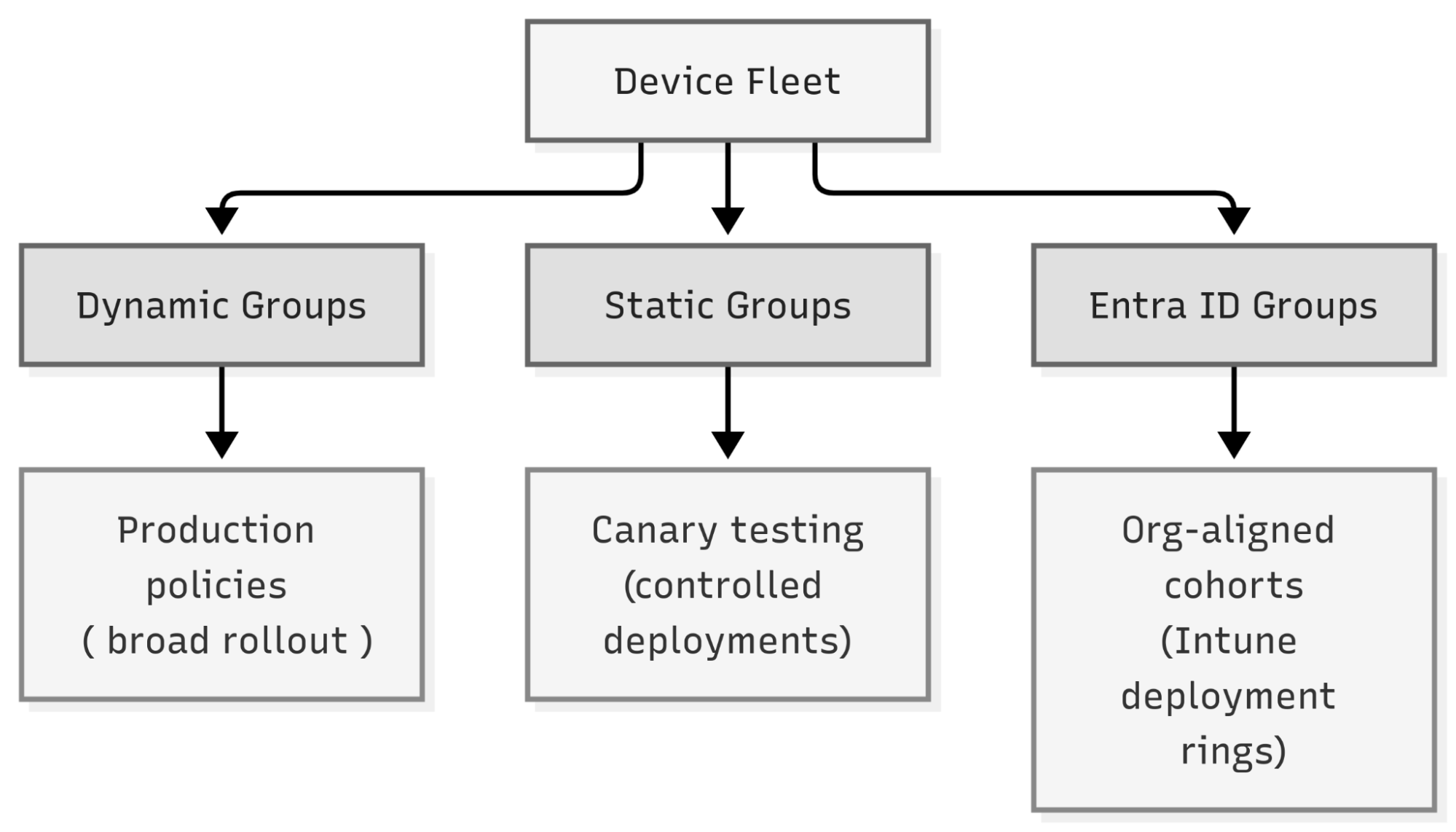
Fleet topology by group type. Dynamic groups use rule-based attributes to auto-update membership for broad policy rollout. Static groups hold fixed membership for pilots and exceptions. Entra ID groups sync from Microsoft Entra ID to mirror existing org-aligned cohorts, such as Intune deployment rings.
For steady-state production policies, dynamic groups are the right default. Static groups work best for pilots and exceptions, and Entra ID groups make sense wherever your existing directory already organizes devices by org structure. Mixing all three across the same fleet is normal and expected.
Define a baseline policy for each group
Enforcement without a declared baseline is noise, and a baseline without enforcement is not useful. You need both, defined per cohort, before you can measure anything meaningful.
Defining a baseline starts with answering three questions for each device group: what configuration state is required, what security state is required, and what compliance posture is required for audit purposes? Those three axes map directly to the three policy categories most fleet platforms expose.
-
Configuration policies govern hardware- and OS-level settings, including BIOS parameters, Secure Boot state, and firewall enablement. These settings drift when a driver update or a user with local admin rights changes them, and they make the biggest difference in a forensic investigation. Scoping a configuration policy to the whole organization or to a specific hardware model family determines how broadly it applies.
-
Security policies enforce the endpoint security baseline, covering BitLocker encryption state, Windows Defender status, and antivirus posture. A security policy targeting BitLocker enforces the desired state and flags non-conforming devices in the compliance view. Pairing such a policy with firmware-level authentication enforcement on the same group helps close the attack surface below the OS.
-
Compliance policies handle continuous audit readiness against governance frameworks. Continuous compliance monitoring surfaces deviations as they occur, so you have a live picture of your posture and can discover issues in real time rather than during an annual review cycle.
Assigning a policy to a group should run through a conflict check before it goes live. If a device belongs to multiple groups with overlapping or contradictory settings, that needs to surface and get resolved before the assignment finalizes, not after. In WXP, for example, the assignment review screen flags that conflict directly, so it gets caught as a pre-flight check rather than showing up later as inconsistent device behavior.
Treat your baseline definitions as versioned artifacts. When a baseline changes, document the previous version and log the change with a justification. Baselines that evolve without records make incident response significantly harder.
Perform rollouts with pilot and production groups
Broad policy changes pushed directly to a production fleet are among the fastest ways to create a surge in support tickets. The standard mitigation is staged deployment: validate on a small, representative cohort before releasing broadly, using the group types described above.
A reliable staging model uses two tiers:
- First, a canary group (10-25 machines representing your hardware diversity and OS mix) receives the change. Monitor that cohort for 48-72 hours, check-in status, policy compliance status, and any help desk tickets from affected users.
- If that group clears cleanly, the second tier is a pilot group (typically 3-5% of the production target population) before the change reaches the group that covers the full fleet.
Walking through that as a concrete sequence: create the policy, assign it to the canary group, validate execution results, assign to the broader pilot group, validate again, then assign to the production group to complete the rollout. In WXP, you can create and assign a policy to each static group, and it shows you execution results and exit codes at each validation step before it reaches the dynamic group covering the full fleet.
Pickup and reporting timing matters for how you plan the monitoring windows above. A newly assigned policy is typically picked up within 15 minutes on an online device, and compliance dashboards reflect the updated state within roughly 15 minutes to 2 hours after restart for changes that need one. For BIOS or firmware deployments specifically, some fleet management platforms like WXP automatically coordinate BitLocker suspension before the reboot. Devices offline at assignment time pick up the policy on next connectivity.
Entra ID group sync is a useful shortcut if your organization already runs deployment rings in Intune (for example, early adopters, broad deployment, late adopters). You can align policy staging to that existing change management process instead of rebuilding it as static groups.
Catch configuration drift detection and automate remediation
Configuration drift is the deviation between a device’s current state and its declared baseline. It accumulates in ways that are individually minor but collectively material: a missing CVE patch here, a disabled BitLocker there, or a BIOS setting altered during a repair. Each one alone might not trigger an alert, but together they create meaningful exposure, typically building through hundreds of small changes across a fleet over weeks and months rather than a single dramatic event.
Catching drift requires continuous re-evaluation against the baseline rather than point-in-time audits. Any deviation should trigger automatic re-application as soon as it’s detected. WXP’s policy engine, for example, re-evaluates conformance roughly every 24 hours and restores a changed BIOS setting to its declared state without manual intervention, with the exit codes and specific settings displayed clearly.
Security posture drift needs the same continuous treatment. A policy compliance view that surfaces non-conforming devices against each policy dimension helps you catch non-compliance early. For example, a BitLocker state that changes because encryption was suspended before a repair and never re-enabled shows up as non-compliant immediately, rather than at the next quarterly audit.
Hardware-level visibility catches what software-only approaches miss. BIOS configuration drift, Secure Boot state changes, and firmware version divergence all need to surface in the compliance view, whether the change happened through the OS or during a bench repair.
For teams integrating fleet data into existing ITSM workflows, an API ecosystem that lets compliance state, drift alerts, and device health data flow into ServiceNow and other platforms closes the loop between detection and ticketing.
Manage exceptions and plan hardware refreshes
Two operational disciplines accumulate as technical debt when handled reactively: exception management and hardware refresh planning. Both reward a more structured approach.
Exceptions are inevitable, such as a device running specialized software that can’t yet support the latest BIOS version, or a lab workstation that needs a non-standard security configuration. The failure mode is creating exceptions without expiration dates or ownership. For example, an exception log with 200 entries and no review dates is a compliance risk that grows with each audit cycle.
Treat overrides as time-bound leases. When you exclude a device from a policy or hold it in an exception group, attach a review date and an owner, and make quarterly exception reviews a standing agenda item in your fleet management process (see the checklist below). Exceptions that can’t be justified at review get remediated or converted into formally approved baseline variants.
Hardware refreshes driven by calendar intervals (“replace everything every four years”) misallocate budget. A four-year-old machine with healthy battery charge, stable thermal behavior, and an active Windows 11 compatibility flag doesn’t need replacement. A two-year-old machine with a battery at 30% design capacity, recurring thermal throttling events, and frequent crash events does.
That means scoring each device across hardware reliability (battery wear, disk health, throttling frequency), productivity impact (crash rates, application latency), and age. You can then triage devices into a small number of priority tiers rather than a single pass/fail flag. WXP’s Smart Refresh does this with three bands: Refresh Now, Refresh Soon, and Healthy. This lets you allocate capital to machines where replacement will actually improve productivity and defer spending on machines still performing well.
The telemetry behind that score needs to distinguish a genuine hardware fault from workload-driven behavior. That involves tracking battery full-charge capacity against design capacity, along with discharge cycle trends. You also need to correlate thermal events with application load, so a failing fan or degraded thermal paste isn’t confused with a CPU that’s legitimately working hard. A machine that throttles every afternoon under normal workload is a refresh candidate, but one that only throttles during peak rendering jobs on a workstation may just need workload optimization.
Fleet management checklist for device health
The practices above require regular review to stay effective. The following checklist gives you a concrete cadence across three timeframes using WXP as an example of a fleet management platform in the “Where to Look” column. Adapt the specifics to your environment.
| Cadence | Check | Where to Look | What a Pass Looks Like |
|---|---|---|---|
| Weekly | Agent check-in rate | WXP console, Devices > PCs | 95%+ of enrolled devices checked in within 48 hours |
| Weekly | Critical policy compliance | WXP Remediations > Policies, compliance view | Zero critical Security policy failures unaddressed |
| Weekly | Active alerts | WXP Alerts & Anomaly Center | All Critical and High alerts reviewed and triaged |
| Weekly | Pilot group status | WXP Groups, Active Static pilot groups | All staged rollouts progressed or paused with documented reason |
| Monthly | Full policy compliance by group | WXP Remediations > Policies, per-group view | All policy categories (Configuration, Security, Compliance) at target conformance rate |
| Monthly | Entra ID sync health | WXP Integrations > Entra ID Groups | Connector status green, with group membership counts matching expected values |
| Monthly | Exception log review | Internal exception tracking, WXP Static exception groups | All exceptions have valid owner and current review date, with expired exceptions remediated |
| Monthly | Drift re-application log | WXP Activity and History tabs in Remediations | Recurring drift on the same devices investigated, not just re-applied |
| Monthly | Refresh urgency distribution | WXP Labs (Smart Refresh) | Refresh Now count tracked and compared to prior month, with trend declining or flat |
| Quarterly | Baseline version review | Internal documentation | All policy baselines reviewed against current CVE guidance and OS support status |
| Quarterly | Group topology audit | WXP Groups module | No orphaned groups, with all groups having a named owner and assigned policy or documented rationale |
| Quarterly | Hardware telemetry trend review | WXP Devices > Health & Protection tab | Battery degradation trends, thermal event frequency, and disk health reviewed fleet-wide |
| Quarterly | Exception remediation cycle | Internal exception log + WXP compliance views | All exceptions re-justified or remediated, with no unreviewed entries older than 90 days |
| Quarterly | Policy conflict audit | WXP Remediations > Policies, conflict detection review | Zero unresolved policy conflicts across active group assignments |
Weekly checks keep you aware of immediate issues, monthly checks confirm your operating model is working as designed, and quarterly checks let you evolve the model by updating baselines, cleaning up topology, and acting on refresh signals before they become incidents.
Frequently asked questions
What is device fleet management?
Device fleet management is the discipline of grouping, configuring, monitoring, and maintaining a population of employee computers as a governed operating model rather than a static asset list. It includes assigning device ownership, defining supported configuration and security baselines, enforcing those baselines through policy, safely staging changes before broad rollout, detecting and correcting configuration drift, managing exceptions as time-bound grants, and making hardware refresh decisions based on telemetry signals rather than calendar schedules.
What is the difference between static and dynamic device groups?
Static groups have fixed membership where an administrator selects specific devices at creation time and the membership doesn’t change unless manually updated. They’re best suited for controlled pilots and exception management where you need precise control over exactly which machines are in scope. Dynamic groups update membership automatically as devices meet or stop meeting attribute-based rules, such as a specific device model or operating system version. Dynamic groups are the right choice for production policy delivery because they self-maintain as devices enroll and decommission without requiring ongoing manual upkeep.
How do I detect configuration drift across a PC fleet?
Configuration drift is deviation from a declared baseline state. Examples include a missing CVE patch, BitLocker disabled after a repair, a BIOS setting changed to a non-compliant value, or an unauthorized local administrator account added to a device. Detecting drift requires continuous policy compliance evaluation rather than point-in-time audits. A policy compliance view surfaces non-conforming devices against each policy dimension, including Configuration, Security, and Compliance categories. For example, in the HP Workforce Experience™ Platform (WXP), the policy engine re-evaluates conformance every 24 hours and automatically reapplies policies when it detects deviation.
When should you refresh hardware in a device fleet?
Telemetry-grounded hardware refresh decisions are more accurate than calendar-based schedules. The signals that indicate a machine is approaching the end of its productive life include battery capacity degraded well below design capacity, recurring thermal throttling events under normal workload (rather than peak rendering or compilation), high crash frequency, application response latency above baseline, and OS hardware compatibility flags indicating the device can’t support the next major OS release.
A machine flagging on multiple dimensions simultaneously is a clear refresh candidate. A machine flagging on one dimension under unusual workload conditions may need workload optimization rather than replacement. Telemetry-based fleet management platforms that track battery wear curves, CPU thermal event counters, and crash frequency over time give IT teams the evidence they need to confidently make that distinction. Then they can prioritize refresh spend toward devices where replacement will genuinely improve employee productivity.
Move from device inventory to fleet management
A device inventory tells you what exists. A fleet management operating model tells you what state everything should be in, who is responsible for it, how changes are validated before they reach production, and how quickly you detect and correct deviation. Together, the best practices in this guide close the gap between those two things.
You can start with the weekly checklist right away, before any tooling changes, by working through your existing console reports. The value of the practice comes from consistency, not from having perfect tooling on day one.
To explore how HP Workforce Experience™ Platform (WXP) supports fleet management at scale, from group management and policy enforcement to telemetry-driven refresh planning, visit workforceexperience.hp.com. For API integrations and developer resources, visit the WXP Developer Portal.