Self-checkout looks simple from the shopper’s side. From the IT side, it’s a multi-vendor hardware assembly, a multi-layer software stack, and an endpoint management problem running simultaneously in a high-traffic environment, where a paper jam at lane 6 during a Saturday rush is a genuine incident.
A traditional attended lane is essentially a POS terminal plus a receipt printer. A self-checkout lane multiplies that component count, adding a compute head unit, barcode scanner, receipt printer, payment terminal on a dedicated arm, and software stack binding it all together. Each additional component is another integration point, another failure mode, and another line item in your maintenance plan.
In this article, we walk through the full self-checkout lifecycle: what a self-checkout system is made of at the hardware and software level, the technical trade-offs against traditional attended checkout, the configuration decisions you must lock down before hardware ships, how POS integration works in an open ecosystem, and how to run the fleet once it’s live. We use the HP Engage Express as the concrete hardware reference throughout.
Self-checkout system architecture
A self-checkout station is a stack of discrete layers, and getting those layers right before you write a purchase order matters because several configurations are factory-only, and retrofitting them after delivery is either expensive or impossible.
Understanding how these components connect is essential when evaluating system architecture. The diagram below illustrates the end-to-end operational flow from peripheral input to back-end enterprise systems and fleet management telemetry.
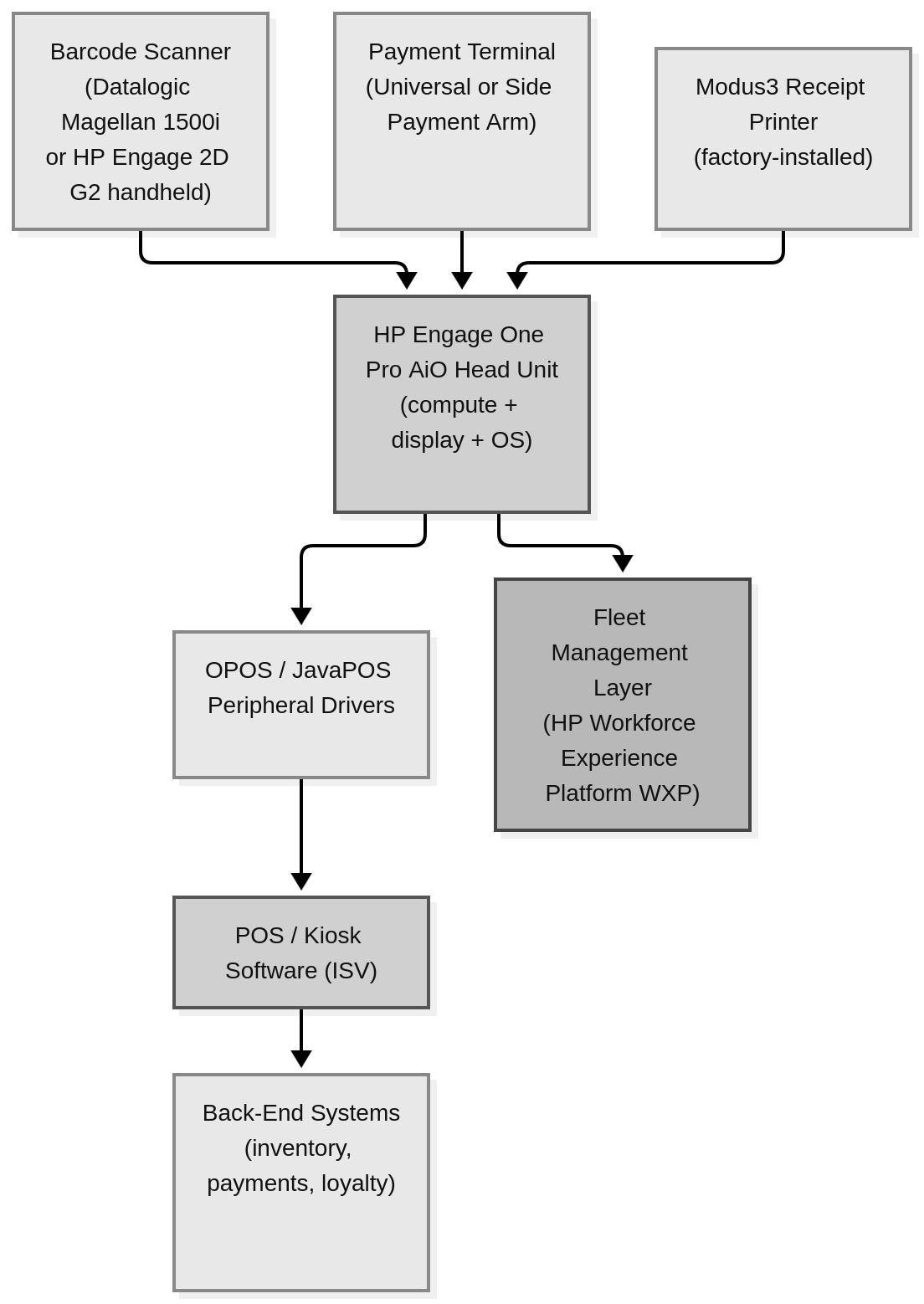
A typical self-checkout stack
Each layer in this flow represents a distinct hardware or software responsibility within the system. Below is a detailed breakdown of these core components and their technical requirements.
The head unit is the compute core. On the HP Engage Express, the HP Engage One Pro All-in-One (AiO) provides this layer, in 15.6″, 19.5″, or 23.8″ FHD touchscreens, with processors scaling up to Core i9 with optional vPro, and configurable NVMe storage.
The scanning subsystem comes in two forms: the hand-held HP Engage 2D G2 scanner, which reads 1D/2D omnidirectional barcodes and mobile-device screens from a countertop or pedestal cradle, and the external, cradle-mounted Datalogic Magellan 1500i presentation scanner for higher-throughput checkout.
The printing subsystem uses a Custom Modus3 thermal receipt printer. It’s factory-installed only, prints on roll stock up to 80mm wide, and its drawer slides out the front for in-lane servicing.
The payment terminal mounts to a Universal or Side Payment Arm on a 75mm VESA bracket that tilts 0 to 65 degrees and takes a payment bracket for a third-party EFTPOS terminal. HP also offers a 6.6″ secondary touch display built for the Ingenico Moby 5500M (US only) for dual-screen PIN entry. Front versus side placement is a pre-order decision tied to lane layout and cable routing.
The OS and software layer sits on top of the head unit. The Engage Express supports Windows 10/11 IoT Enterprise (LTSC), Android, and ChromeOS Flex, jointly certified by HP and Google on Engage platforms. Peripherals communicate through OPOS/JavaPOS on Windows, and an HP-provided Android JPOS layer so ISVs don’t need to rewrite drivers.
The connectivity hub routes power and data between the head unit and supported peripherals. The HP Engage Mini Hub and HP Engage One Pro VESA Hub route power and data to every peripheral, with Powered USB 12V/24V ports for higher-draw devices.
Pre-rollout planning for self-checkout
Several decisions about the Engage Express must be finalized before the purchase order goes out, because getting these wrong means field modifications or full unit replacements.
Stand type. The pedestal stand is a floor-standing kiosk built from 14-gauge galvanized steel, bolted directly to the floor through a pre-drilled base plate (bolts and anchors aren’t included). The countertop stand mounts to the counter instead. Select the stand type based on floor space, accessibility, anchoring requirements, customer flow, basket size, peripheral placement, and the approved accessory set. The countertop option may suit locations with limited floor space, while the pedestal option provides a freestanding installation where the required anchoring and clearances are available.
Factory-configured peripherals. The Custom Modus3 printer is factory-installed only, as is the Datalogic Magellan 1500i if you want it integrated into the stand rather than relying on the hand-held HP Engage 2D G2. Both must be specified at purchase.
Payment arm placement. Front placement (Universal Payment Arm) works in most standard layouts. Side placement suits tighter installations where the front approach would interfere with the unscanned-item shelf, and it affects cable routing, so it has to be specified before the unit ships.
OS selection. Windows IoT Enterprise (LTSC) gives the broadest ISV compatibility, since most retail POS engines have Windows builds. Android suits web-based or mobile-first kiosk apps. ChromeOS Flex is newer to the lineup, so validate it against your ISV’s support matrix before committing. Your ISV support contract typically drives this more than anything on the hardware side.
The practical checklist before hardware ships:
- Confirm stand type (pedestal floor-bolted vs. countertop) and floor layout measurements.
- Confirm the supported scanner model, mounting method, interface, driver version, regional availability, and compatibility with the selected head unit and POS application. Validate scanning performance using representative barcodes and mobile-device screens.
- Confirm printer inclusion, supported paper specification, driver version, regional availability, consumables sourcing, and service procedure.
- Confirm payment arm placement (front vs. side) and which payment terminal attaches.
- Confirm OS selection and validate with your ISV that they have a tested build on that OS.
- Confirm the complete network design, including segmentation, firewall rules, DNS, NTP, certificates, proxy requirements, monitoring, and failover.
- Confirm payment-provider ownership for authorization, offline behavior, reconciliation, duplicate prevention, terminal updates, and incident response.
- Record the approved configuration in a signed baseline covering hardware, OS, application, drivers, firmware, payment integration, security controls, and support ownership.
Deployment and POS integration
HP’s open-ecosystem approach means the Engage Express doesn’t come with a locked POS application. Your ISV, whether a retail POS engine vendor, a SaaS commerce platform, or an in-house kiosk application, runs on top of the OS and talks to peripherals through standard OPOS/JPOS service objects on Windows or the Android JPOS adaptation layer on Android.
Network prerequisites. The Engage Express connects over Gigabit Ethernet through the integrated hub. Plan a dedicated network segment for self-checkout lanes with VLAN isolation from the broader store network, and configure a static IP or DHCP reservation per unit, since floating IPs complicate fleet management.
ISV compatibility validation. Before rollout, get a tested combination of OS version, ISV application version, and peripheral firmware. Where supported by the selected operating system, peripherals, and POS application, configure the applicable OPOS or JavaPOS service objects and map the application’s logical device names to the physical peripherals.
Test the full checkout flow end-to-end, including payment terminal initialization and receipt output, and don’t skip the failure modes: simulate loss of store and payment connectivity at controlled points in the transaction, then verify timeout behavior, customer messaging, transaction state, recovery, reconciliation, and duplicate-prevention controls.
Offline transaction handling. Because the platform is open, offline resilience is implemented at the ISV and payment processor level. When connectivity drops, the payment terminal’s EMV kernel switches to offline mode with pre-configured floor limits, the maximum value it will approve without live authorization. Once connectivity restores, the ISV application batches those transactions to the payment gateway. Configure and test floor limits before go-live, because the defaults are rarely right for your transaction mix.
Kiosk OS hardening. On Windows, use Assigned Access (single-app kiosk mode) to lock the device to the ISV application. On Android, use Lock Task mode. Both keep the customer-facing display from escaping the intended application flow.
For deeper API and developer-facing integration documentation, HP’s developer resources are at developers.workforceexperience.hp.com.
Fleet management after launch
Post-launch, the fleet management challenge is the same as any unattended endpoint estate: you need telemetry, update control, and a defined process for physical servicing.
Fleet telemetry with WXP. HP Workforce Experience™ Platform (WXP) provides the telemetry and fleet management layer for the Engage Express fleet. The WXP Insights agent runs on each device and reports device health, peripheral status, and application telemetry to the WXP console, surfacing issues like printer paper-low states or scanner disconnects before they become customer-facing outages.
Agent deployment. For a handful of devices, download the Single Installer (WXPInsights.exe, or WXPInsights-arm.exe on Arm64 hardware) and install it manually. At fleet scale, use the MSI package instead, pushed via Microsoft Endpoint Configuration Manager (SCCM), Group Policy, or another enterprise tool. Devices enroll with a Company PIN, retrievable from the WXP console under Settings > Preferences.
Update and lifecycle management. Keep agent deployment and removal on the same policy tooling as the rest of your endpoint estate, so the self-checkout fleet doesn’t become a one-off exception to your normal patch cadence.
Physical maintenance. The receipt printer is likely to be a frequent store-level servicing touch point because it requires consumable replacement and may require jam clearing. Validate the exact service procedure for the ordered configuration, maintain an approved local supply of consumables, and define when store personnel should escalate an issue to field service.
Paper roll replacement and jam clearing happen without opening the rear electronics enclosure or removing the unit from the lane, a real operational advantage at scale. Plan a store-level consumables stock and include printer servicing in your standard store operations runbook.
Deploy the WXP Insights agent to your full self-checkout fleet and confirm your update and enrollment policy before the lanes go live. Starting with telemetry already running means you have a baseline to compare against when something goes wrong in week two.
Frequently asked questions
What hardware components make up a self-checkout system?
A self-checkout station has six core hardware layers: the head unit (compute core and customer-facing display), a barcode scanner (a supported handheld or presentation scanner selected for the ordered configuration), a receipt printer (on the Engage Express, the factory-installed Custom Modus3 thermal printer), a payment terminal on a dedicated arm, a stand (pedestal or countertop), and a connectivity hub that provides power and I/O to peripherals. The software stack, including the OS, OPOS/JPOS drivers, and the ISV POS or kiosk application, runs on top of the head unit and ties those hardware layers together.
How does self-checkout integrate with an existing POS system?
HP Engage Express provides the hardware platform, while the retailer and ISV select and validate the POS or kiosk application. Depending on the operating system, application architecture, peripheral, and supported driver model, the application may use OPOS, JavaPOS, vendor-provided service objects, or another supported integration method.
The ISV application handles data flows between the kiosk, your payment gateway, and back-end inventory systems. Before rollout, validate the ISV application against your specific OS version and peripheral firmware, map logical device names in the OPOS/JPOS service configuration utility, and confirm the payment provider’s approved authorization, offline, recovery, reconciliation, and duplicate-prevention behavior through documented end-to-end testing.
What operating systems does self-checkout hardware support?
The HP Engage Express supports Windows 10/11 IoT Enterprise (LTSC), Android, and ChromeOS Flex, which HP and Google have jointly certified on Engage platforms. Windows IoT LTSC gives the widest ISV compatibility and supports both OPOS and JPOS service objects natively. Android works well for web-based or mobile-first kiosk applications, with an HP-provided Android JPOS layer so peripheral drivers function without rewriting. Your ISV’s support contract typically determines the right choice, so align on a tested OS version before finalizing the order.
How do IT teams manage software updates across a self-checkout fleet?
The WXP Insights agent on each device provides the telemetry layer that gives you fleet-wide visibility, including agent version and health status, across your self-checkout estate. Deployment and update management run through the same enterprise tooling you already use for other managed endpoints, whether that’s the MSI package pushed via SCCM or Group Policy, or a comparable policy-driven lifecycle process. Keeping the self-checkout fleet inside your normal patch and update cadence, rather than treating it as a one-off exception, is what keeps update management manageable at scale.
What is the difference between a pedestal and countertop self-checkout setup?
The pedestal stand is a full floor-standing unit built from 14-gauge galvanized steel that must be bolted to the floor through a pre-drilled base plate, making it stable under heavy customer use and compatible with the full accessory set, including shelves and a bag holder. The countertop stand mounts to the counter surface and suits tighter footprints where a full floor-standing kiosk won’t fit, such as specialty retail or service desk environments. Compatible head units, peripherals, payment arms, accessories, anchoring requirements, and regional availability may vary by configuration. Confirm the complete supported bill of materials for the selected form factor before ordering.
Final thoughts on self-checkout rollouts
A self-checkout rollout breaks into three phases. The first covers architecture decisions: head unit, peripherals, OS, and stand type, all specified before the order ships. The second covers deployment and POS integration: ISV compatibility validation, network prerequisites, offline transaction configuration, and kiosk OS hardening. The third covers ongoing fleet management: WXP telemetry, update policy, and physical servicing procedures.
Each phase has decisions that can’t be revisited cheaply once hardware is in-store. The factory-configuration dependencies on the Modus3 printer and the Datalogic Magellan 1500i scanner are the most common surprises for teams encountering Engage Express for the first time.
Retailers considering future computer-vision integrations should account for network capacity, camera placement, privacy requirements, data retention, security, accessibility, and integration ownership during infrastructure planning. Evaluate any proposed capability separately against approved product documentation and applicable regional requirements.
If you’re ready to evaluate the hardware layer, explore the HP Engage Express and full self-service solutions portfolio at hp.com/us-en/solutions/pos-systems-products.html.