
Product Release Notes, Spring ’26 Roundup
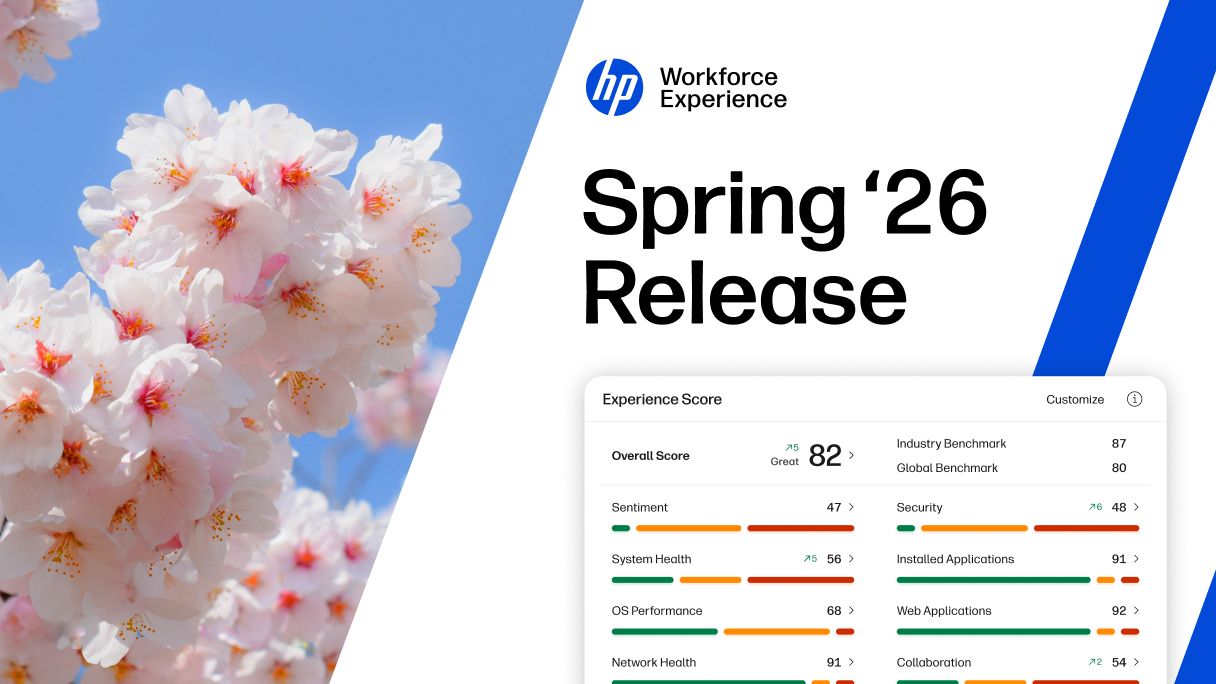
With the spring breeze comes the Spring ’26 release of HP Workforce Experience Platform, delivering a fresh set of capabilities designed to help IT teams move faster, see more clearly, and simplify everyday operations.
Shaped directly by customer feedback, this release introduces custom alerts that reduce noise and surface the right issues at the right time, along with a custom data collector that puts near real-time, flexible reporting in your control. We’re expanding how teams support hybrid work with broader access to Remote Connect, enabling both OS-level troubleshooting and BIOS-level recovery from anywhere. To further accelerate resolution, Remediation with AI helps teams identify the best next action faster, while still preserving control and transparency.
This release also strengthens extensibility and ecosystems with new Developer Portal APIs, deeper security alignment through Wolf Security Controller integration, and streamlined collaboration device and space management via Poly Lens integration—helping teams start the season with smarter tools and renewed momentum.
Alerts
Custom Alerts
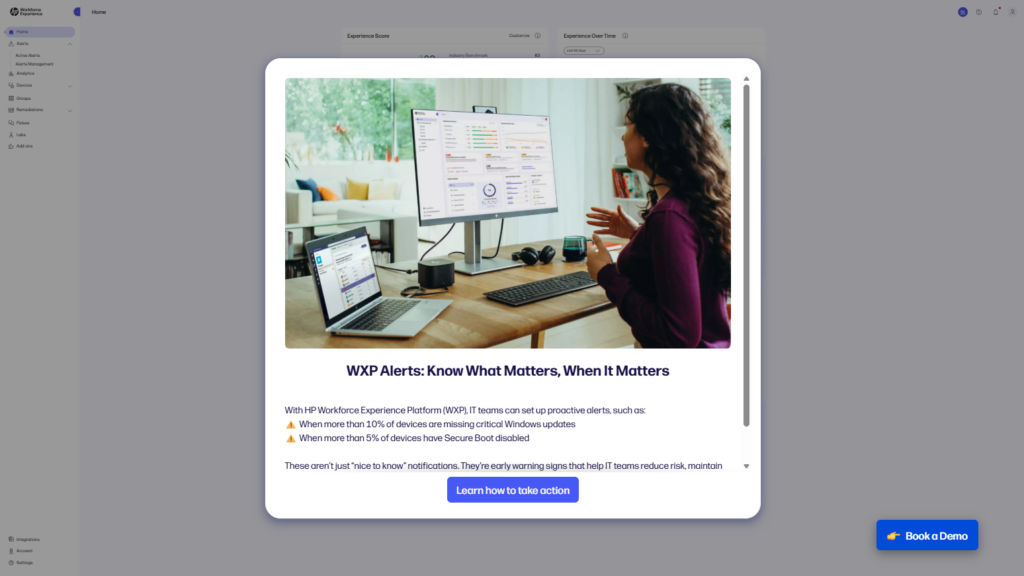
Create customized alert rules at both the device and fleet level to better match your operational needs. Define specific thresholds, time windows, and monitoring scopes across individual devices or groups to surface the right alerts at the right time. With more precise notifications, teams can respond proactively, reduce noise, and minimize support impact.
Steps to access:
- From the left navigation menu, click Alerts, then select Alerts Management
- Click on Create to start configuring a new alert rule.
*Note: Only applicable to Workforce Experience Platform Pro and Elite plans.
Analytics
Custom Data Collector
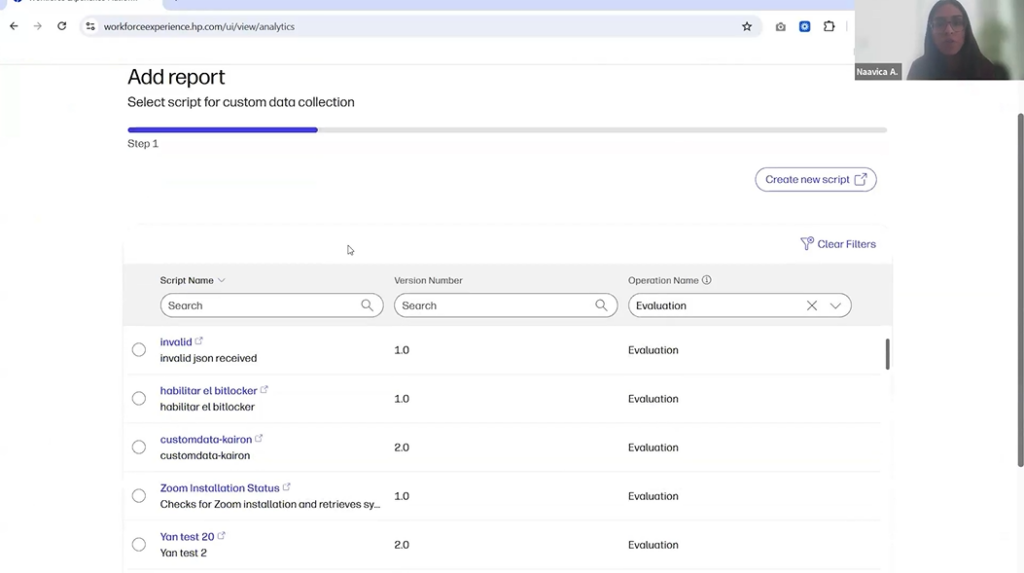
Collect and report on the data that matters most with customizable, near real-time reporting across your device fleet. Use flexible queries powered by the WXP agent to generate tailored reports and gain deeper endpoint visibility. These insights help IT teams reduce mean time to resolution, eliminate unnecessary tools, and shift toward more proactive device management. For broader automation and integration, this capability is also exposed via API in the Developer Portal.
Steps to access:
- From the left navigation menu, click on Analytics.
- Select the Custom Data Reports tab.
*Note: Only applicable to Workforce Experience Platform Pro and Elite plans.
Device Timeline and Details Enhancements
Pinpoint performance issues faster by correlating CPU, disk, and memory utilization with process-level metrics. Enhanced device timelines now highlight exact moments of resource spikes and correlate them with the processes driving high consumption—both within the timeline view and through detailed charts in the Software tab.
Steps to access:
- From the left navigation menu, click on Devices and select PCs.
- Select a device and visit the Timeline tab.
Remediation
Remediation with AI
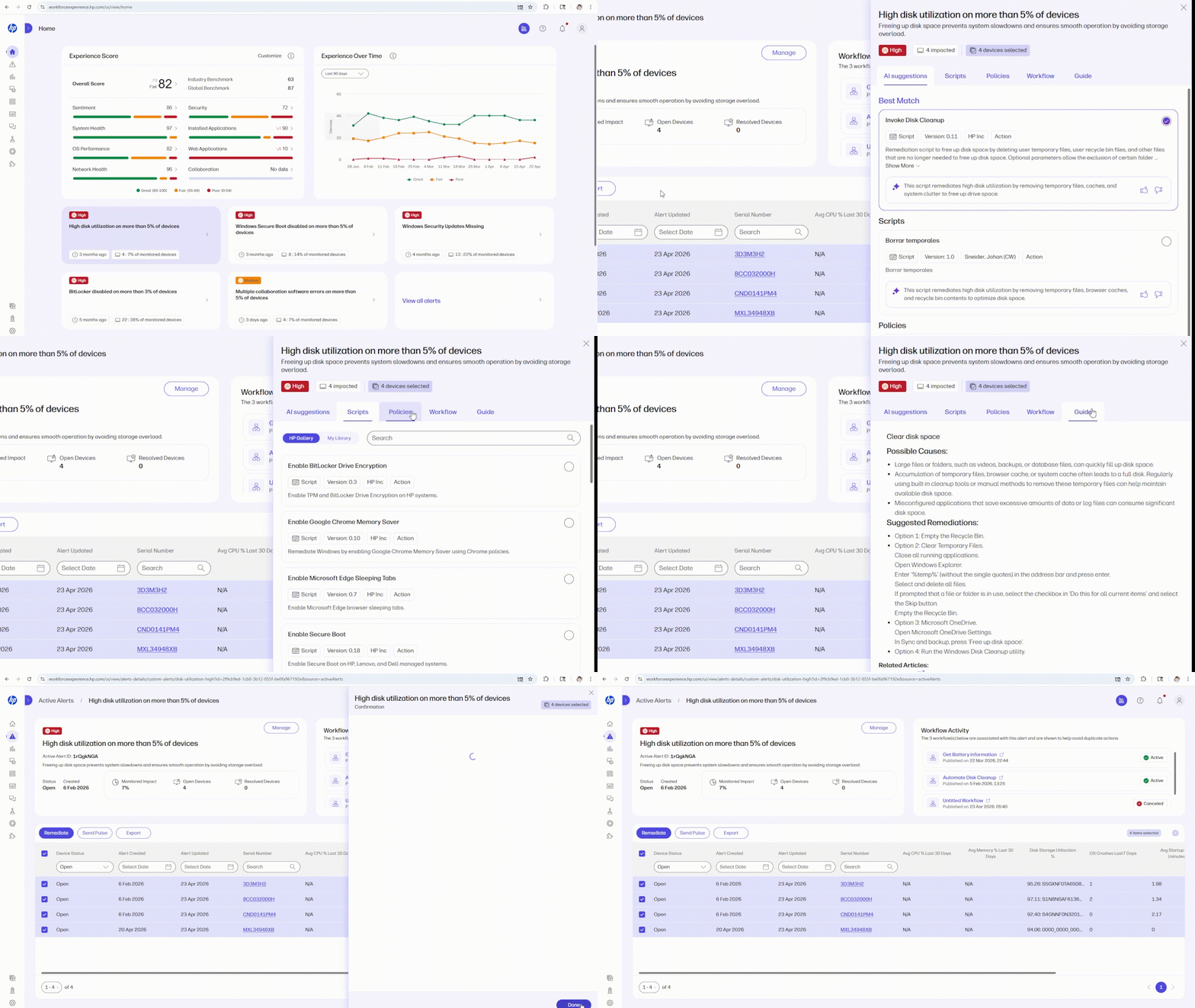
Accelerate issue resolution with AI-powered remediation prioritization. Our Best Match capability analyzes alert context alongside available scripts and policies to surface the most relevant remediation option first— while still providing alternative recommendations and feedback controls. This capability enables faster, more confident decisions while maintaining transparency and control.
Steps to access:
- From the left navigation menu, select Labs.
- Select Enable Remediation with AI.
- From Home or the Alerts page, click on an Alert to navigate to the Alert details page.
- Click the Remediate button to launch the Remediation panel.
- Find Best Match in the AI Suggestions tab.
*Note: Only applicable to Workforce Experience Platform Pro and Elite plans.
Authenticated Proxy Support for BIOS Policies
Enable reliable BIOS policy deployment for devices operating behind authenticated corporate proxies such as NTLM and Kerberos. This enhancement ensures BIOS settings and updates can be successfully downloaded and applied, improving compliance and reducing deployment failures.
Steps to access:
- From the left navigation menu, click on Remediations and select Policies.
Workflow
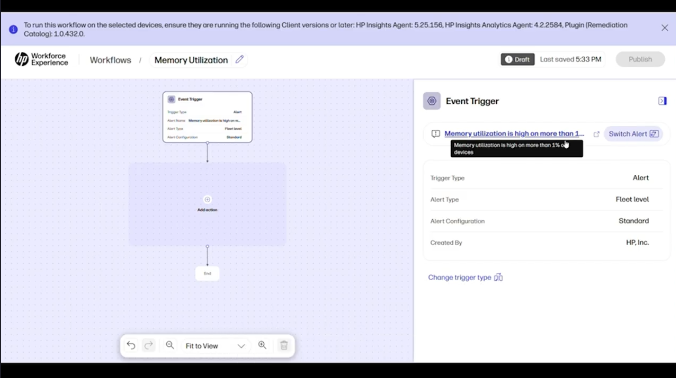
Standardize and automate large-scale IT remediation and routine operations with Workflow, HP Workforce Experience Platform’s low code orchestration capability. Workflow Builder helps IT teams move repetitive, easy to miss work out of the daily queue and into reliable, repeatable workflows. Using an intuitive, no code, drag and drop interface, teams can create logic driven flows with simple if then branching to run scripts, update drivers, create webhooks, and string multiple actions together in a single sequence.
Workflows can run on schedules or be triggered instantly by Alerts, allowing IT to respond in real time or ensure critical processes happen consistently in the background. Target actions to user defined device groups, apply best practices at scale, and monitor execution with detailed logs and device level insights—all from within WXP.
By standardizing execution and shifting routine work from people to the platform, Workflow shortens resolution times, reduces ticket volume, and frees IT teams to focus on the work that truly requires human judgment—while the rest simply gets done.
Steps to access:
- From the left navigation menu, click on Labs.
- Select Workflow.
*Note: Only applicable to Workforce Experience Platform Pro and Elite plans.
Remote Connect
In-band and Out-of-band Remote Connect
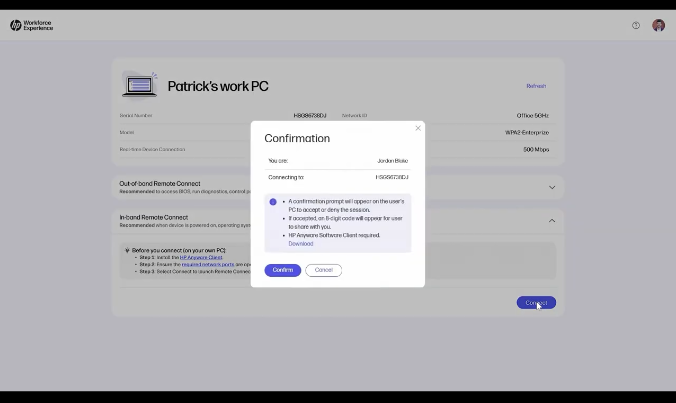
Diagnose and remediate PCs remotely at any level—with both In-Band and Out-of-Band Remote Connect now available to all WXP Pro and Elite customers. Troubleshoot application and OS issues through In-Band access or perform BIOS-level recovery using Out-of-Band Remote Connect, all within WXP.
Steps to access:
- From the left navigation menu, click on Devices and select PCs.
- In the Device Details page of the device that requires remote access, select Remote Connect.
- In the In-Band Remote Connect or Out-of-Band Remote Connect section, select Connect and follow connection steps.
*Note: HP Remote Connect is included in WXP Pro and Elite plans. HP Remote Connect is also available separately for purchase.
Developer Portal
New APIs Available on Developer Portal
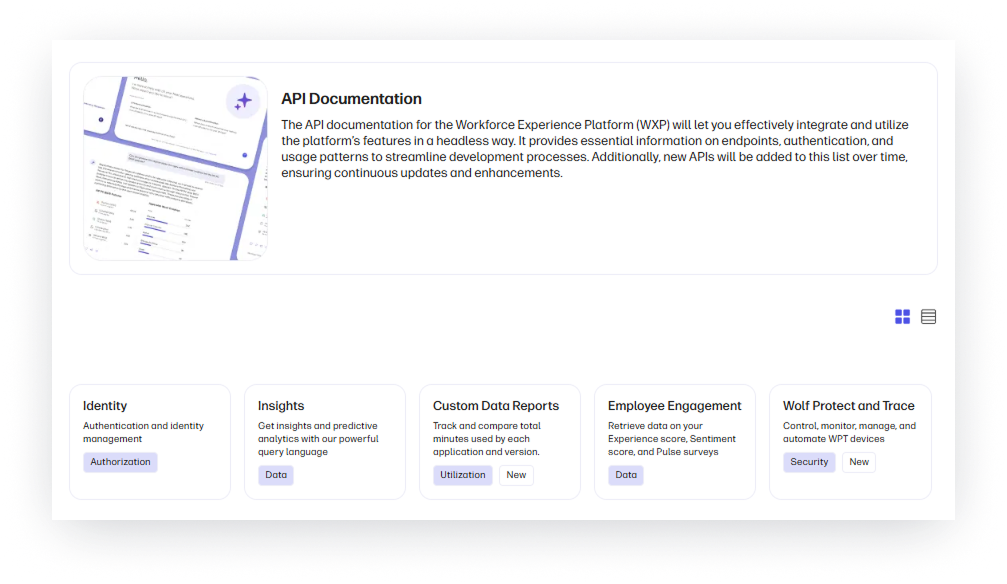
Extend and integrate WXP capabilities with new APIs now available in the Developer Portal:
- Wolf Protect and Trace API – Access device protection status, location, and security data for Wolf Protect and Trace devices.
- Custom Data Reports API – Programmatically retrieve customized report data generated within WXP.
Steps to access:
Visit the WXP Developer Portal and sign in with a Developer or Partner Developer role.
*Note: Requires an active Wolf Protect & Trace license or Workforce Experience Platform Pro or Elite license.
Partner Experience
Enhanced Customer Status Tracking
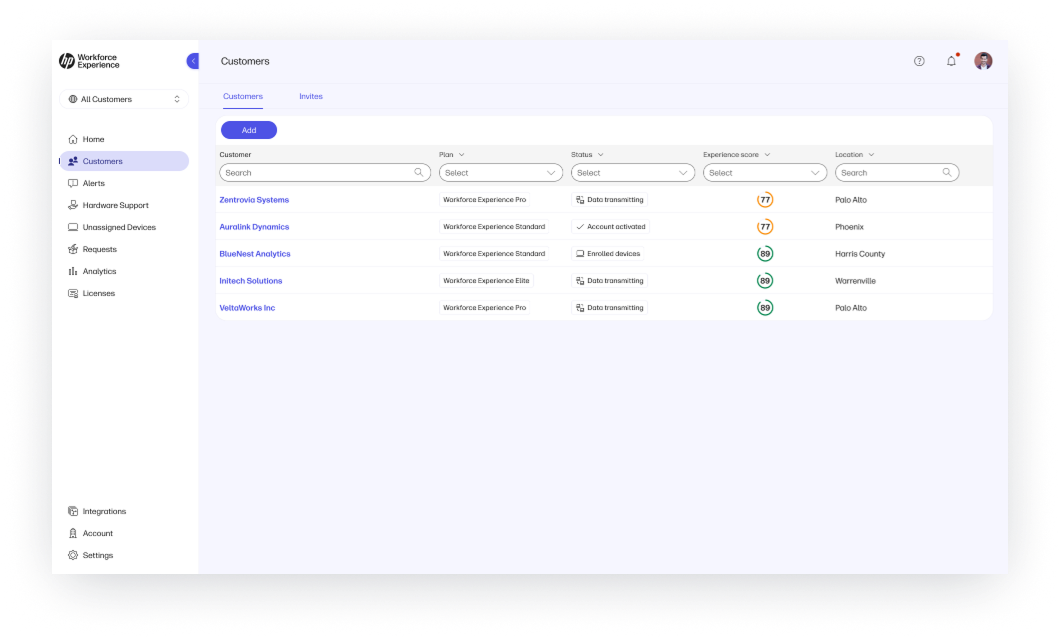
Track customer onboarding progress more clearly with expanded status indicators, including Invited, Pending Response, Account Activated, Enrolled Devices, Transmitting Data, and Inactive. These granular status labels help partners identify bottlenecks, accelerate onboarding, and drive faster time to value.
Steps to access:
- From the left navigation menu, click on Customers.
- See new status indicators in the Status column.
PC Support Services
Premium, Premium+ Care Pack Renewal Visibility
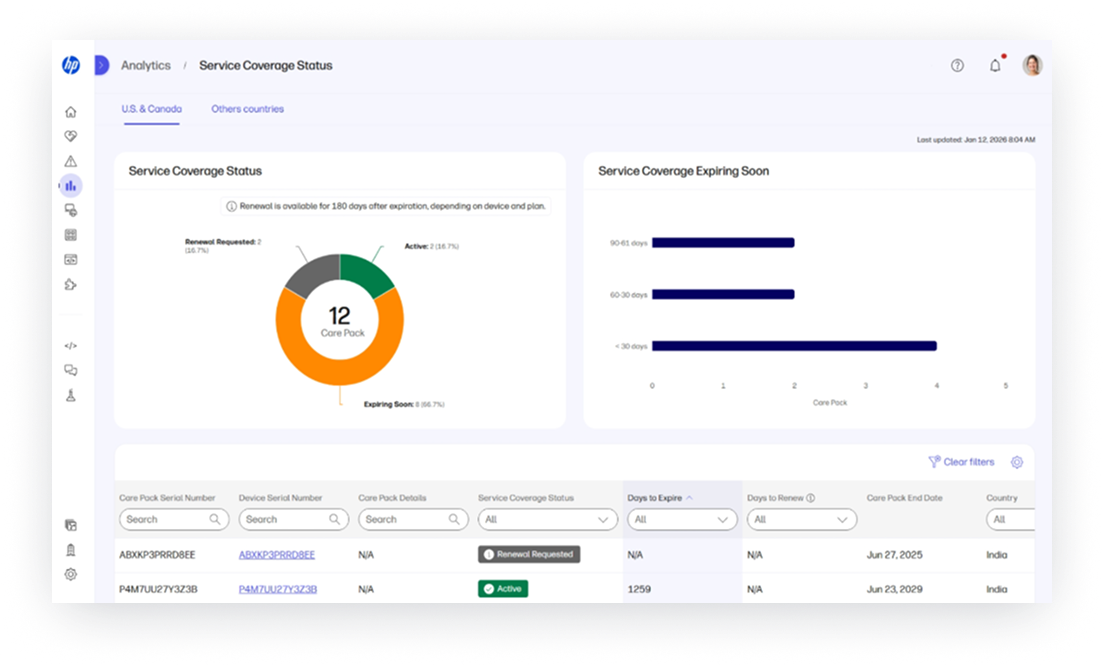
Prevent hardware support gaps by surfacing upcoming Care Pack expirations directly within WXP. Customers and partners with eligible devices gain better visibility into renewal needs, helping ensure continuous support coverage.
Steps to access:
When eligible devices approach expiration, a banner appears on top of the WXP Home screen. Click View Details to review upcoming care pack expiration dates.
Endpoint Security
Wolf Security Controller Integration
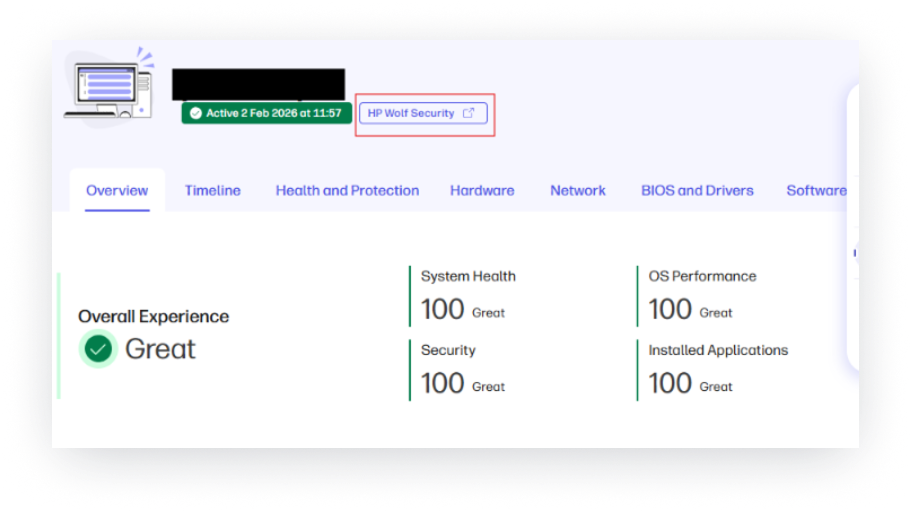
Simplify security workflows with native integration between Workforce Experience Platform and HP Wolf Security Controller. This integration enables single sign-on, unified navigation, and shared device context across both platforms—eliminating duplicate logins and improving visibility for faster, more informed remediation.
Steps to access:
Review the Knowledge Base article for setup instructions and requirements.
*Note: Requires a valid Wolf Security license with access to a Wolf Security Controller.
Collaboration Device and Space Management
Poly Lens
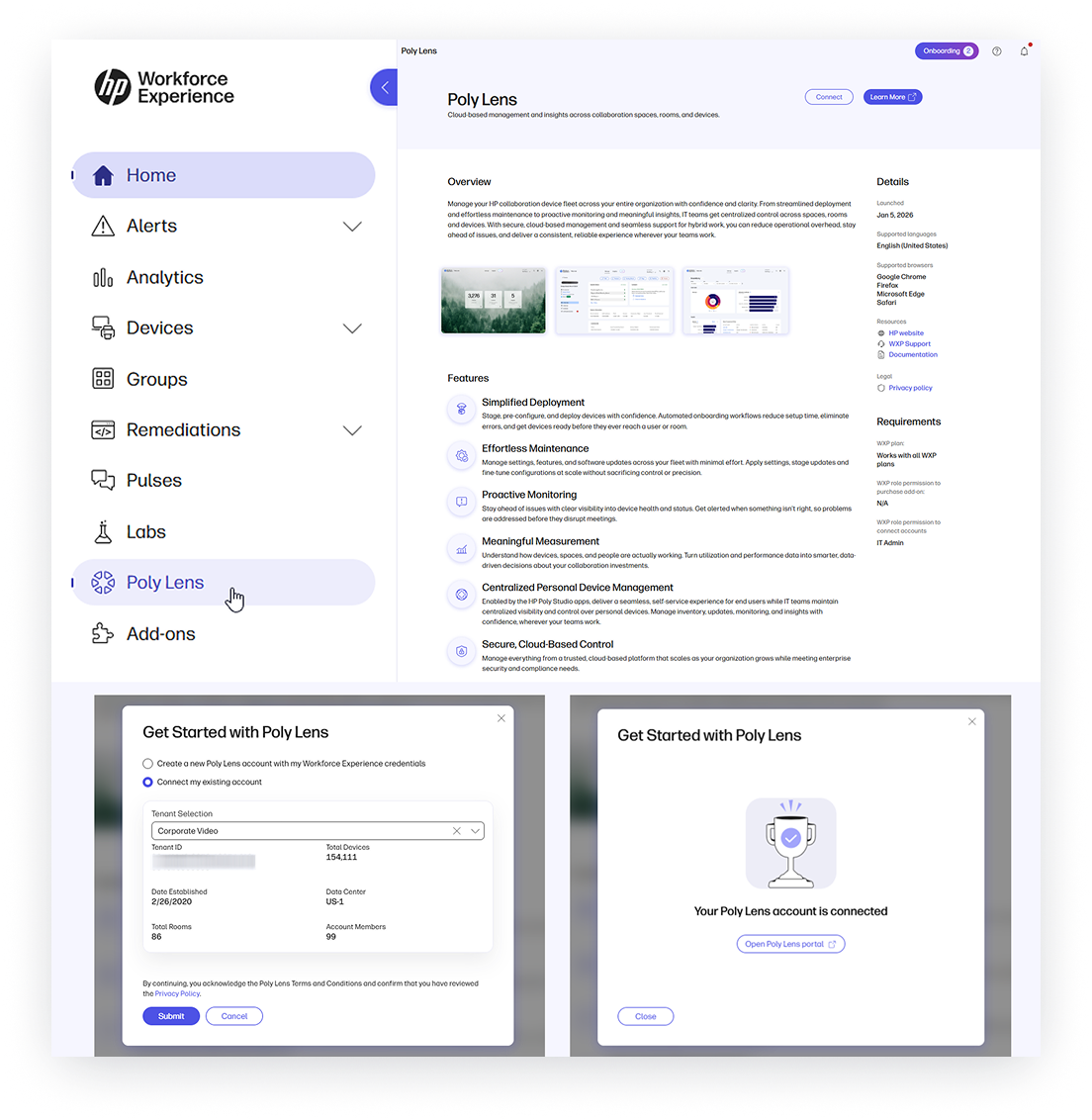
Streamline collaboration device management by securely connecting your WXP tenant with Poly Lens Cloud. This integration enables role-based, tenant-level authorization and seamless SSO click-through access, allowing IT admins to manage devices and rooms in Poly Lens while WXP governs connection and scalability. It reduces workflow complexity and establishes a scalable foundation for future integrations.
Review the Knowledge Base article for more information.
Steps to access:
- From the left navigation menu, click on Add-ons.
- Select Poly Lens.
- Click Connect and choose to create a new Poly Lens account or connect an existing one.
WXP Print Management
Import HP WebJetAdmin and HP Security Manager Policy Templates
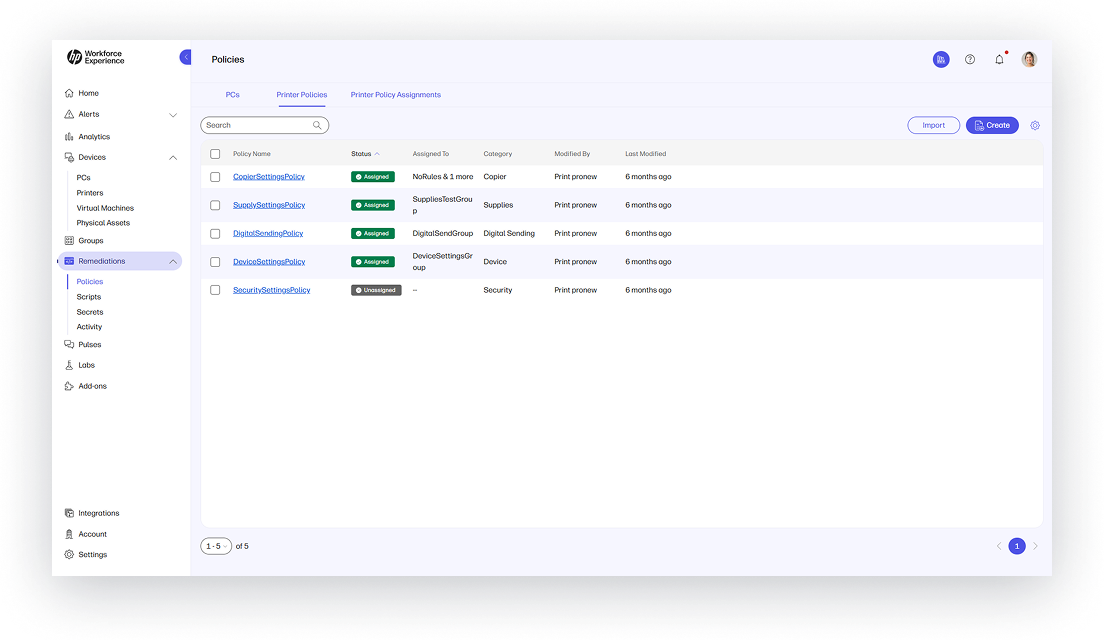
Simplify migration from other HP print tools by converting and importing existing HP WebJetAdmin and HP Security Manager policy templates directly into WXP. This capability reduces onboarding friction, preserves prior investments, and helps teams transition faster without rebuilding policies from scratch—accelerating time to value as organizations modernize print management workflows.
Steps to access:
- From the left navigation menu, click on Remediations and select Policies.
- Click on the Printer Policies tab.
- Select Import to begin policy migration.
- Upload the JSON file.
- Review results.
- Finish configuring the policy.
Support More Printer Settings
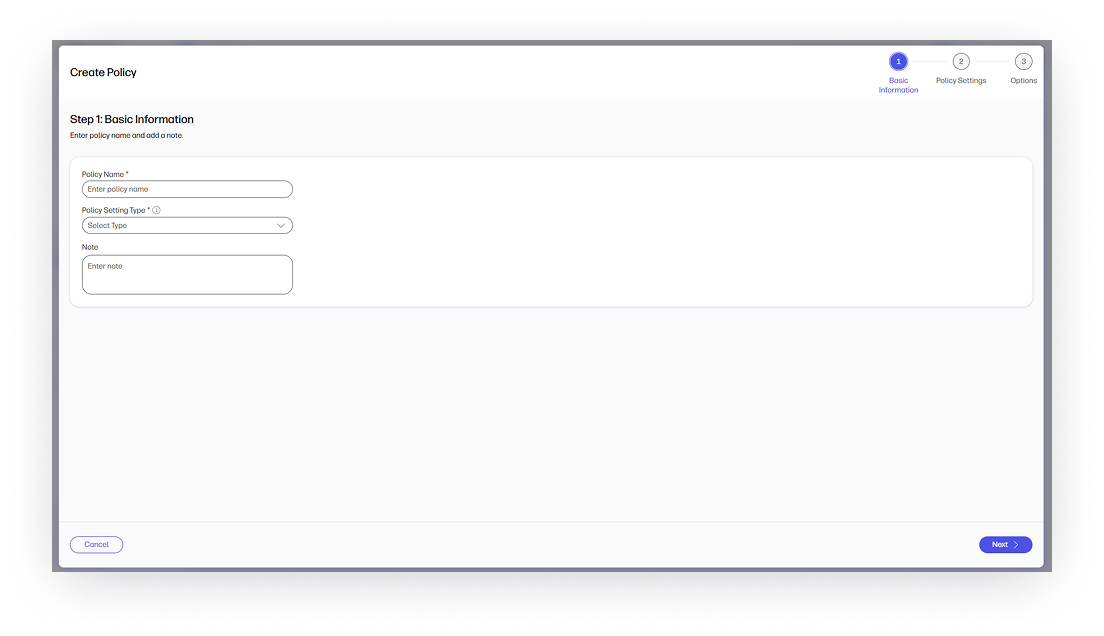
Configure and secure more printer settings for cloud-onboarded printers to improve consistency, control, and compliance across the fleet. Expanded support now includes commonly requested operational and security settings, helping admins manage more scenarios directly within WXP.
Supported settings include:
- AutoSend configuration
- Display network address on the control panel
- Fax receive settings
- Network folder file settings
- Supply threshold configuration
Steps to access:
- From the left navigation menu, click on Remediations and select Policies.
- Click on the Printer Policies tab.
- Click on Create.
- Enter a policy name and description.
- Select a template (optional).
- Choose supported printer settings.
- Configure the settings.
- Save the policy.
Supported Connection Type Visibility
View which printer settings support Cloud, Proxy, or both connection types. This visibility helps printer administrators quickly understand applicability, manage expectations, and avoid trial-and-error during policy creation.
Steps to access:
- From the left navigation menu, click on Remediations and select Policies.
- Click on the Printer Policies tab.
- Click on Create.
- Enter a policy name and description.
- Select a template (optional).
- Review available settings and note the Cloud and/or Proxy labels.
Assign Policy to a Group During Policy Creation
Reduce steps and speed up deployment by assigning printer policies to groups at the time of creation. This improvement eliminates extra navigation and makes it easier to apply policies immediately—helping admins move from configuration to enforcement without interruption.
Steps to access:
- From the left navigation menu, click on Remediations and select Policies.
- Click on the Printer Policies tab.
- Click on Create.
- Enter a policy name and description.
- Select a template (optional).
- Select one of the settings.
- Configure the settings.
- Save the policy.
- Table of groups appears to assign policy.
First-time User Onboarding Tour
Guide new print administrators with confidence through an in-product onboarding tour shown at first login. Designed to reduce anxiety and shorten learning curves, this guided experience helps long-time WebJetAdmin users quickly orient themselves in WXP and start managing printers without disruption.
Steps to access:
- Open the invitation email and select the WXP link.
- Sign in to WXP for the first time.
- Follow the guided onboarding tour presented automatically.
Support for Additional HP FutureSmart 5 Compatible Printers
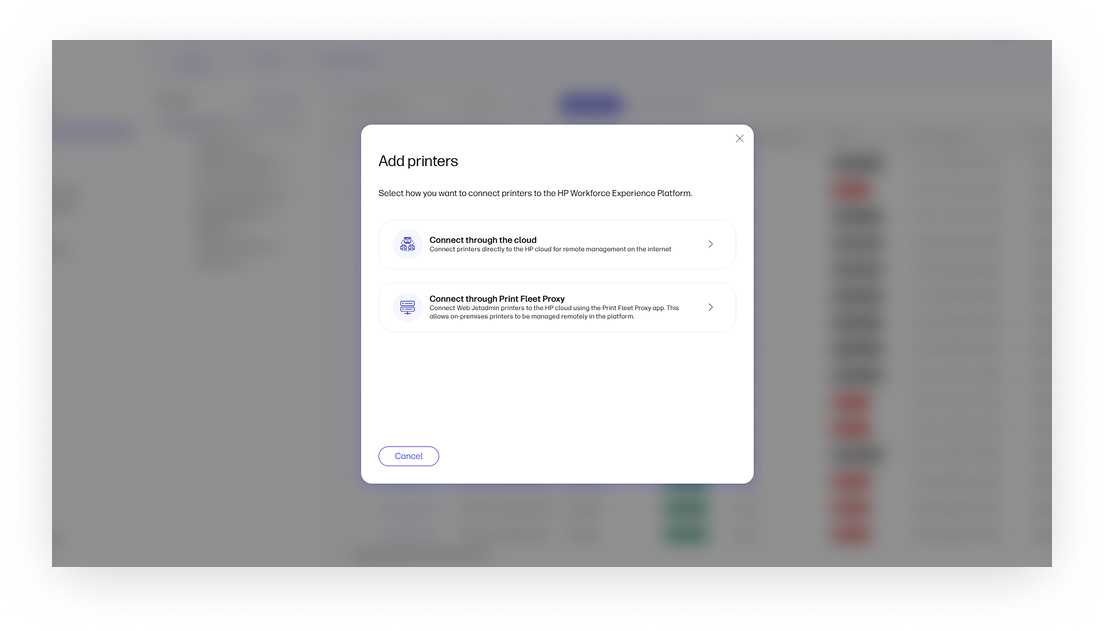
Expand fleet coverage by cloud onboarding and managing additional HP FutureSmart 5 compatible printers. This update removes barriers to supporting broader printer environments and enables organizations and partners to extend WXP Print Management across more devices.
Steps to access:
- From the left navigation menu, click on Devices and select Printers.
- Select Add Printers.
- Choose Connect through the Cloud.
Asset Tracking UX Improvements
Streamline printer fleet visibility with usability enhancements that reduce clicks, improve navigation, and make detailed device data easier to access. These improvements help admins gain confidence in WXP as a replacement for WebJetAdmin while saving time in daily workflows.
Enhancements include:
- Export options in XLS in addition to CSV
- A floating header row for easier list navigation
- Clickable rows for faster access to device details
- An Expand All option to view all printer properties at once
Steps to access:
- From the left navigation menu, click on Devices and select Printers.
- Explore the new UX improvements.
HP Workforce Experience Platform is a comprehensive and modular digital employee experience solution that enables organizations to optimize IT for every employee’s needs.
Subscribe for future product release updates and the HP Workforce Experience Blog to learn how to optimize your IT capabilities today.
If you want to learn more about the HP Workforce Experience Platform, we would love to speak to you! Simply fill out the form below, and a team member will be in touch.
- HP Workforce Experience Platform (WXP) is available in various tiers and for multiple term license durations, and some features require optional add-on solutions. WXP is for commercial customers and some features and capabilities may require additional purchase of HP services and/or commercial hardware capable of supporting the HP Insights agent for Windows, Mac, & Android. WXP is ISO27001, ISO27701, ISO27017 and SOC2 Type2 certified for Information Security. Activation and restrictions may apply. Select HP solutions require an HP Insights agent for Windows, Mac, & Android, available for download at https://workforceexperience.hp.com/software. For full system requirements and services that require the agent, please visit https://workforceexperience.hp.com/requirements. The agent collects telemetry and analytics around devices and applications that integrate into the Workforce Experience Platform. Internet access required. WXP Collaboration license required for audio and video collaboration technology monitoring.
- HP Workforce Experience Print Management includes access to HP Workforce Experience Platform Starter. Printer management capabilities require HP Workforce Experience Platform, available in various tiers, supporting monitoring of HP and third-party printers through WebJetAdmin and management of select HP enterprise printers that are compatible with HP FutureSmart 5 firmware. Available in North America from HP Direct. HP Workforce Experience Print Management is for commercial customers and some features and capabilities may require additional purchase of HP services and/or commercial hardware capable of supporting the HP Insights agent for Windows, Mac, & Android. WXP is ISO27001, ISO27701, ISO27017 and SOC2 Type2 certified for Information Security. Activation and restrictions may apply. Select HP solutions require an HP Insights agent for Windows, Mac, & Android, available for download at https://workforceexperience.hp.com/software. For full system requirements and services that require the agent, please visit https://workforceexperience.hp.com/requirements. The agent collects telemetry and analytics around devices and applications that integrate into the Workforce Experience Platform. Internet access required.
From the blog
The latest industry news, interviews, technologies, and resources.







Frequently asked questions
Here's everything you need to know about WXP.
- What is the HP Workforce Experience Platform (WXP)?
- How does WXP work?
- Can WXP be customized to fit specific business needs?
- How is WXP modular?
- Is WXP compatible with different vendors and operating systems?
- How does WXP integrate with other IT tools to provide a more comprehensive solution?
- What is a Workforce Experience score?
- How is AI used within WXP?
- How can I buy WXP and find out about new releases?