Product Release Notes, Fall ’26 Roundup
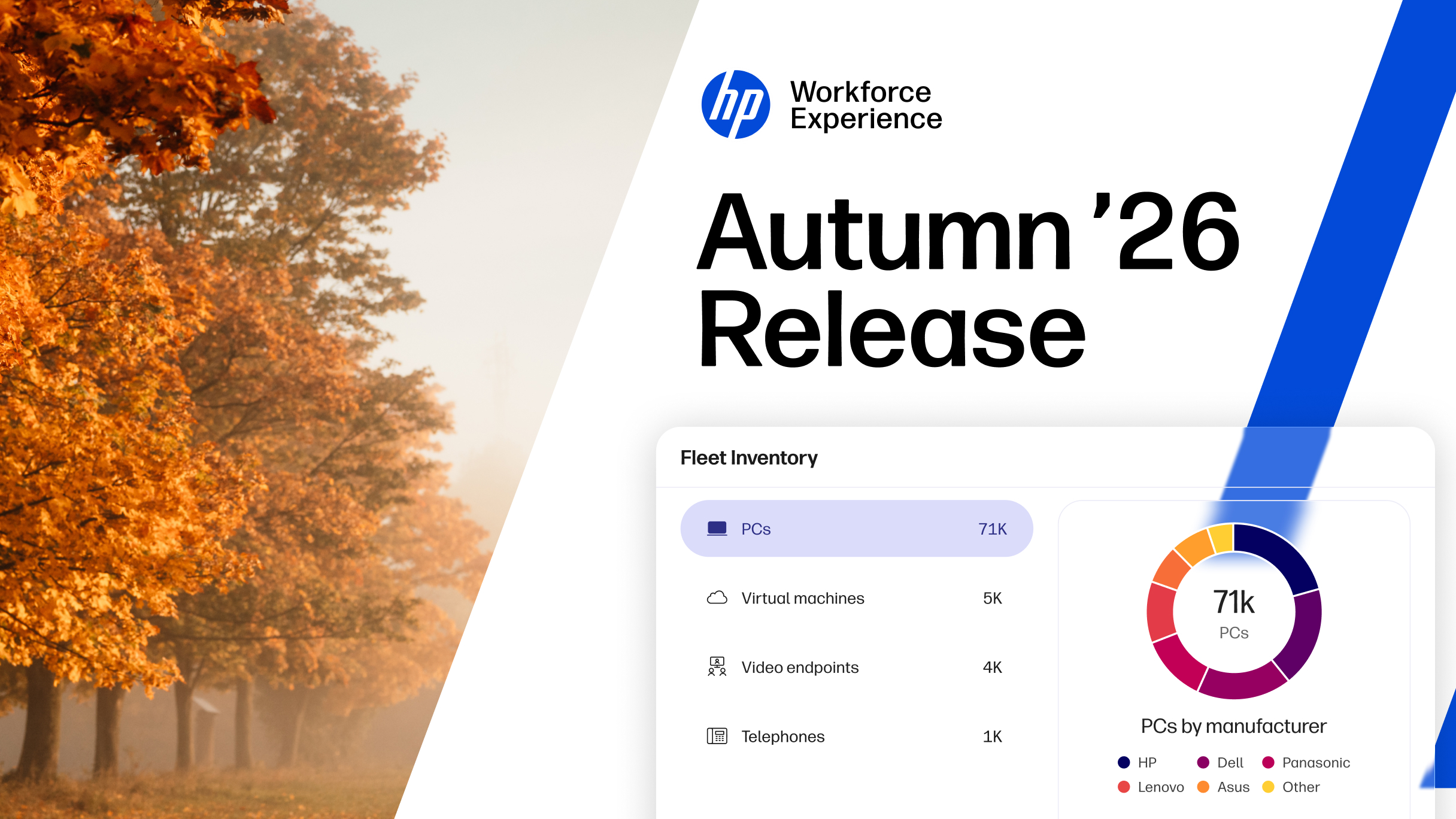
Days may be getting darker and colder, but around here, we’ve been focusing on warming up your HP Workforce Experience Platform (WXP)1 experience with more control and customization options. The ability to choose between PC refresh strategies, connect to Teams or Slack to see the status of your workflows, and scale printer onboarding with a new tool in WXP Print are just a few of this quarter’s enhancements designed to help ensure WXP works for your unique requirements.
Here’s a quick rundown of the updates—follow the links for more detailed descriptions below:
Core PC Experience
- Memory Utilization Report provides insight into how memory is being used across your PC fleet, helping inform decisions about remediations, upgrades, refresh planning, and hardware provisioning.
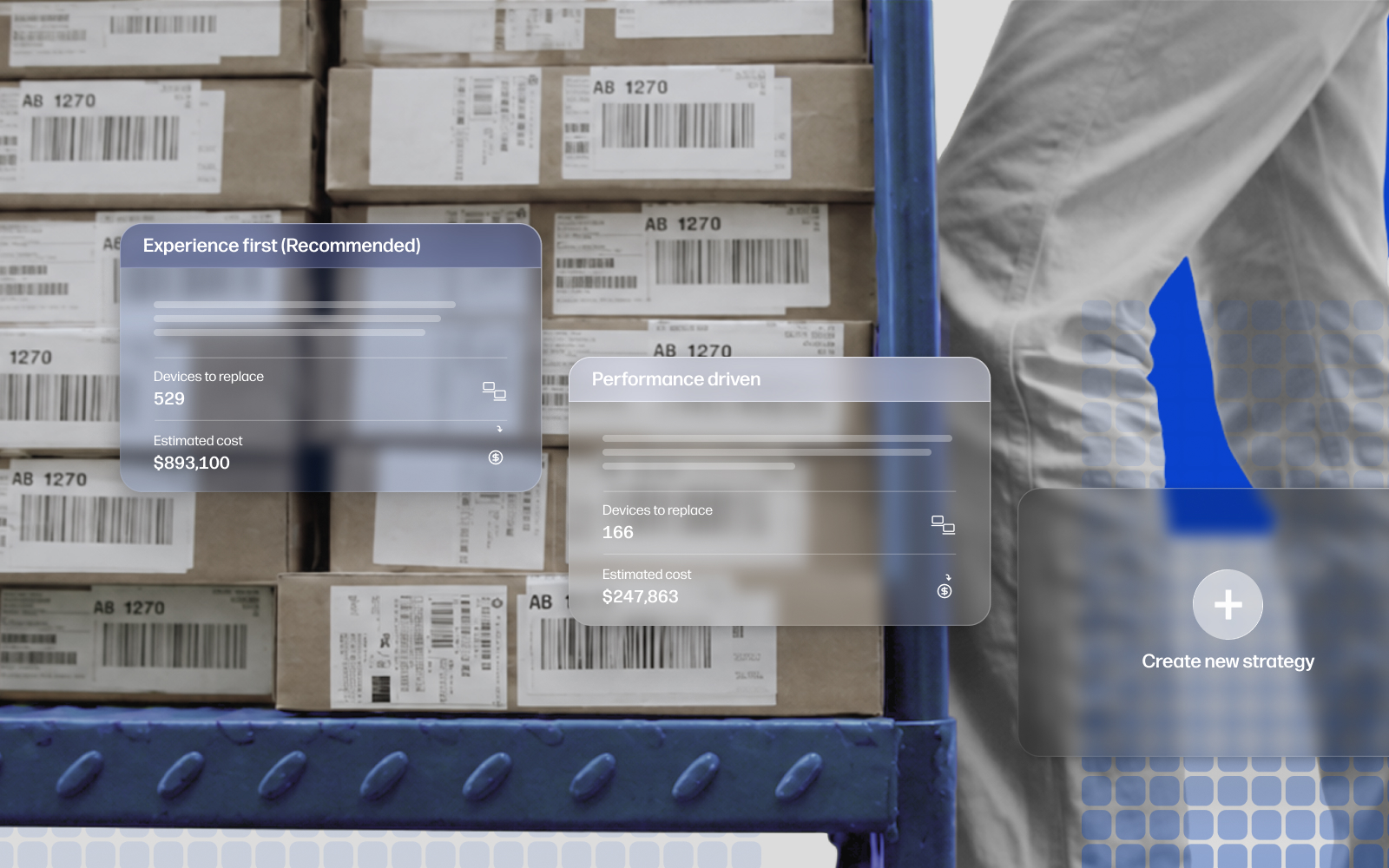
- Smart Refresh has been redesigned and enhanced to provide smarter recommendations, flexible refresh strategy choices, and a streamlined workflow.
- Predefined hardware alerts to flag critical issues on HP PCs.
- Pre-installation notifications for driver updates can be enabled to help prevent work disruptions for employees.
- Workflow status updates can now be sent to selected channels in Teams and Slack.
- New audit log provides a time-stamped list of Remote Connect sessions.
- Sentiment Pulses can now be sent in employees’ preferred languages.
- Education Care Packs extend WXP-powered predictive hardware support to PCs used by schools and universities.
Partner Experience
- Partners can now customize their home page dashboards to suit their own requirements.
- Licenses page now includes summary cards for at-a-glance view of term-license consumption.
- Partners using both WXP and the Channel Service Delivery Platform (CDSP) can now navigate seamlessly between them with single sign-on support.
Developer Experience
- New Assets and Alerts APIs allow IT teams to feed real-time device alerts, event triggers, and hardware inventory data directly into ITSM platforms.
WXP Print
- Telemetry and insights are now available from connected printers.
- Onboard up to 5,000 printers at once with a new, more secure onboarding tool that replaces Doppler.
- New interactive analytic widgets and Print-only home page provide more visibility into trends across your printer fleet.
Changes to Home Page and Naming
You asked for a home page that fits the way you work. Now you can build custom views around your own priorities and add them to the new tabs across the top, which also provide plan-specific experiences to make it easier to access what you need quickly.
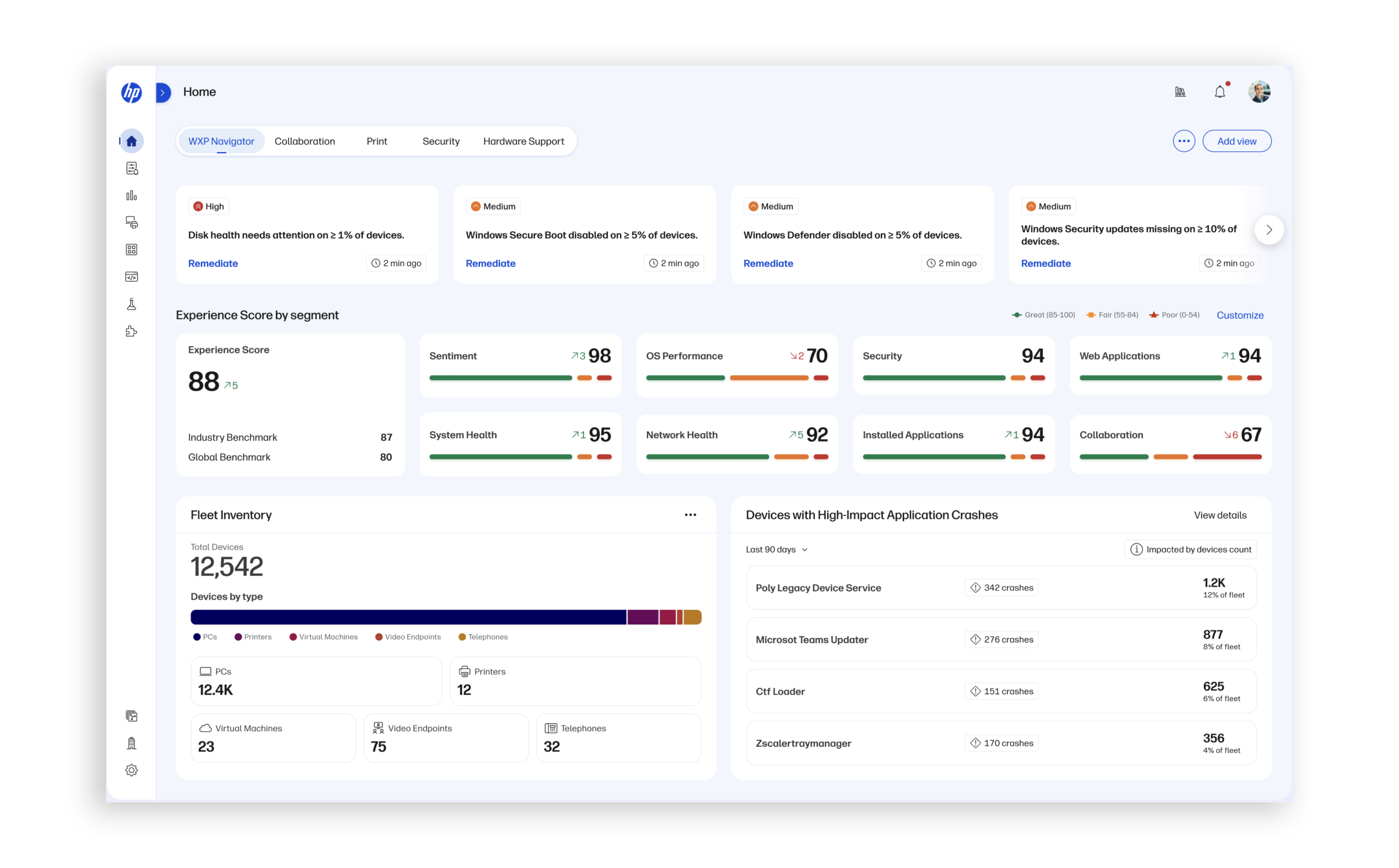
Those tabs also have clearer names, so you always know where you’re headed:
- WXP Navigator (formerly Fleet Manager): your PC fleet at a glance. Plans are now Navigator Standard, Pro, and Elite.
- WXP Print (formerly Print Manager): your print fleet in one place.
- WXP Console (formerly WXP Starter): your starting point for the platform.
The features and functionality of each of these suites and plans remain the same—only the names have changed.
PC Analytics
Memory Utilization Report
Understand how memory is being used across your environment. Identify devices experiencing memory pressure, analyze utilization trends, and discover memory-intensive applications. These insights help IT teams make more informed decisions about remediation, upgrades, refresh planning, and hardware optimization.
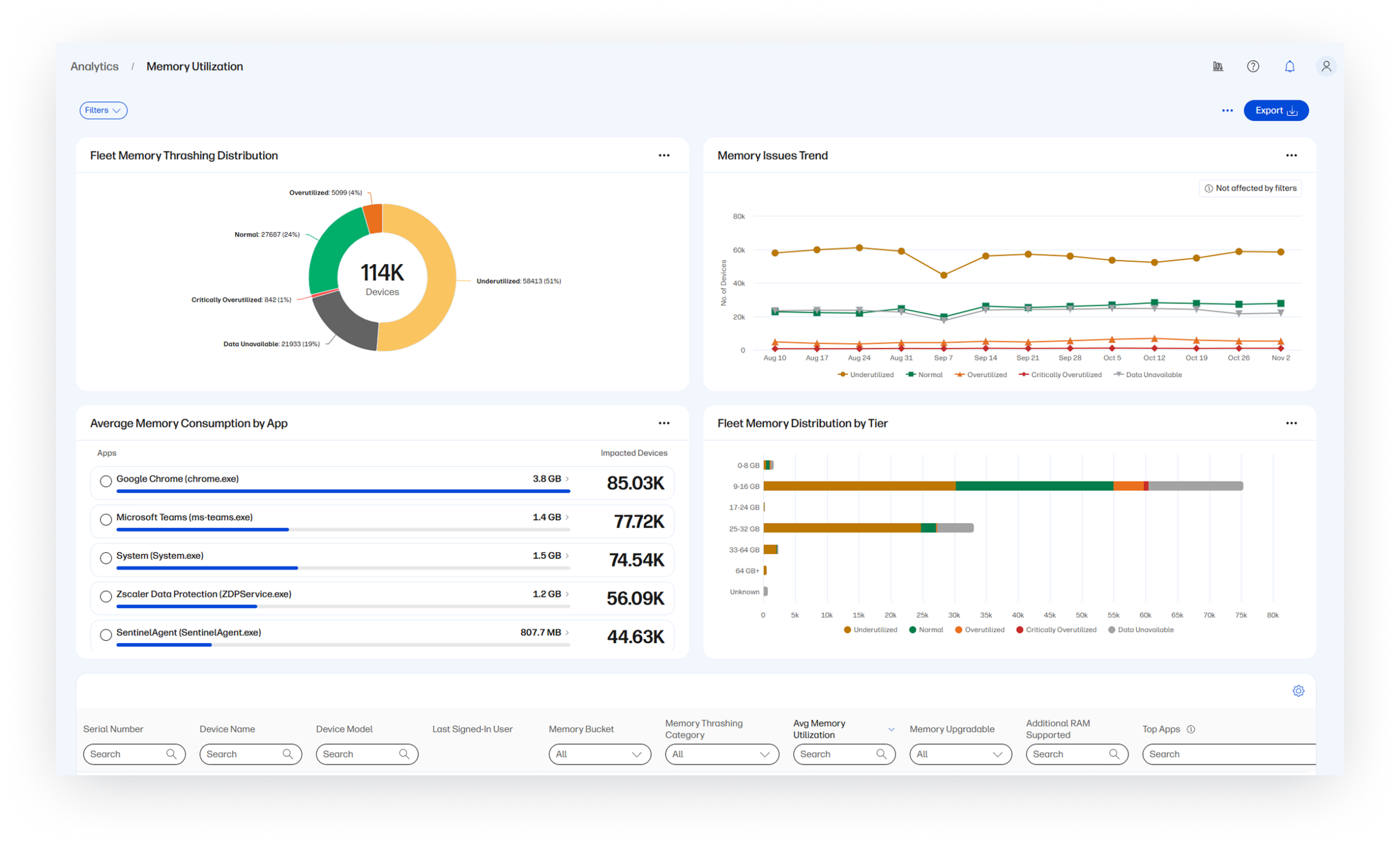
How to access:
- Navigate to the Analytics section from the left navigation menu
- Scroll down to the Reports section
- Under Modern Reports tab, select the Memory Utilization report
Applies to WXP Navigator Pro and Elite plans.
Smart Refresh
Smart Refresh delivers a redesigned experience and enhanced intelligence to help IT teams make informed device lifecycle decisions. Identify devices that need replacement, determine the right time to refresh, and build budget-aligned plans based on device health and performance. Enhanced prioritization, smarter replacement recommendations, flexible refresh strategies, and a streamlined workflow help optimize refresh investments and outcomes.
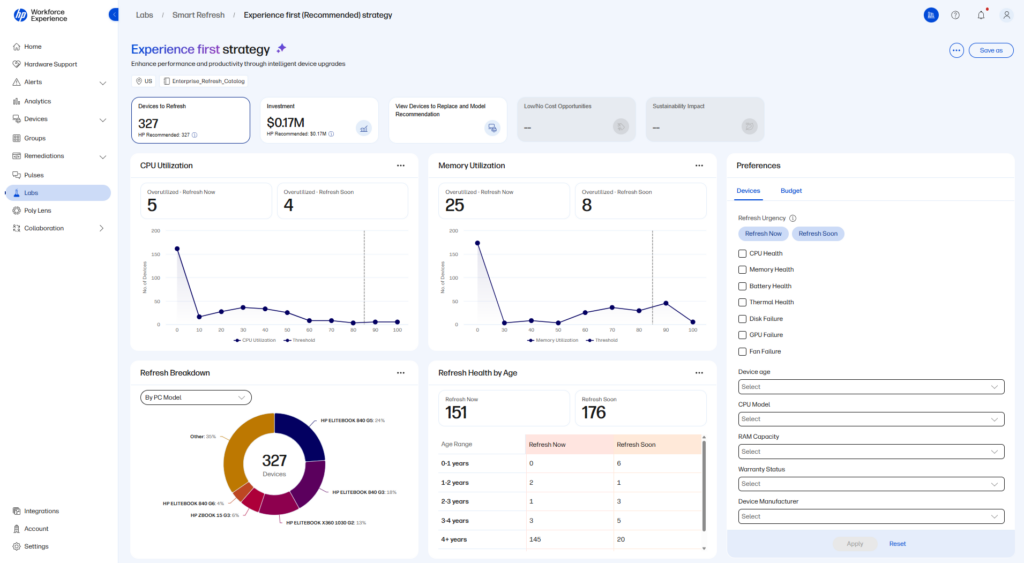
How to access:
- Navigate to the Labs section from the left nav menu
- Select Try Smart Refresh in the Smart Refresh card to get started
Applies to WXP Navigator Pro and Elite plans.
Alerts
Hardware Alerts
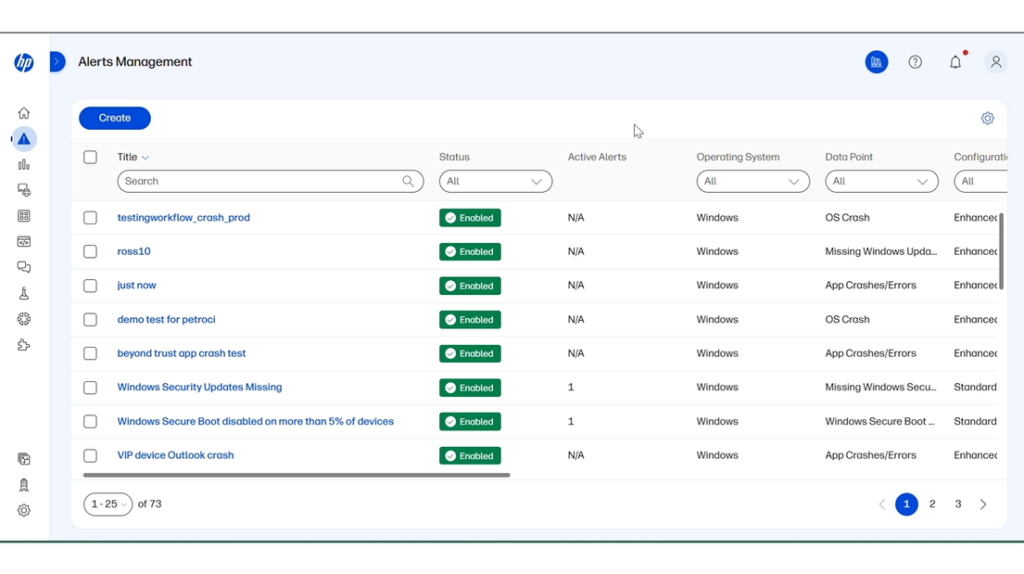
Spot hardware issues sooner with new device-level Hardware Alerts in WXP. Six predefined alerts flag battery failure or recall, disk failure or SMART issues, and fan warnings or critical issues on HP PCs. Identify affected devices, review alert details and guidance, and coordinate repair or replacement to reduce troubleshooting effort and help keep employees productive.
How to access:
- From the dashboard, open Alerts > Alerts Management.
- In the New Hardware Device Alerts banner, enable the alerts you want to monitor.
- Alternatively, filter the Data Point column to find a predefined hardware rule (e.g. Battery failure or Fan Issue).
- Open the rule to edit notification channels and recipient roles.
- For Active Hardware Alerts, open Alerts > Active Alerts > PCs.
- Select a hardware alert (again, find it by filtering on Data Point) to view the device timeline, details, and remediation guide.
Applies to WXP Navigator Pro and Elite plans.
Remediation
Pre-installation notifications for driver update policies
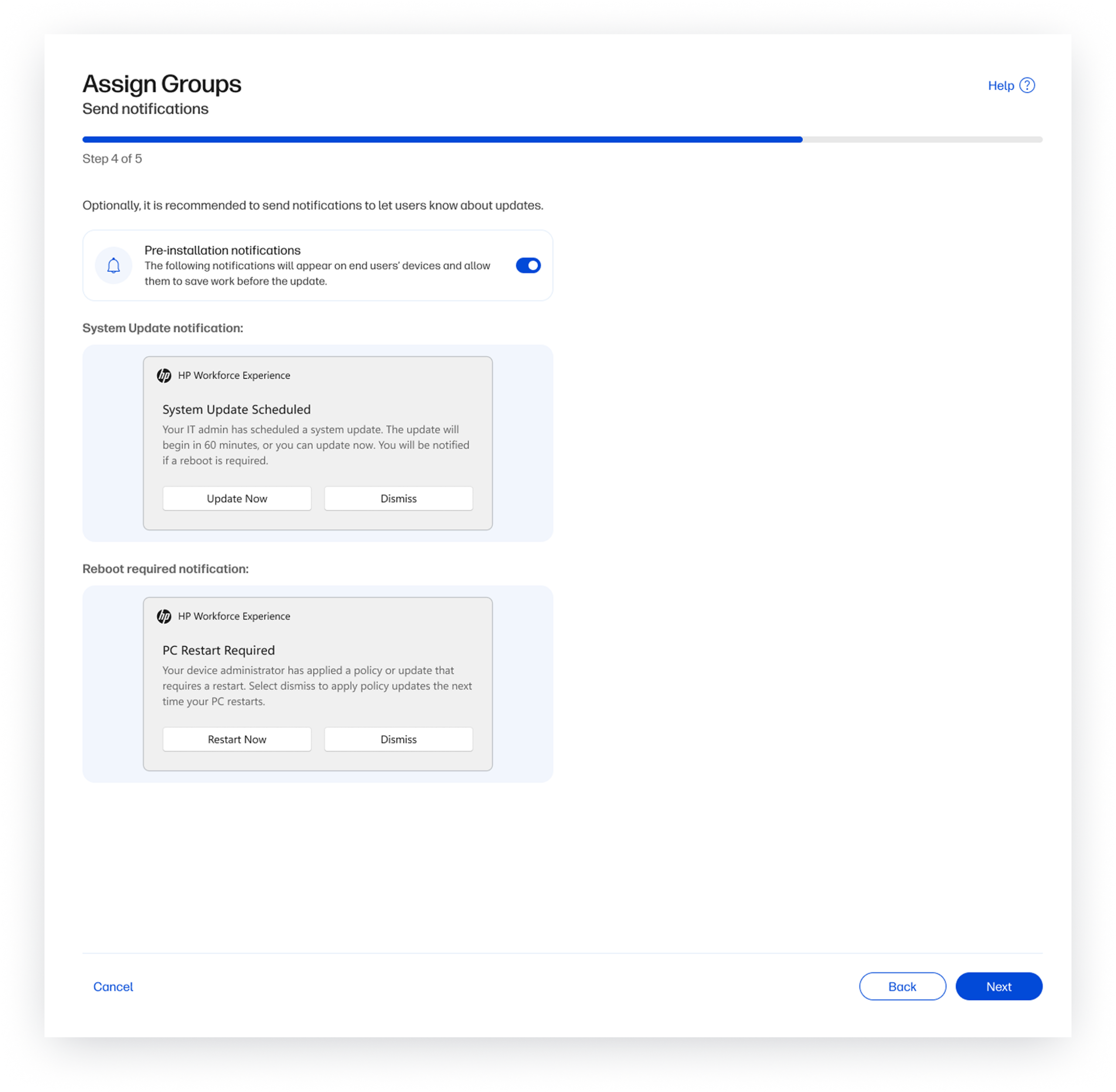
IT admins can now enable or disable pre-installation notifications for each Driver Update Policy assignment. When enabled, end users receive a Windows notification one hour before installation, giving them time to save their work, plan for the update, or start it immediately, helping reduce unexpected interruptions during their daily work.
How to access:
- Navigate to Policies.
- Enable pre-installation notifications from the top banner.
- Click a policy > Assignments tab > Add.
- During the assignment flow toggle pre-installation notifications on or off.
Applies to WXP Navigator Pro and Elite plans.
Workflows
Workflow status updates via Teams and Slack
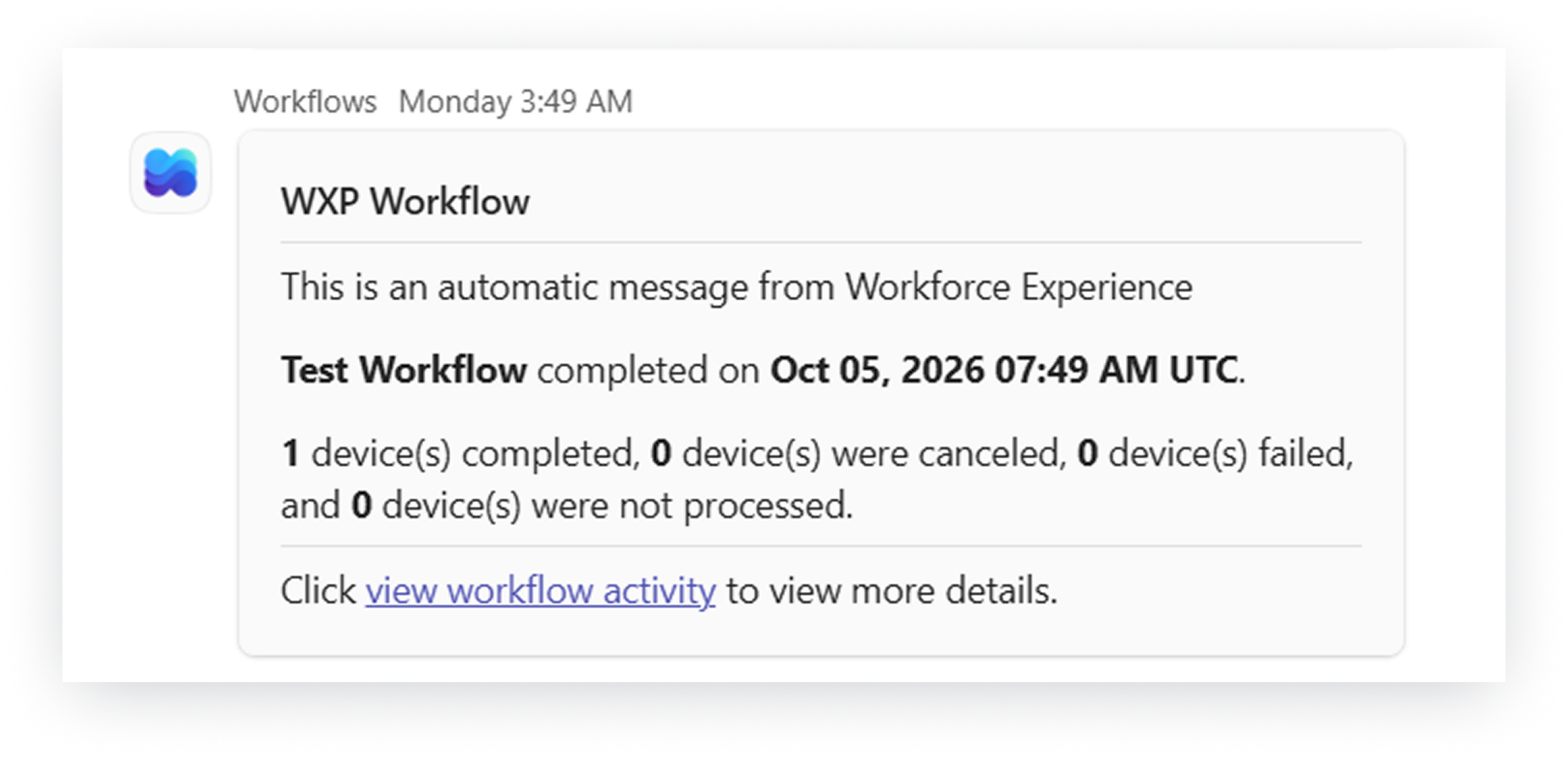
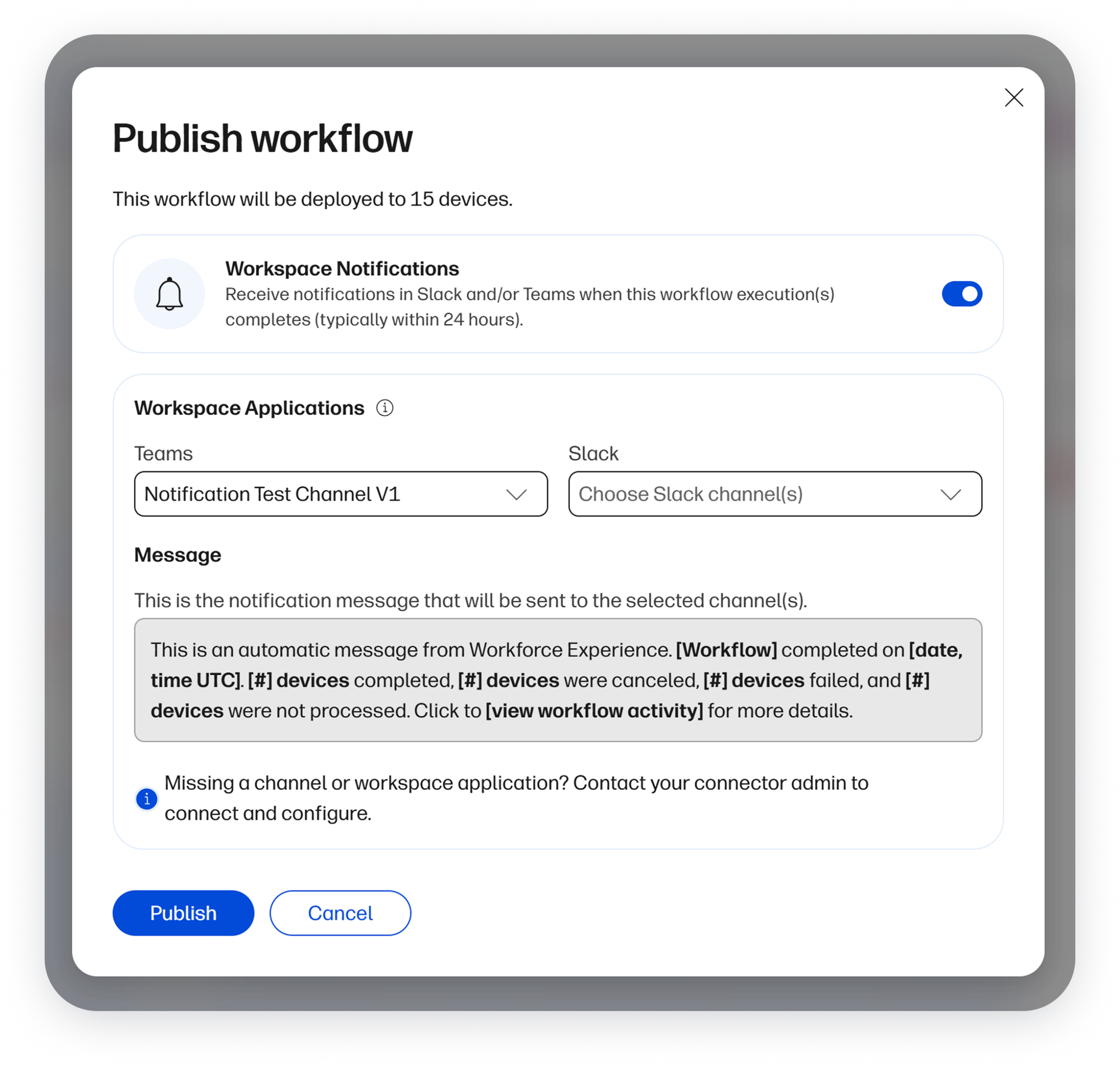
You can now send WXP Workflow status updates to selected Microsoft Teams and Slack channels, keeping IT teams informed where they already collaborate. Notifications include a link to workflow activity, making it easy to review progress and results.
How to access:
- Navigate to the Labs tab
- Select Try Workflow
- Click Add and select a method to get started
- Create your desired workflow
- Upon clicking Publish, you’ll see an option to enable Workspace Notifications. Make sure either Teams and/or Slack connector is configured within WXP in order to proceed.
Applies to WXP Navigator Pro and Elite plans.
Logs and Reporting
Audit Session History
Many WXP customers require an audit log of Remote Connect sessions. This audit log provides time-stamped session IDs for each support recipient device that has been accessed with Remote Connect, directly accessible within the WXP platform.
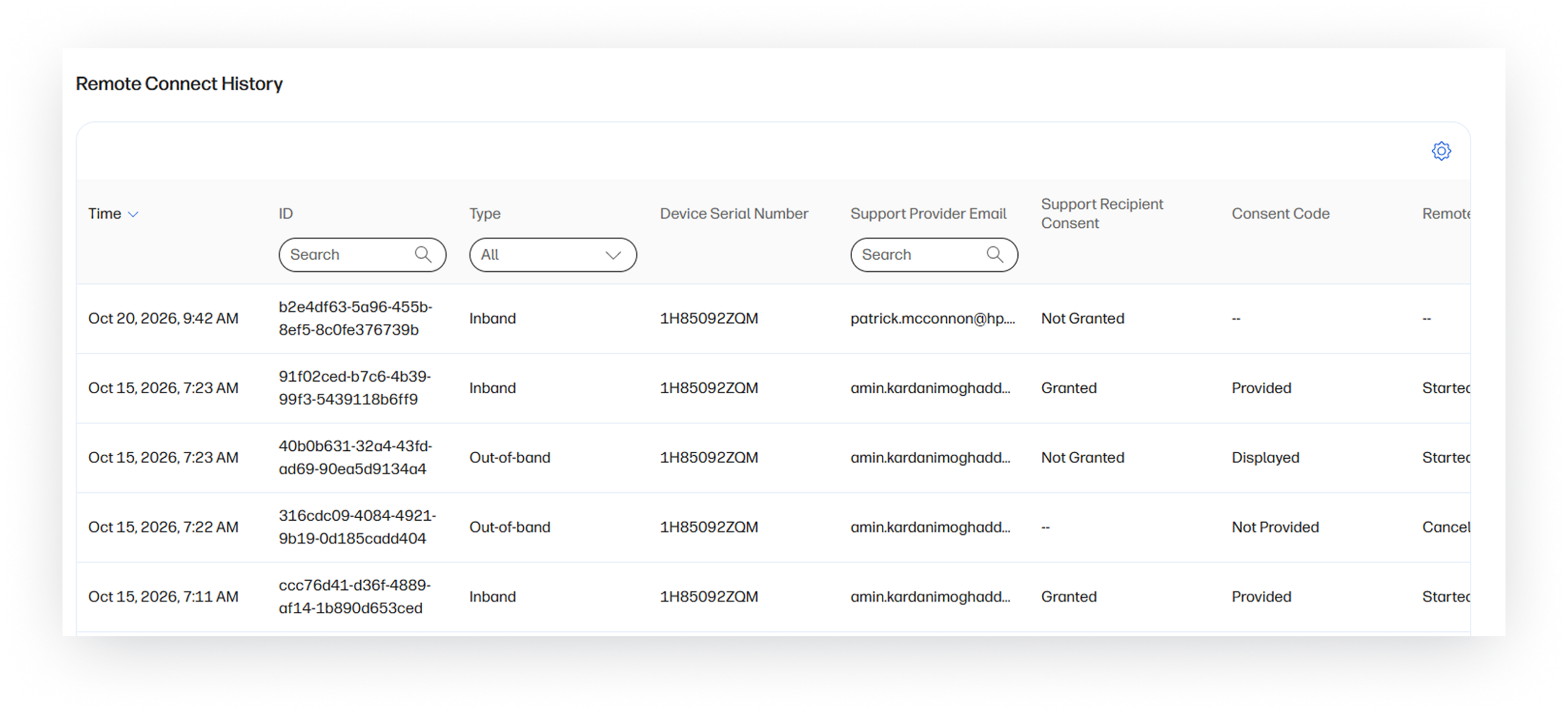
How to access:
- Click on the Devices tab on the left navigation bar, then select PCs
- Click on the desired PC from the list of devices that populates
- Click on Health and Protection from the menu items at the top of the screen
- Scroll to the bottom of the screen and you will find Remote Connect History data
Applies to WXP Navigator Pro and Elite plans.
Employee Engagement
Sentiment Pulse Translations
You can now send Sentiment Pulses in employees’ preferred language, making it easier for them to share feedback and encouraging participation.
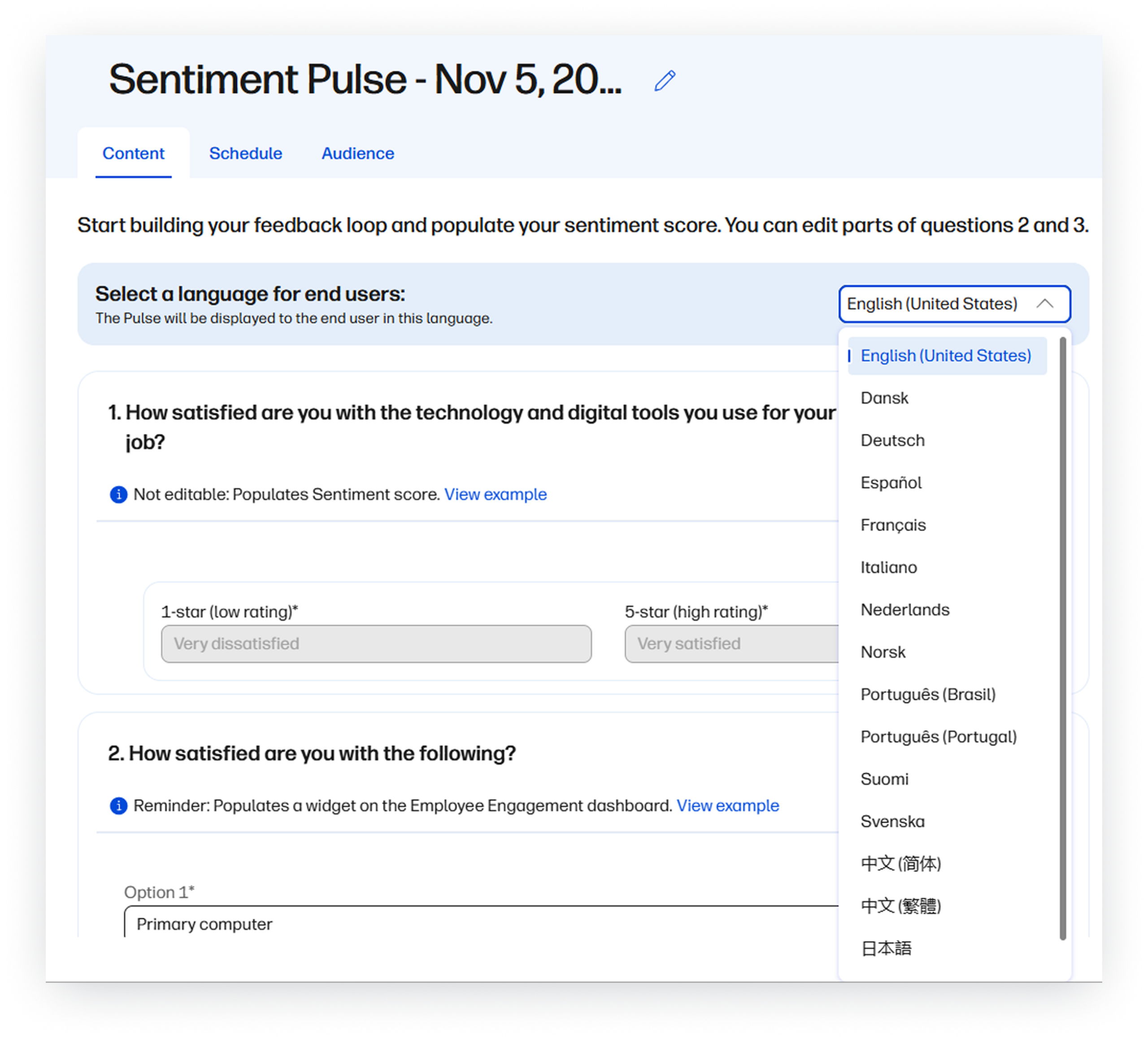
How to access:
- Navigate to the Pulses tab
- Click Create
- Select Sentiment Pulse
- Select the language the Pulse will be translated in for the end user
Applies to WXP Navigator Pro and Elite plans.
Partner Experience
Custom Home Page Views
Partners can now build and manage personalized dashboard views tailored to how they work. Name the custom view and select from a gallery of widgets to surface the insights that matter most to stay focused, cut distractions and deliver more responsive support to customers.
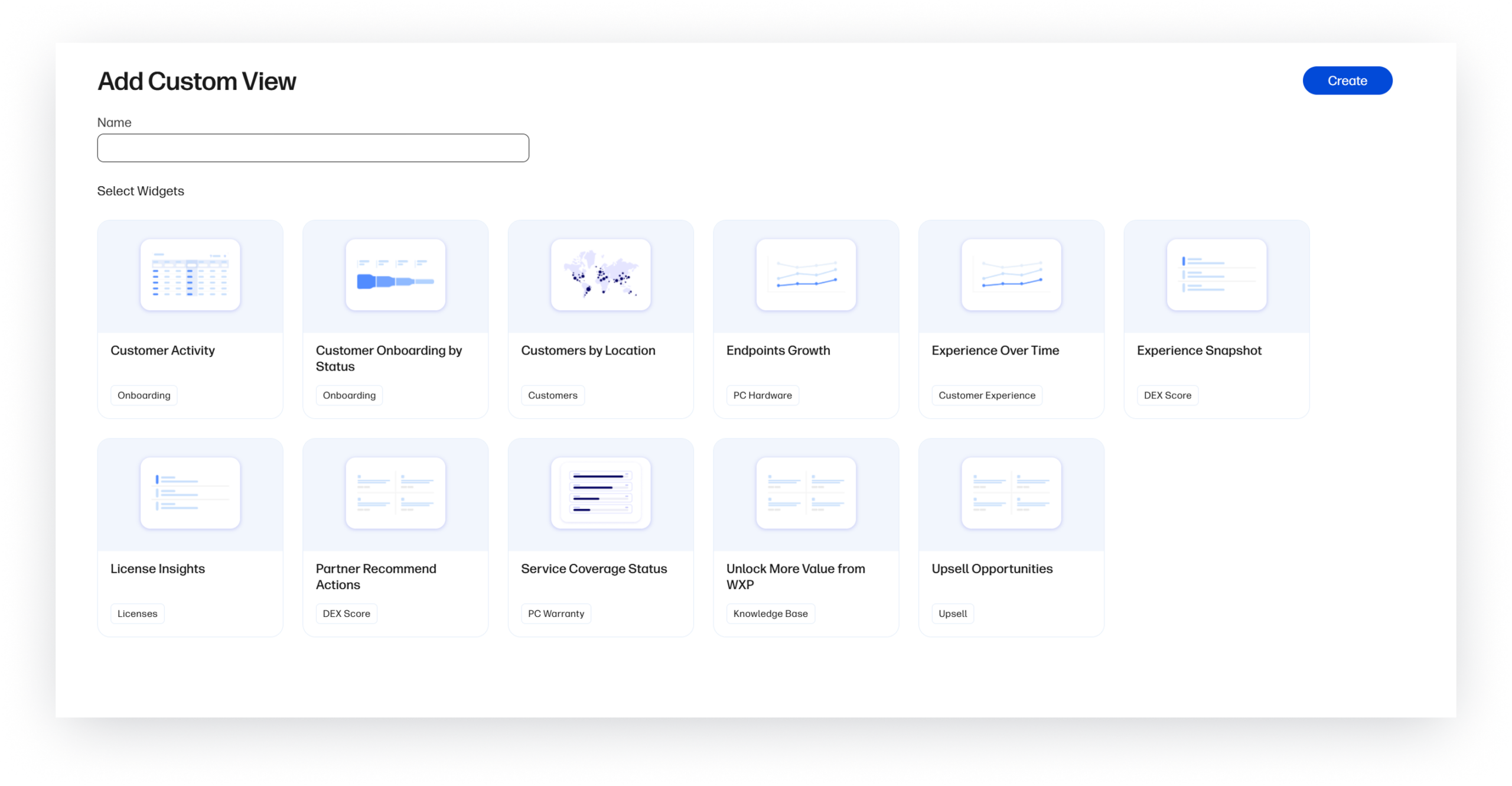
How to access:
- Click on add view on the top right of the dashboard
- Enter a name and select widgets to be included
- Click Create
Licenses Page Summary Cards
Partners get an at-a-glance view of term-license consumption through summary cards at the top of the Licenses page. See a breakdown of licenses by status and a total count, each with a percentage breakdown relative to the total, for faster insight into license consumption and smarter planning.
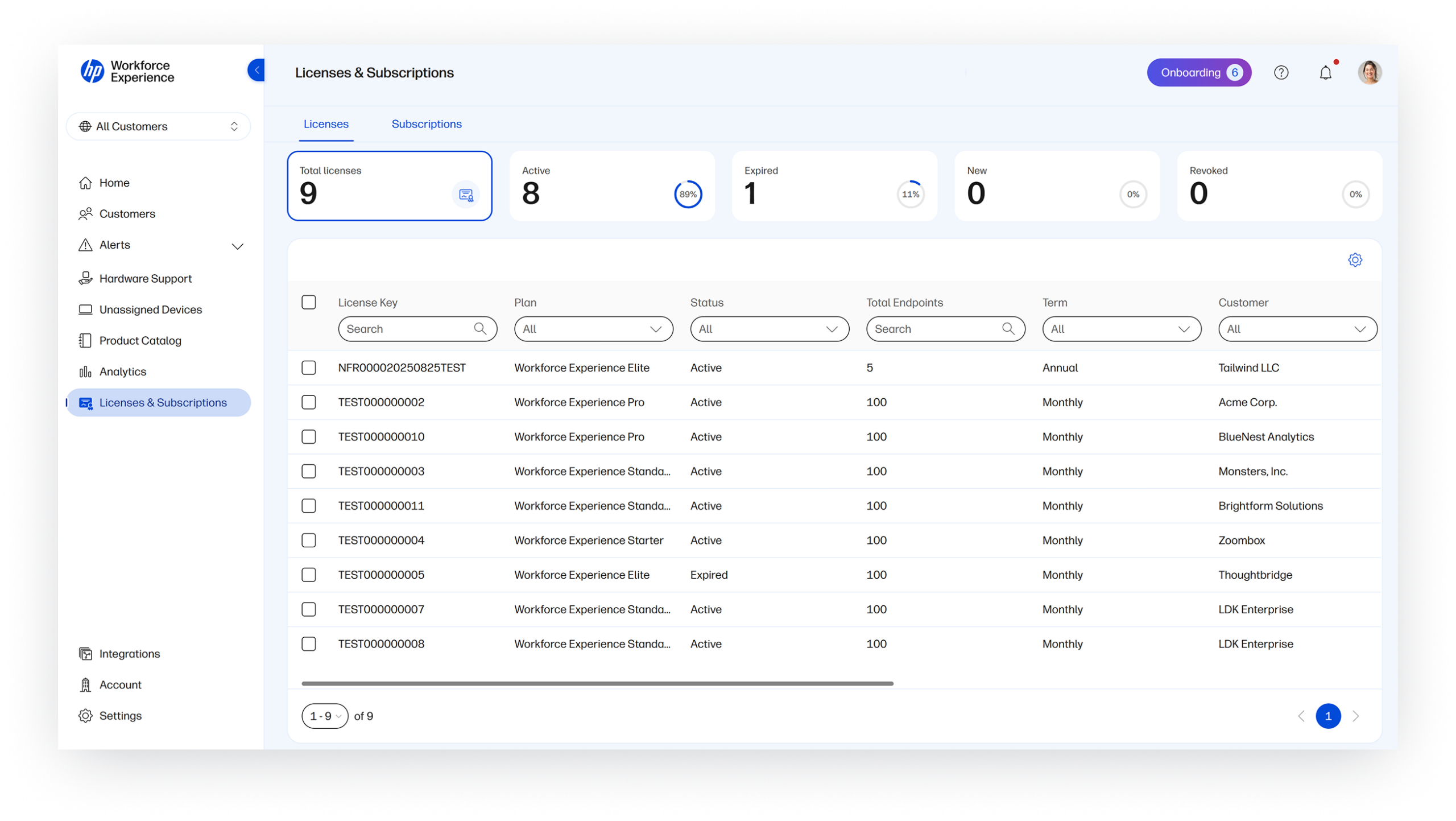
How to access:
- Login to WXP
- Click on the Licenses & Plans tab on the left navigation bar
- Click on any card to see a filter view of licenses by status
Single Sign-on Integration with CSDP
Service Delivery Partners who use both WXP and the Channel Service Delivery Platform (CSDP) to conduct their business can now seamlessly navigate between both platforms without having to constantly reauthenticate. Partner users will be able to navigate to CSDP from the Hardware Support or Incident Details page, reducing friction, saving time, and allowing them to focus on completing their work instead of navigating system access requirements.
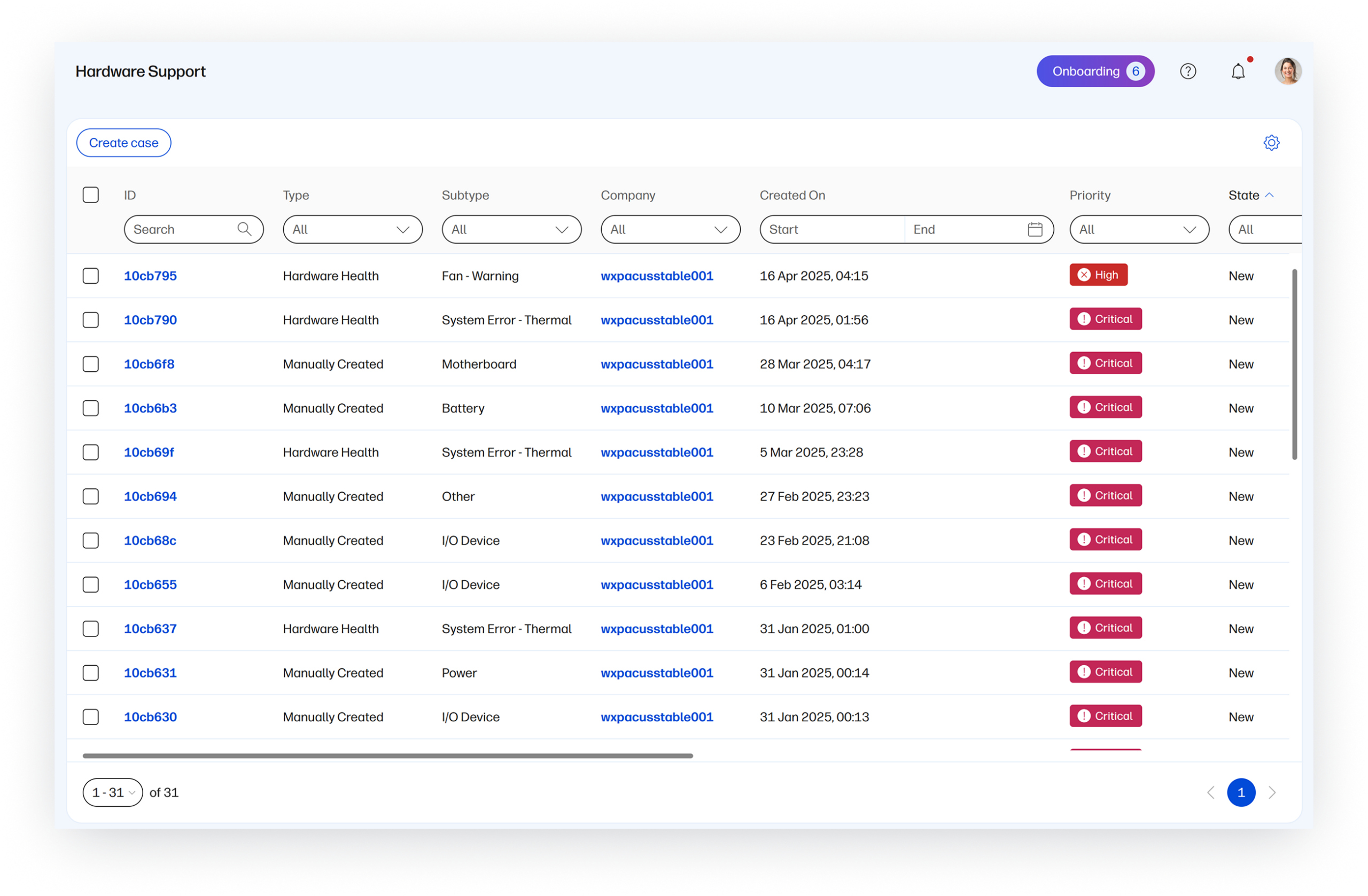
How to access:
- Login to WXP
- Click on the Hardware Support page
- Click on the Open HP CSDP button
Developer Experience
Asset API and Alerts API
HP has launched two new APIs for WXP: the Alerts API and the Asset API. Together, they allow IT teams to automate workflows by seamlessly feeding real-time device alerts, event triggers, and hardware inventory data directly into ITSM platforms like ServiceNow and Jira, eliminating manual updates and speeding up incident resolution.
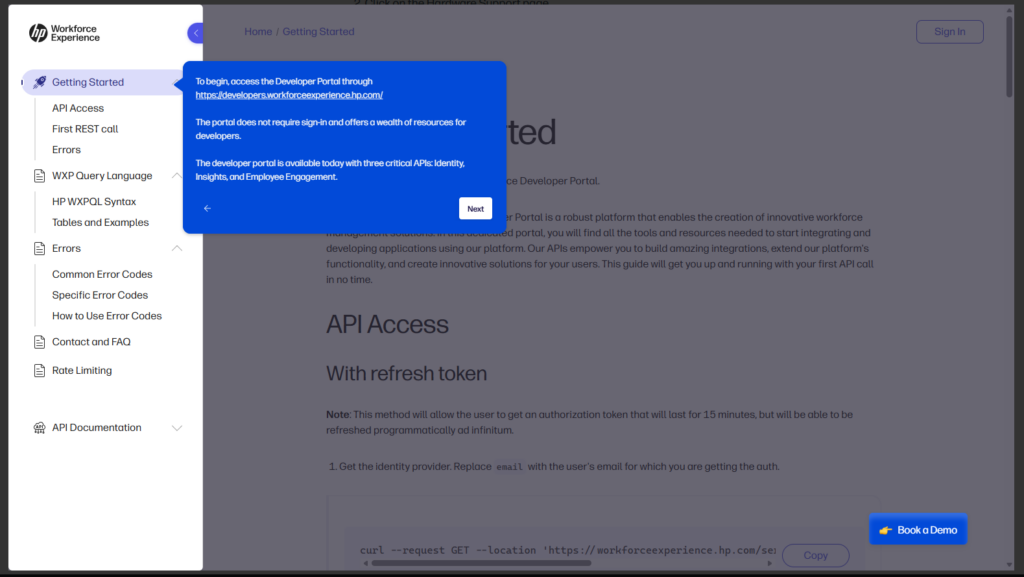
How to access:
- Navigate to WXP Developer Portal
- Click on API Docs
- Click on Asset or Alerts API
Requires Developer role access. Applies to WXP Navigator Pro and Elite plans.
Hardware Support
Education Care Packs
Education Care Packs extend WXP-powered predictive hardware support to PCs used by schools and universities. Education PDA coverage adds hardware failure detection, alerts, automated support cases, and issue reporting through WXP. Customers can view service coverage and manage hardware incidents in one place, helping students maintain access to PCs for learning.
How to access:
- From the dashboard, expand Devices, select PCs, and open the relevant PC.
- View its Warranty & Service Coverage section for Education PDA coverage details.
- Select Hardware Support from the navigation menu to manage hardware incidents.
Care Packs are sold independently of WXP plans.
WXP Print
Printer Telemetry and Insights
Telemetry and insights are now available from connected printers, to help troubleshoot and reduce the time and cost to fix problematic devices.
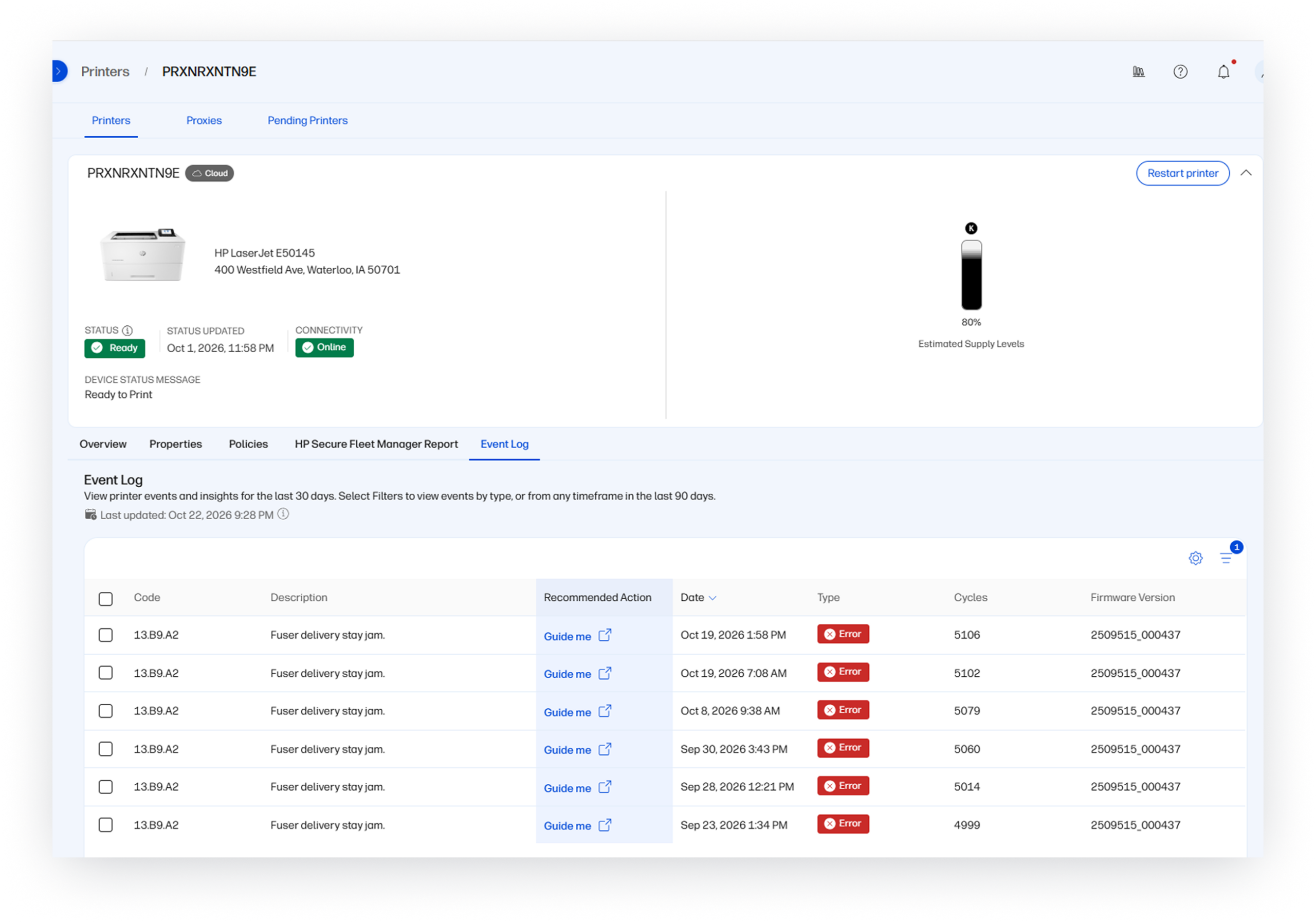
How to access:
- From the left navigation menu, click on Printers under Devices
- Find and select problematic printer to research
- Click on Event Log tab to view and filter on logs to research issues and receive guidance on resolution options
Applies to WXP Print Pro. Supports FutureSmart 5 compatible printers only.
WXP Print Onboarding Tool
Onboard up to 5,000 printers at once with a new onboarding tool that replaces Doppler, enabling better scaling and security.
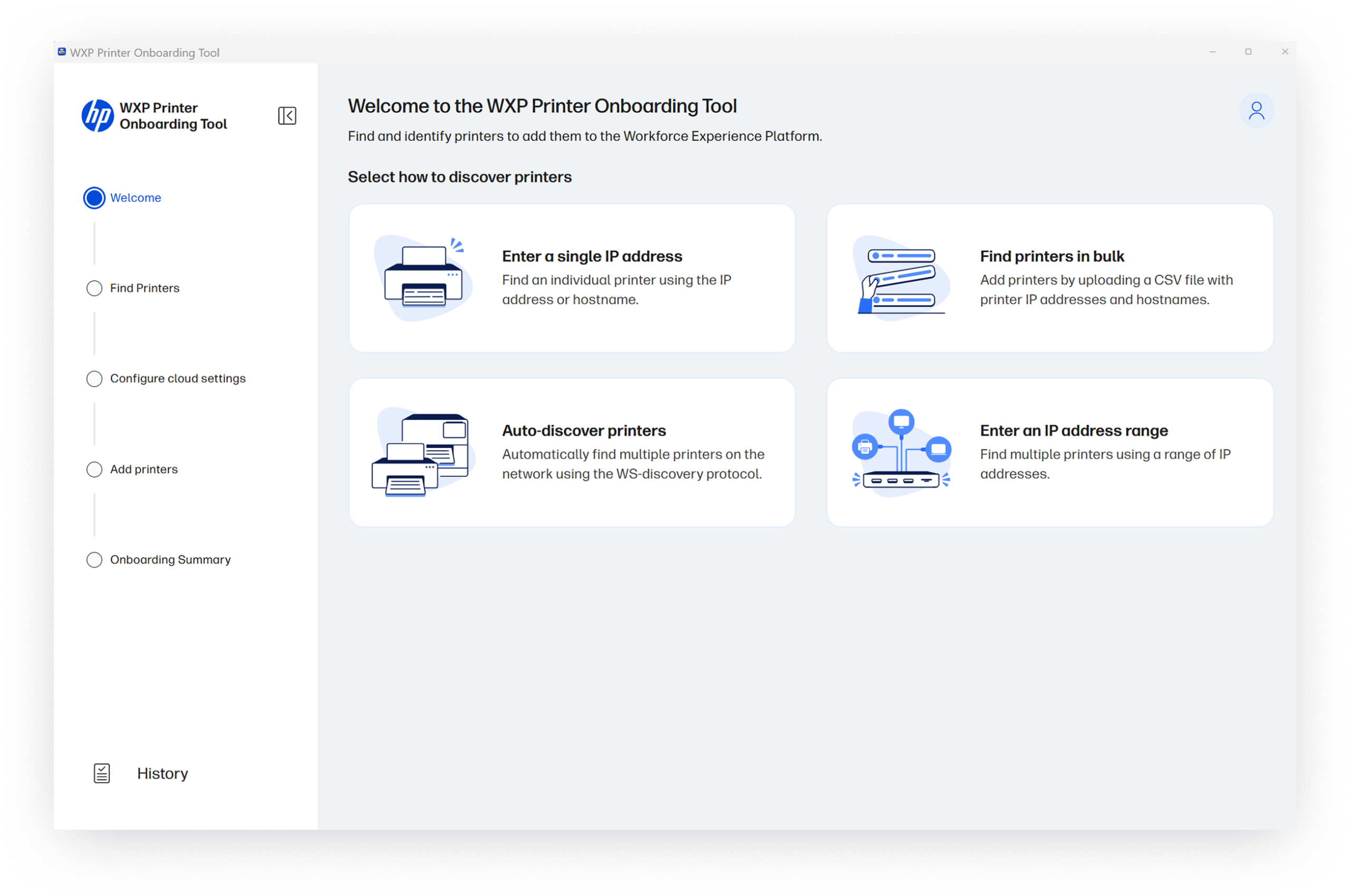
How to access:
- From the left navigation menu, click on Printers under Devices
- Click Add printers
- Click Connect through the cloud
- Click Install the WXP Printer Onboarding Tool
- Run exe file
- Login using SSO credentials
- Select tenant (if user has more than 1)
- Chose how to discover printers
- Go through each step based on selection
Applies to WXP Print Standard and Pro plans. Supports FutureSmart 5 Compatible Printers only.
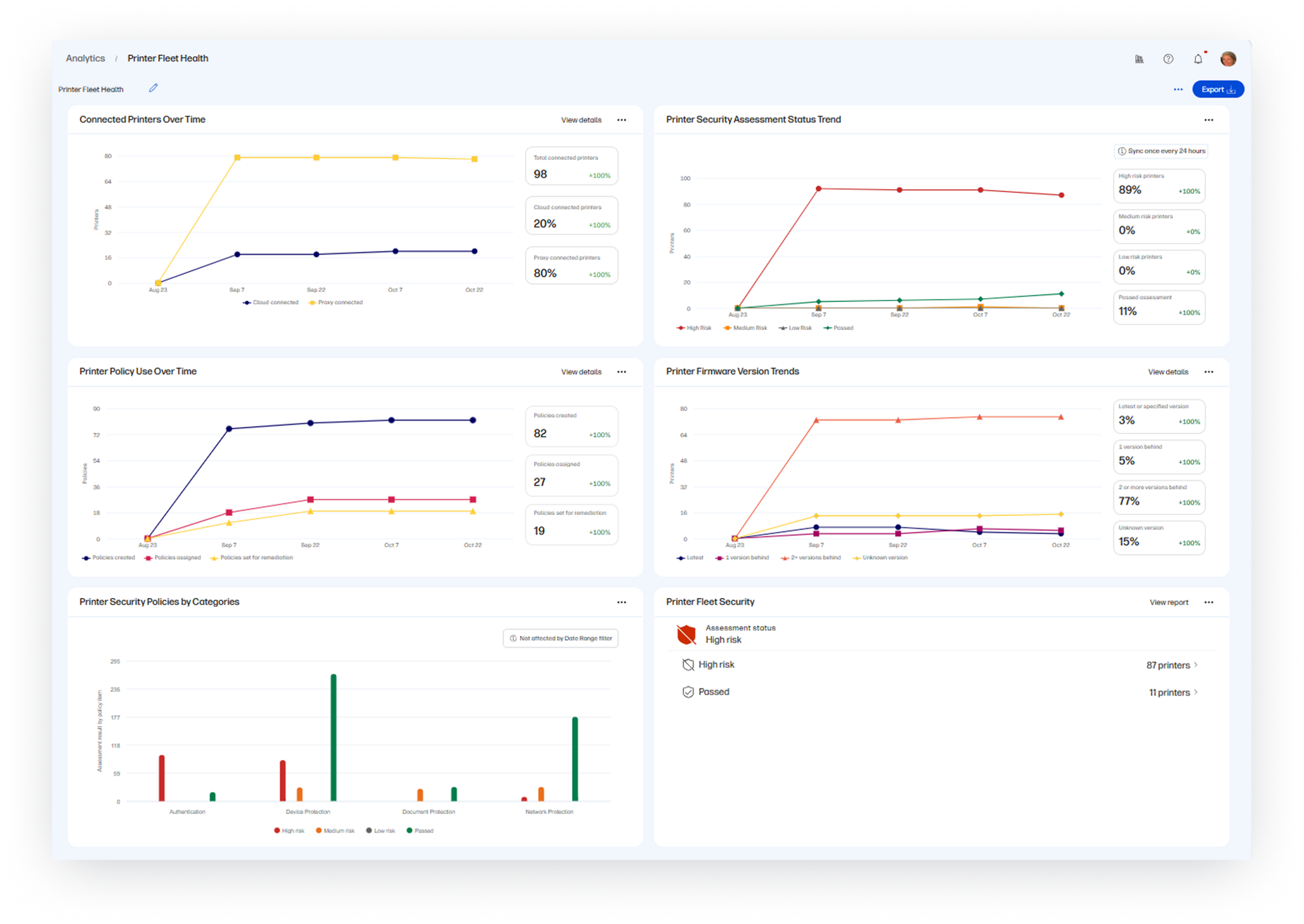
Printer Customer Analytics 2.0
New interactive widgets have been made available for the Analytics and Print only homepage to provide more visibility into trends across your printer fleet:
- Connected printers trend
- Security Assessment Status trend
- Policy Use Over Time trend
- Firmware Version Trends
- Security Policies by Category
- Detailed Fleetwide Security reporting
How to access:
- From the left navigation menu, click on Analytics
- Create a new dashboard or edit existing to add new widgets
Applies to WXP Print Standard and Pro plans. Firmware report is limited to HP printers.
HP Workforce Experience Platform is a comprehensive and modular digital employee experience solution that enables organizations to optimize IT for every employee’s needs.
Subscribe for future product release updates and the HP Workforce Experience Blog to learn how to optimize your IT capabilities today.
If you want to learn more about the HP Workforce Experience Platform, we would love to speak to you! Simply fill out the form below, and a team member will be in touch.
- HP Workforce Experience Platform (WXP) is available in various tiers and for multiple term license durations, and some features require optional add-on solutions. WXP is for commercial customers and some features and capabilities may require additional purchase of HP services and/or commercial hardware capable of supporting the HP Insights agent for Windows, Mac, & Android. WXP is ISO27001, ISO27701, ISO27017 and SOC2 Type2 certified for Information Security. Activation and restrictions may apply. Select HP solutions require an HP Insights agent for Windows, Mac, & Android, available for download at https://workforceexperience.hp.com/software. For full system requirements and services that require the agent, please visit https://workforceexperience.hp.com/requirements. The agent collects telemetry and analytics around devices and applications that integrate into the Workforce Experience Platform. Internet access required. WXP Collaboration license required for audio and video collaboration technology monitoring.
- HP Workforce Experience Print Management includes access to HP Workforce Experience Platform Starter. Printer management capabilities require HP Workforce Experience Platform, available in various tiers, supporting monitoring of HP and third-party printers through WebJetAdmin and management of select HP enterprise printers that are compatible with HP FutureSmart 5 firmware. Available in North America from HP Direct. HP Workforce Experience Print Management is for commercial customers and some features and capabilities may require additional purchase of HP services and/or commercial hardware capable of supporting the HP Insights agent for Windows, Mac, & Android. WXP is ISO27001, ISO27701, ISO27017 and SOC2 Type2 certified for Information Security. Activation and restrictions may apply. Select HP solutions require an HP Insights agent for Windows, Mac, & Android, available for download at https://workforceexperience.hp.com/software. For full system requirements and services that require the agent, please visit https://workforceexperience.hp.com/requirements. The agent collects telemetry and analytics around devices and applications that integrate into the Workforce Experience Platform. Internet access required.
From the blog
The latest industry news, interviews, technologies, and resources.




Frequently asked questions
Here's everything you need to know about WXP.
- What is the HP Workforce Experience Platform (WXP)?
- How does WXP work?
- How is WXP modular?
- Is WXP compatible with different vendors and operating systems?
- How does WXP integrate with other IT tools to provide a more comprehensive solution?
- What is a Workforce Experience score?
- How is AI used within WXP?
- How can I buy WXP and find out about new releases?