
Product Release Notes, Summer ’26 Roundup
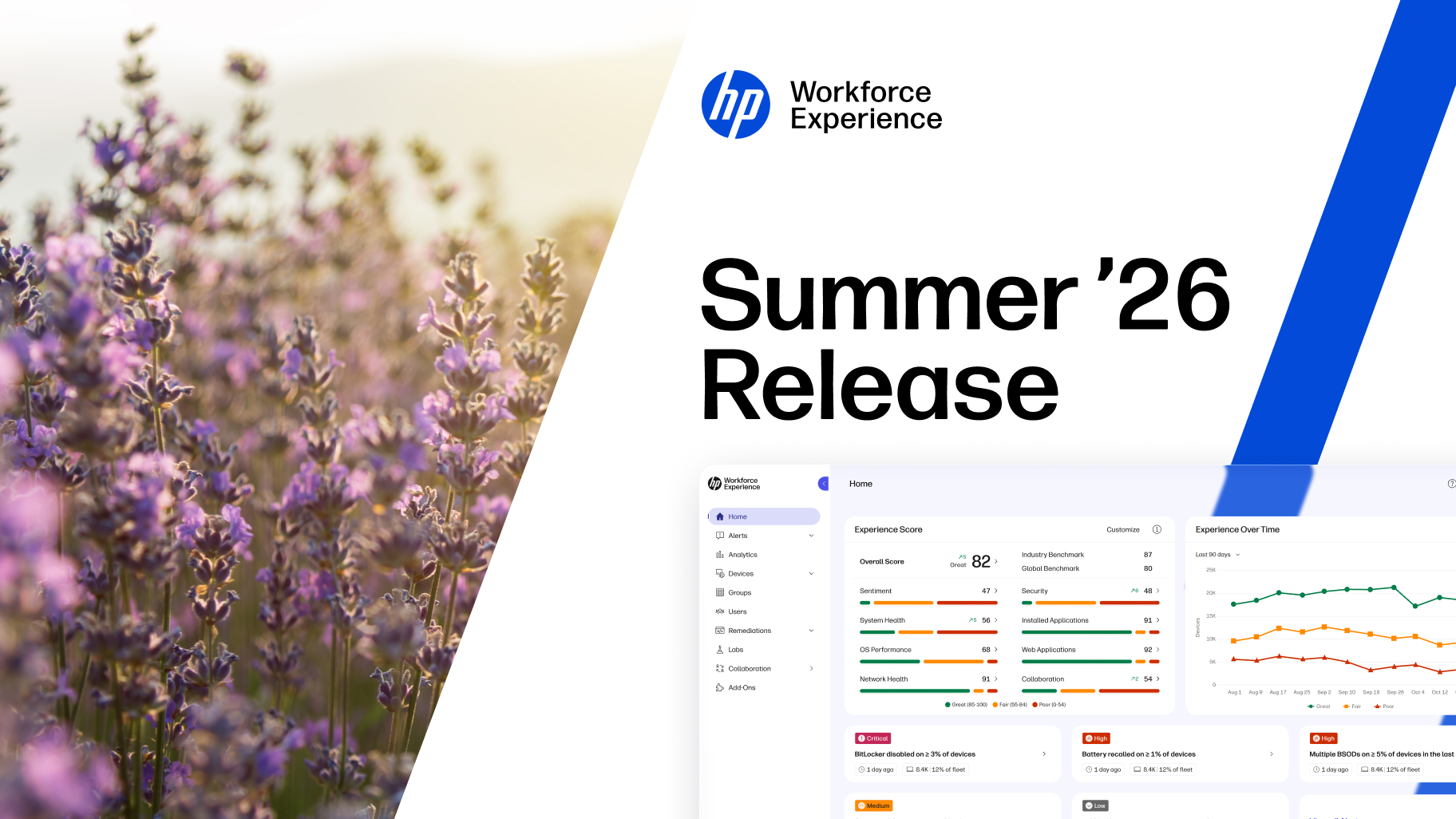
With summer in full swing comes the Summer ’26 release of HP Workforce Experience Platform (WXP),1 delivering new capabilities designed to help IT teams automate more confidently, resolve issues faster, and gain deeper visibility across devices, users, and print environments.
Here’s a quick rundown of the updates—follow the links for more detailed descriptions below:
Core Experience
- New workflow creation enhancements help simplify workflow development and improve execution reliability so IT teams can scale automation more efficiently.
- Remediation with AI Best Match recommendations help administrators quickly identify the right script or policy for faster, easier support, and IT teams can now troubleshoot individual endpoints to resolve device-specific issues more efficiently. For HP devices, device-level alerts flag hardware issues for early intervention.
- Industry Benchmarking enables organizations to compare workforce experience performance with industry peers to inform decisions about priorities and improvements.
- Pre-installation notifications enable administrators to inform employees before driver updates and allow deferrals to minimize work disruption.
Developer Experience
- For Developers, the new WXP Asset API enables integration of WXP device intelligence with ITSM, CMDB, reporting, and support platforms.
Partner Experience
- A new Partner home page and monthly consumption-based billing improve flexibility to help streamline operations and strengthen customer support.
- Demo Mode helps highlight personalized capabilities and communicate value more clearly in customer engagements.
- A new Australia-based WXP data center provides in-region data residency and improved performance for customers across Greater Asia.
WXP Print Management
- Administrators can automatically group printers, apply a broader range of policy-controlled printer settings, and sort and report by Active Date, for improved standardization, management and lifecycle planning across large printer fleets.
- Support for a broader range of HP FutureSmart 5 printers helps organizations simplify administration of printer fleets.
Workflow
User-friendly Enhancements for Workflow
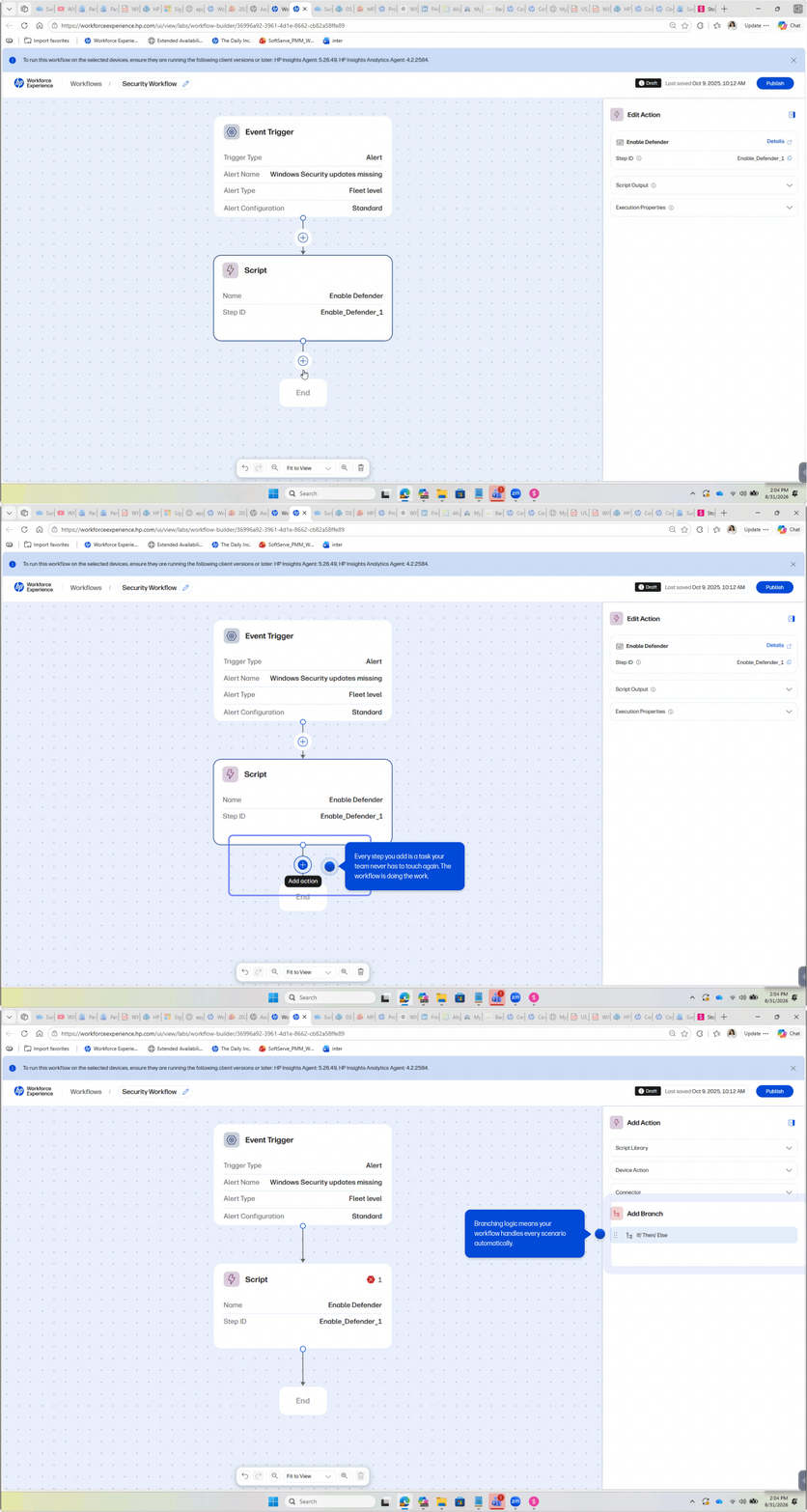
Build workflows faster and with greater confidence using built-in script testing, guided branching, and enhanced workflow visibility. New workflow creation enhancements enable administrators to validate scripts before deployment, automatically generate branch conditions based on test results, and view existing alert-to-workflow mappings to avoid duplicate automations.
By simplifying workflow development and improving execution reliability, these enhancements help IT teams scale automation more efficiently, reduce manual effort, and accelerate issue resolution while maintaining operational consistency.
Steps to access:
- From the left navigation menu, click on Labs.
- Select Try Workflow.
- Click Add.
- Select Create from Scratch.
- Drag and drop Workflow Trigger on canvas. If you select an Alert, you will be able to see associated Workflows leveraging the same alert.
- Click the plus sign on canvas.
- Drag and drop a script from the Script Library.
- Under Script Output, select a test device to test script on.
- Add an If/Then Else branch. You will have the ability to see the script Output Type pre-populated based on the script tested to leverage for branching.
*Note: Only applicable to WXP Pro and Elite plans.
Remediation
Remediation with AI: Best Match
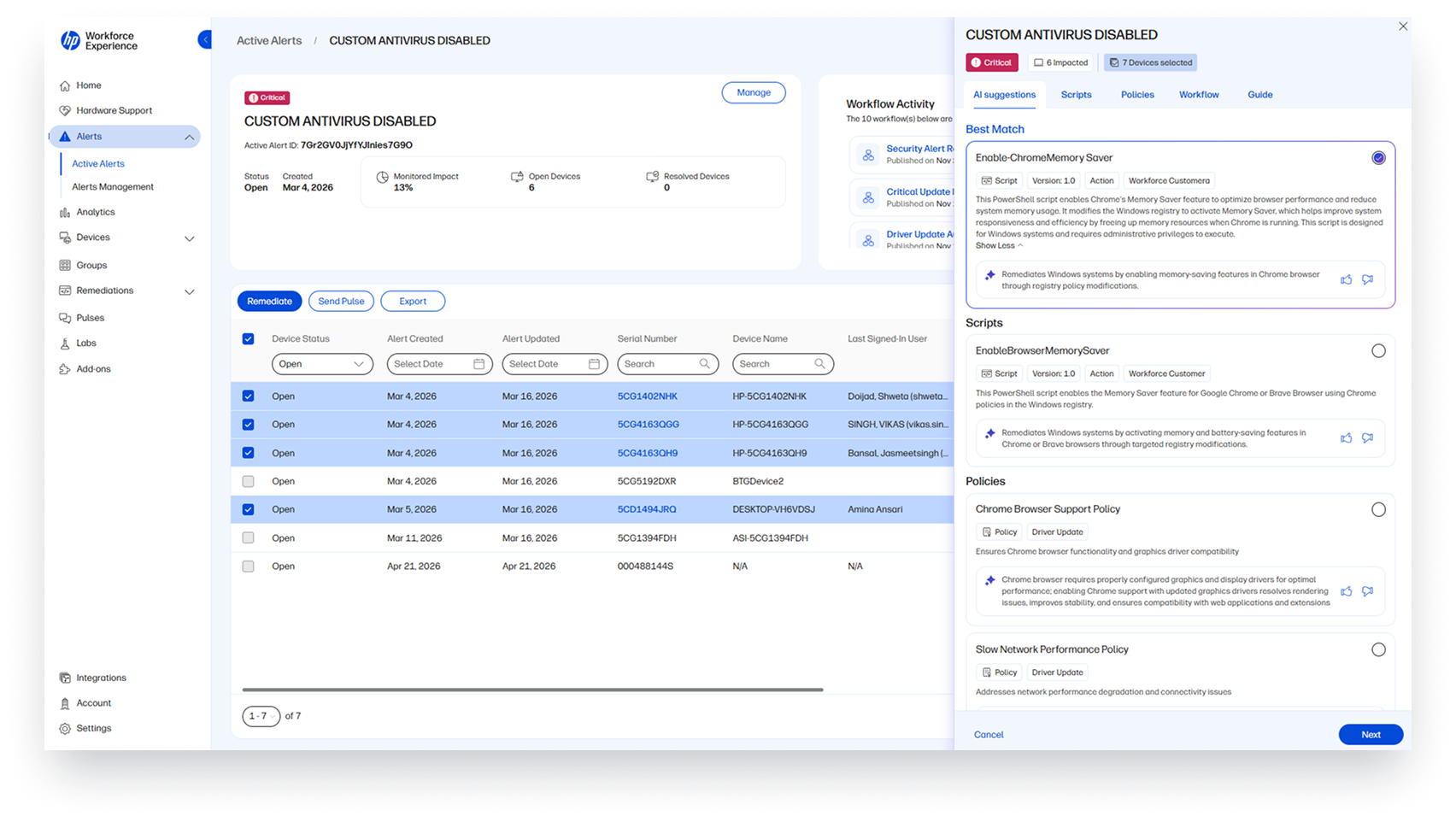
Accelerate issue resolution with AI-powered Best Match recommendations that automatically surface the most relevant remediation for a detected issue. By analyzing alert context and available remediations, Best Match helps administrators quickly identify the right script or policy without spending valuable time searching through extensive remediation libraries.
This capability enables faster, more confident decision-making across both individual devices and entire fleets while reducing support effort and maintaining full administrator control over every action taken.
Steps to access:
- From the home page, click on an alert.
- Click Remediate with the desired devices selected.
- Find the Best Match remediation to your issue.
*Note: Only applicable to WXP Pro and Elite plans.
Single Device Support for Remediation with AI
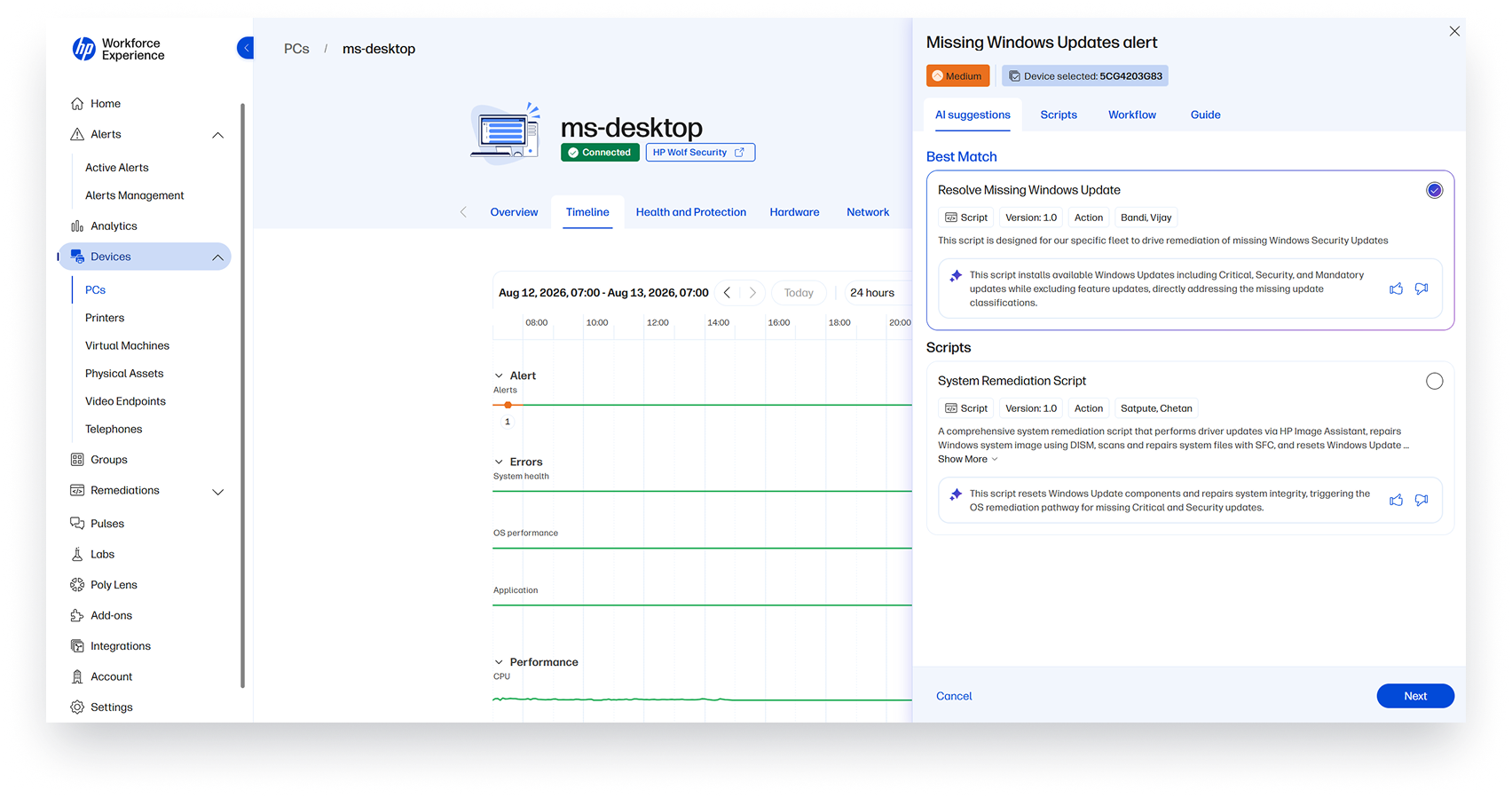
Extend AI-powered remediation recommendations to individual device alerts with support for single-device remediation workflows. Administrators can now leverage Best Match recommendations when troubleshooting specific endpoints, helping identify the most effective fix based on the device’s unique issue and context.
By bringing Remediation with AI beyond fleet-level incidents, IT teams can resolve device-specific problems more efficiently and deliver faster support experiences for employees.
Steps to access:
- From the left navigation menu, click on Alerts and select Active Alerts.
- Click on the PCs tab to display individual device alerts.
- Click an Alert.
- The device Timeline is opened to the alert in context.
- In the right-side drawer, click the Actions drop down for the alert.
- Click Remediate.
*Note: Only applicable to WXP Pro and Elite plans.
Analytics
Device-Level Hardware Alerts
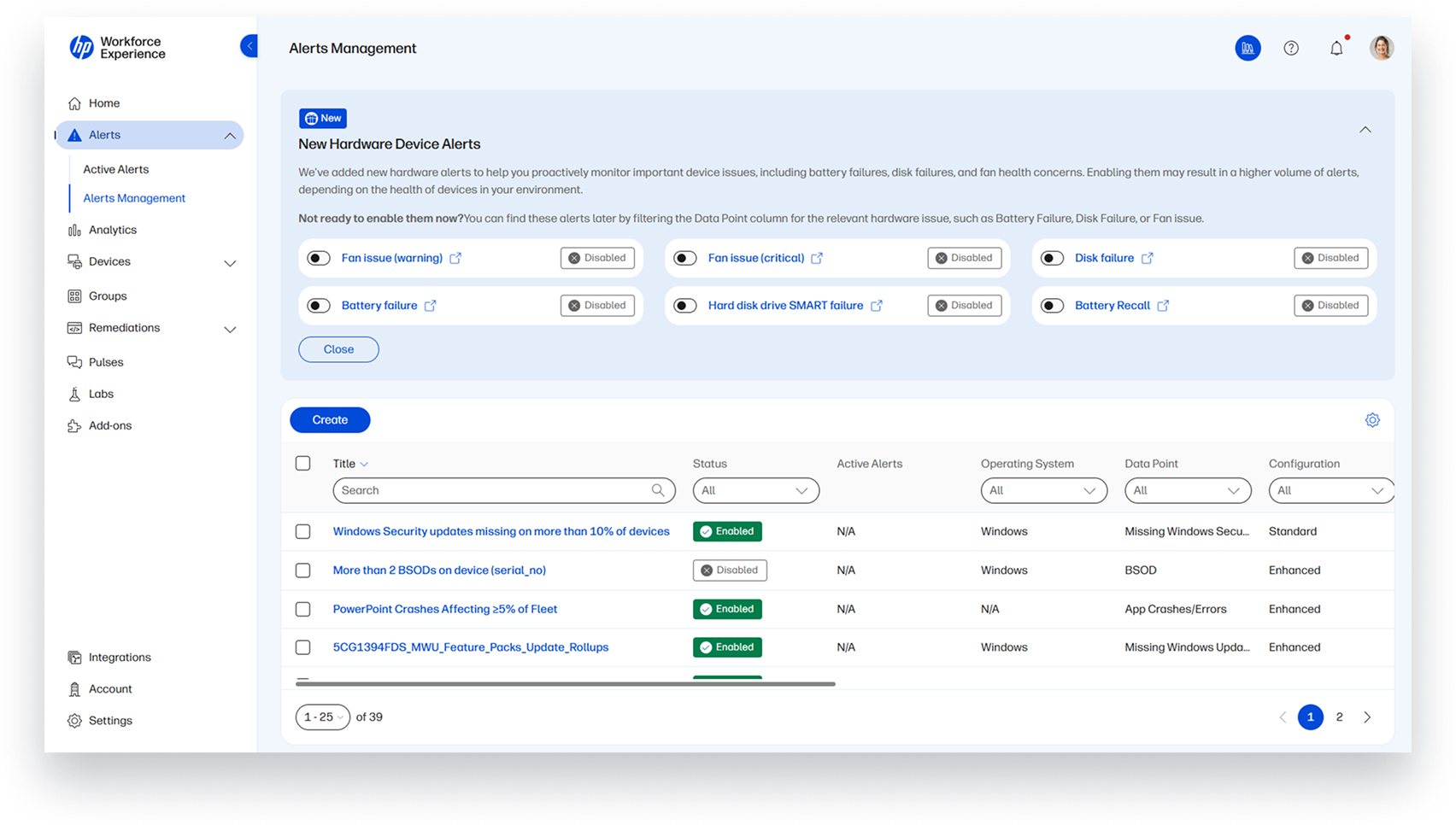
Detect hardware issues earlier with device-level alerts powered by HP hardware support intelligence. New hardware alerts automatically identify battery, disk, and fan-related issues on individual devices, helping IT teams identify HP devices that require hardware repair or replacement before they impact employees or generate support tickets.
By surfacing actionable hardware insights sooner, organizations can accelerate repair and replacement processes, reduce troubleshooting effort, improve device reliability, and minimize business disruption.
Steps to access:
- From the left navigation menu, click on Alerts and select Alerts Management.
- From the Data Point drop-down, select a specific hardware issue.
- In addition to fleet-level alerts, you can now select a device-level alert.
- To disable the alert:
- Click on the alert.
- Select Disable.
- To adjust the notification settings:
- Click on the alert.
- Scroll down to the Notifications section and select Edit.
- Adjust notification recipients and channels.
Industry Benchmarking and Score Customization
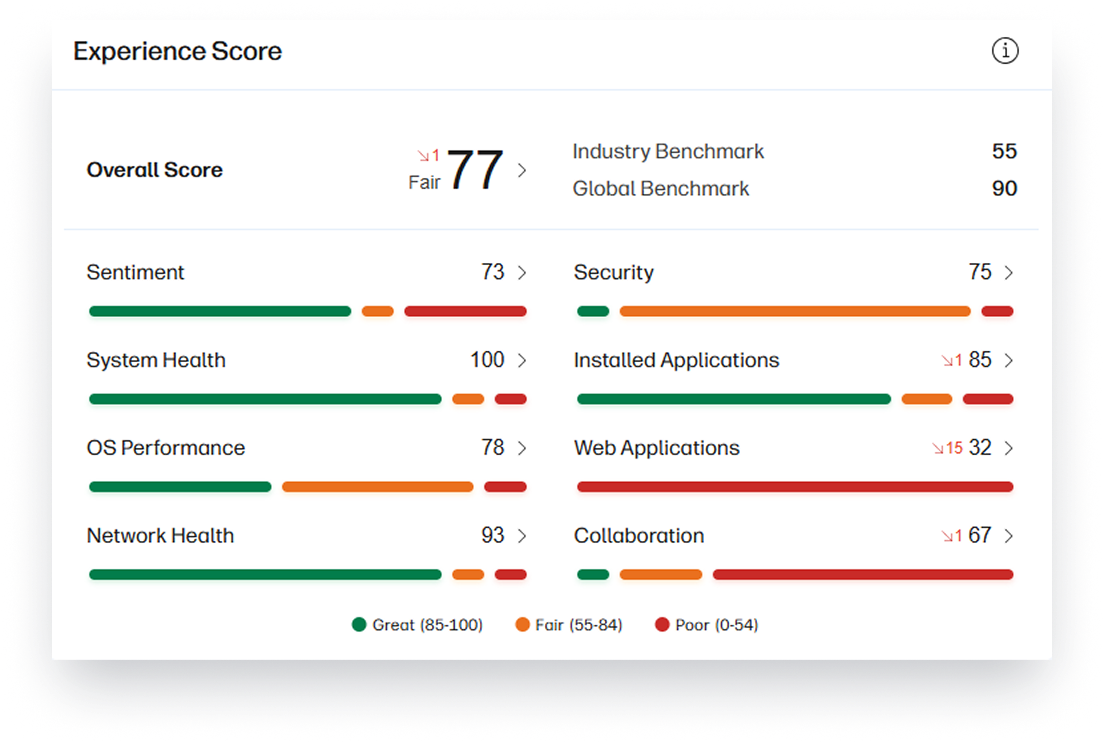
Compare workforce experience performance against industry peers while tailoring measurement criteria to your organization’s unique priorities. Industry Benchmarking and Score Customization allow administrators to evaluate performance against similar organizations and adjust scoring models to reflect operational goals, employee experience objectives, and business outcomes.
These capabilities provide deeper context for performance metrics and help organizations make more informed decisions about workforce experience improvements.
Policies
Notify Users before Driver Updates
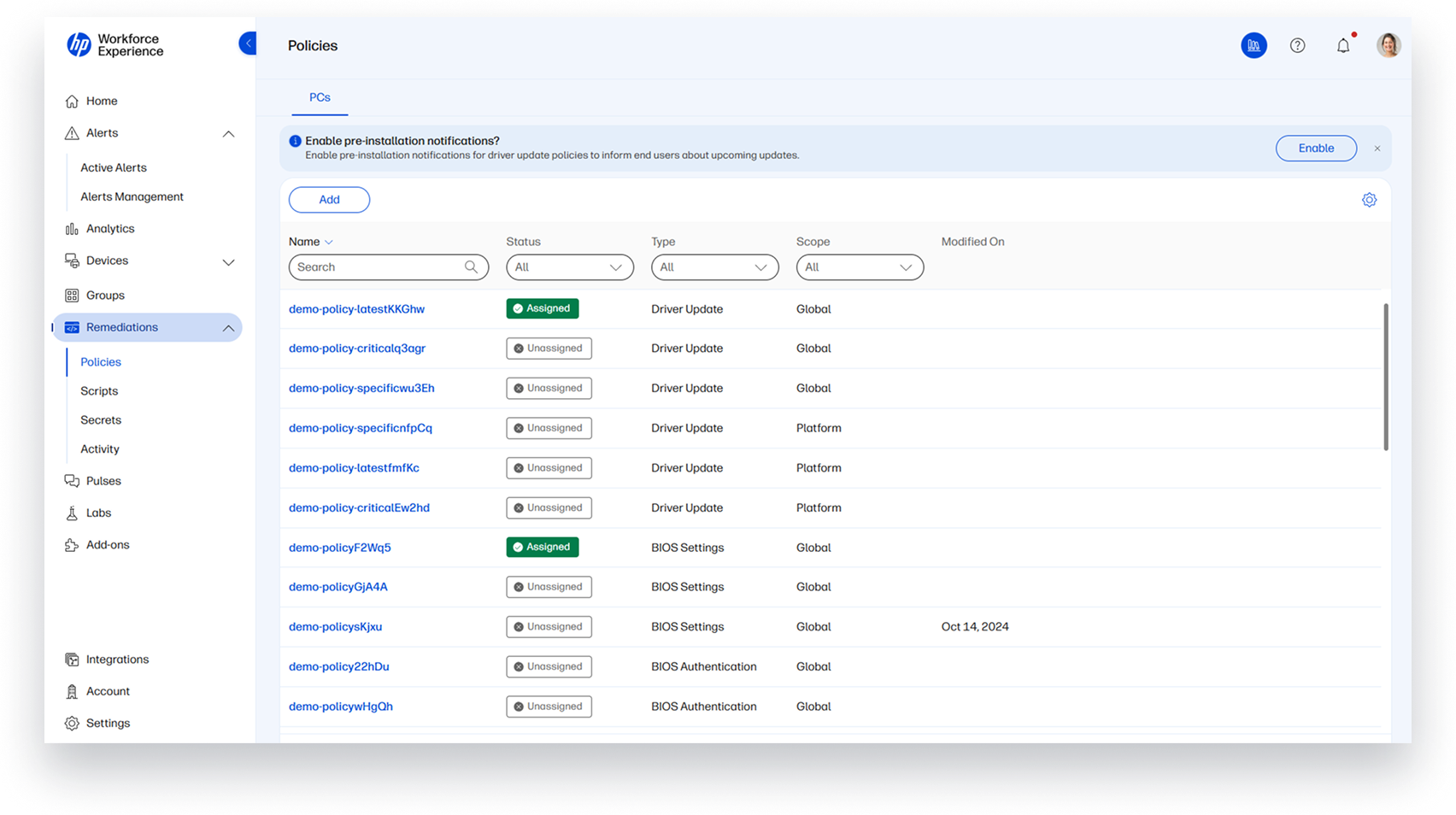
Improve the end-user experience during driver deployments with new pre-installation notifications. Administrators can now inform employees before a driver update is installed on their PC, including notifications when a restart will be required to complete installation. Employees can install the update immediately or defer it for 60 minutes to finish their work.
By giving users greater visibility and control over update timing, organizations can reduce disruptions, improve update adoption, and help employees finish critical work before updates are applied.
Steps to access:
- From the left navigation menu, select Remediations and click on Policies.
- In the Enable Pre-installation Notifications banner on top of the policies list, select Enable.
- Follow the steps to turn on pre-install notifications for all policies.
Developer Experience
Asset API
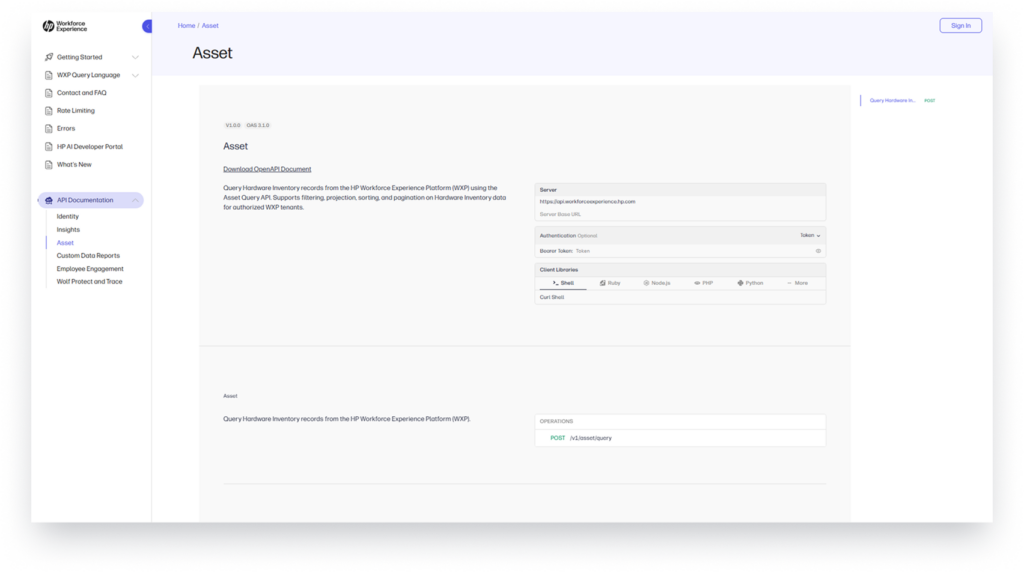
Extend WXP data into the systems where IT teams already work with the new WXP Asset API. This API provides secure, real-time programmatic access to hardware inventory information, enabling organizations to integrate WXP device intelligence with ITSM, CMDB, reporting, and support platforms.
With access to up-to-date device details, organizations can automate inventory management, reduce manual effort, improve data accuracy, and accelerate help-desk workflows. Whether integrating with ServiceNow, Jira Service Management, or custom business systems, the Asset API helps ensure critical device information is always current and readily available.
Steps to access:
- Visit the HP Workforce Experience Platform Developer Portal.
- Click on API Docs.
- Explore Asset API.
Explore the What’s New page to discover the latest APIs, feature releases, enhancements, and updates available in the WXP Developer Portal.
Partner Experience
Personalized Partner Home Page
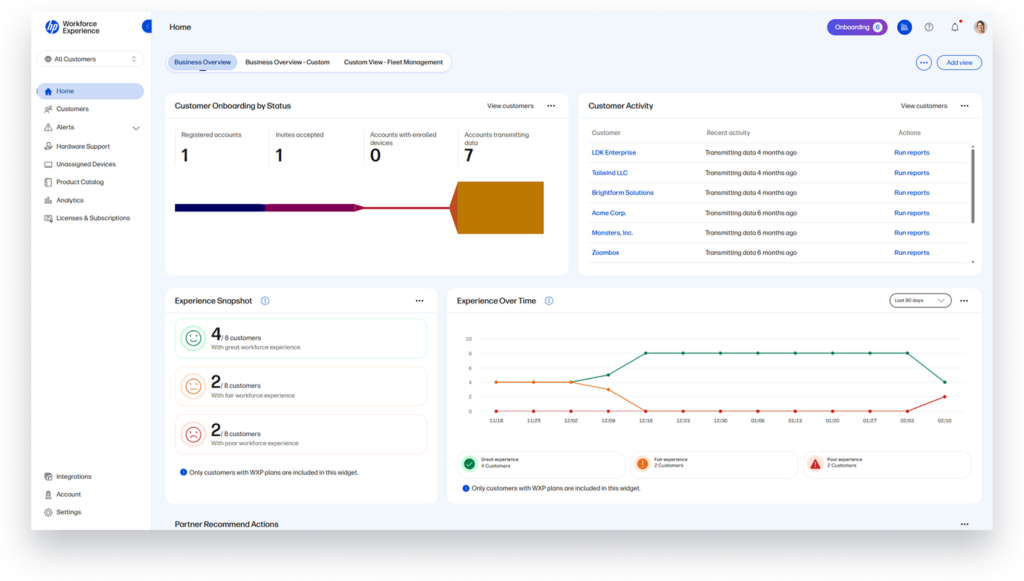
Focus on the metrics that matter most with a redesigned Partner Home Page featuring customized views and improved operational insights. Personalized experiences help partner users quickly monitor customer onboarding progress, track license adoption, and identify opportunities for customer engagement and growth.
By surfacing relevant information more effectively, partners can streamline operations, uncover onboarding bottlenecks, strengthen customer relationships, and make more informed business decisions.
Steps to access:
- On the top right side of your new home page, click on Add View.
- Name your custom view and select your preferred widgets from the widget library.
- Click Save.
- You can edit, duplicate, or delete your custom view by clicking on the three-dot menu on the top right side of your home page.
Monthly Billing
Expand service delivery with new consumption-based billing capabilities now available across 30 countries. Monthly billing gives partners the flexibility to increase or decrease enrolled devices as customer needs evolve while aligning costs directly with actual platform usage.
This model eliminates dependence on upfront license forecasting, improves payment transparency, and provides Managed Service Providers with a scalable foundation for delivering WXP-enabled services more efficiently.
Demo Mode
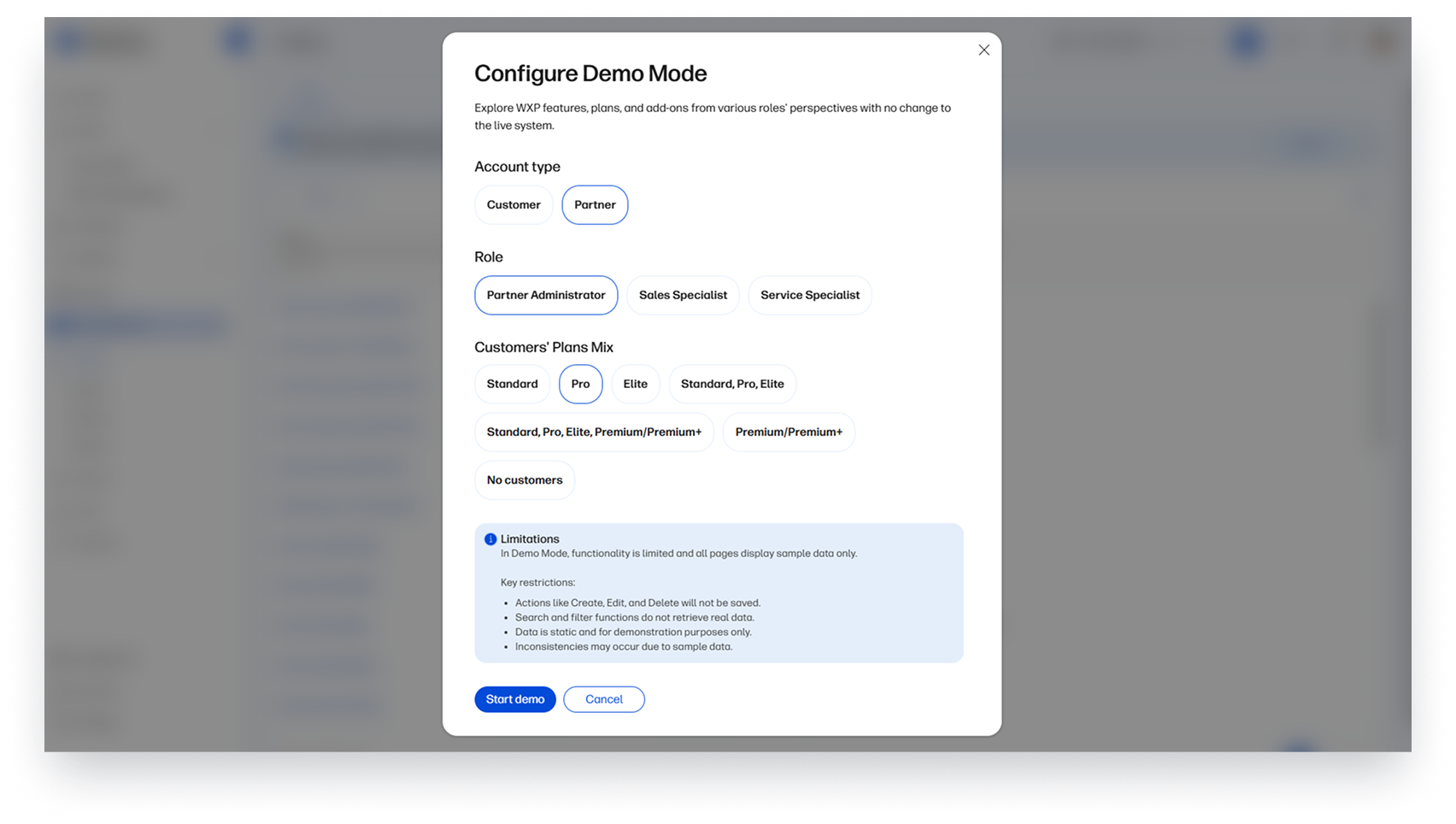
Showcase WXP more effectively with customizable Demo Mode experiences. Users with Partner Administrator or Sales Specialist roles can quickly configure demonstrations tailored to specific customer scenarios to highlight the capabilities most relevant to each audience.
Whether supporting sales engagements, customer presentations, or training sessions, Demo Mode enables more compelling and personalized demonstrations that help communicate value more clearly.
Steps to access:
- Click on your user account avatar icon on the top right of the console.
- Select Demo Mode from the menu options.
- Select the criteria that align with the demonstration you are interested in showcasing.
- Click on Start Demo.
Australia Data Center
Strengthen performance, compliance, and regional accessibility with a new Australia-based WXP data center. This expansion increases HP’s presence across Greater Asia while providing in-region data residency and improved performance for customers in the region.
The addition supports HP’s ongoing commitment to delivering localized, high-performance workforce experience solutions across global markets.
WXP Print Management
Group by IP Range and Manufacturer
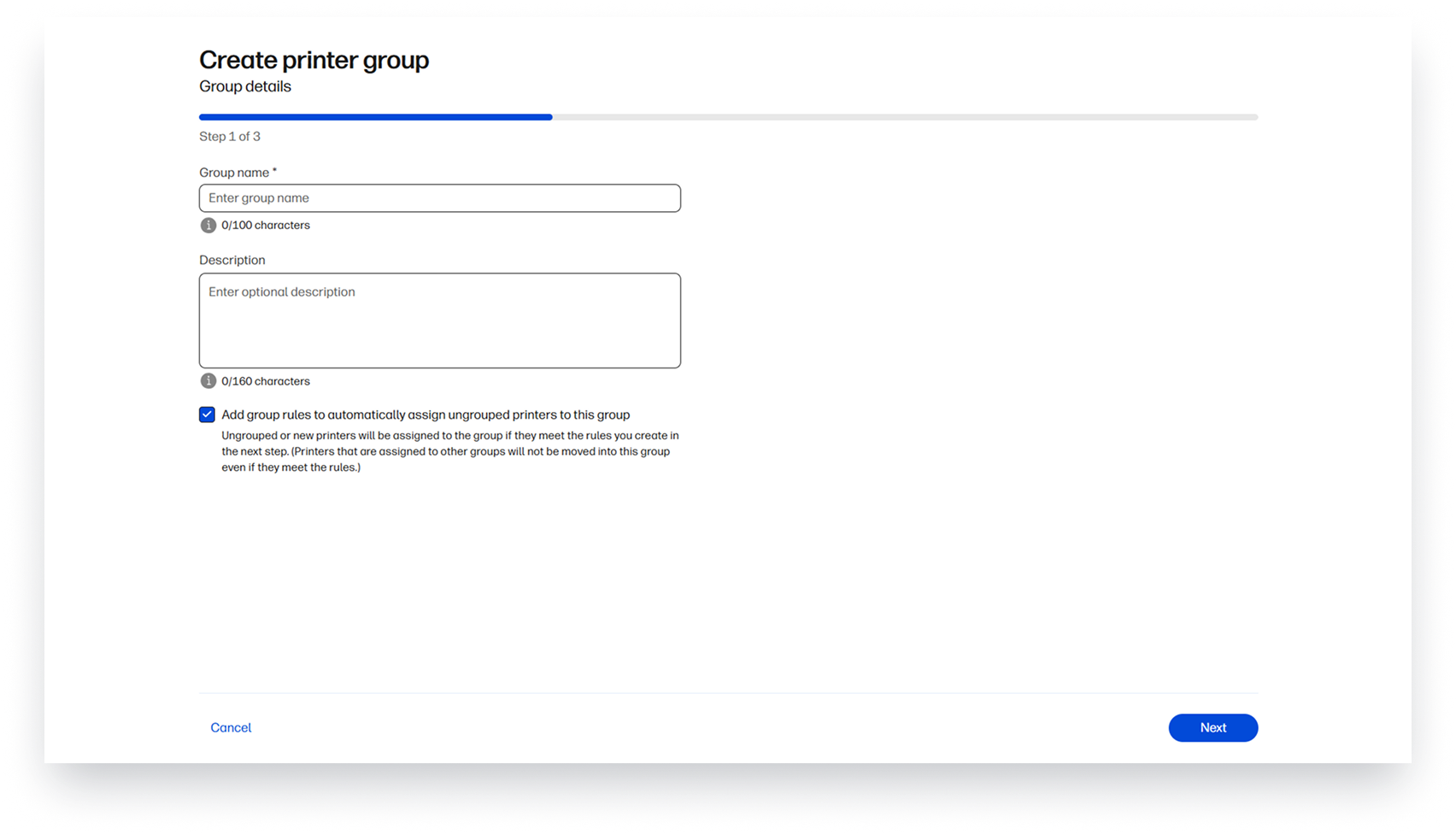
Automate printer organization and policy assignment with new grouping capabilities based on IP range and manufacturer. Administrators can now automatically group printers to streamline the assignment of policies across large print fleets.
This capability is especially valuable for newly onboarded or recently serviced printers, enabling them to be automatically placed into the appropriate groups and receive security and usability configurations immediately and remotely. Grouping by IP range allows administrators to organize printers by location, one of the most common fleet management use cases, while grouping by manufacturer helps separate printers into distinct groups. This ensures administrators can apply the right policies to the right devices while avoiding alerts or settings that may not be relevant to specific printer types.
Steps to access:
- From the left navigation menu, click on Groups.
- Click on the Printers tab.
- Click Add.
- Enter a Group Name and optional Description.
- Add group rules by selecting Property, Operator, and Values.
- Click Next to create the group.
Sort and Report by Active Date
Improve refresh planning and fleet lifecycle management with the ability to view, sort, and report on a printer’s Active Date. Unlike implementation dates, which only apply to devices under contract, Active Date provides a more accurate indicator of a printer’s operational age by identifying when the device completed its 50th printed page and entered active use.
This helps organizations understand the true age of printers across their entire environment, including devices that are not covered by managed print contracts. By making Active Date visible and sortable within the printer inventory, administrators can more easily identify aging devices, support refresh planning initiatives, and generate reports for stakeholders responsible for fleet modernization and long-term hardware strategy.
Steps to access:
- From the left navigation menu, click on Devices and select Printers.
- Scroll to left to view Active Date.
- Sort Active Date column to see oldest vs youngest printers.
- Export a report to use or share for refresh planning.
Support more Printer Settings
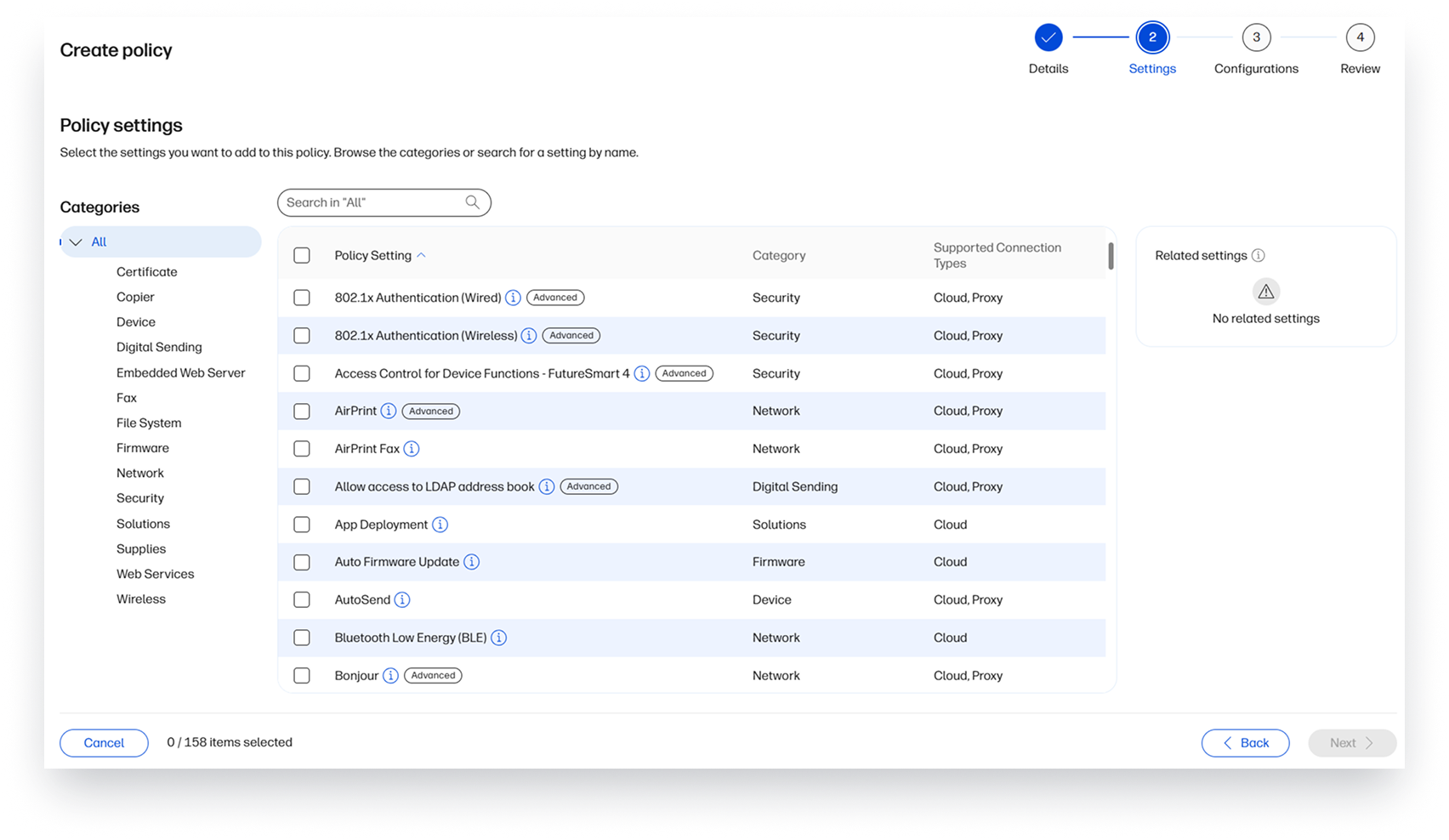
Expand print fleet management capabilities with support for a broader range of policy-controlled printer settings across both cloud-connected and proxy-connected devices. Administrators can now configure additional security, networking, operational, and user experience settings directly through WXP Print Management.
Newly supported settings include:
- TCP idle timeout controls
- Web service enablement (HP cloud connection) for proxy printers to allow for auto-migration to cloud
- Cartridge Access Control to choose when to unlock door for replacement
- Ability to choose to display network addresses on printer control panel
- Date and time format preferences to display on a device
- Email file settings for scan-to-email workflows
- IP fax default settings such as company name and fax ID
- Actions triggered when cartridges reach very low levels
By extending centralized policy management to more device settings, organizations can improve standardization, strengthen security and compliance, reduce manual configuration effort, and maintain a more consistent printer experience across distributed environments.
Steps to access:
- From the left navigation menu, click on Remediations and select Policies.
- Select the Printer Policies tab.
- Click Create Policy.
- Add a name and description.
- Select an Essential Security Template or an Advanced Security Template or None.
- Select one of the settings.
- Configure the settings.
- Save the policy.
Support more HP FutureSmart 5 Compatible Printers
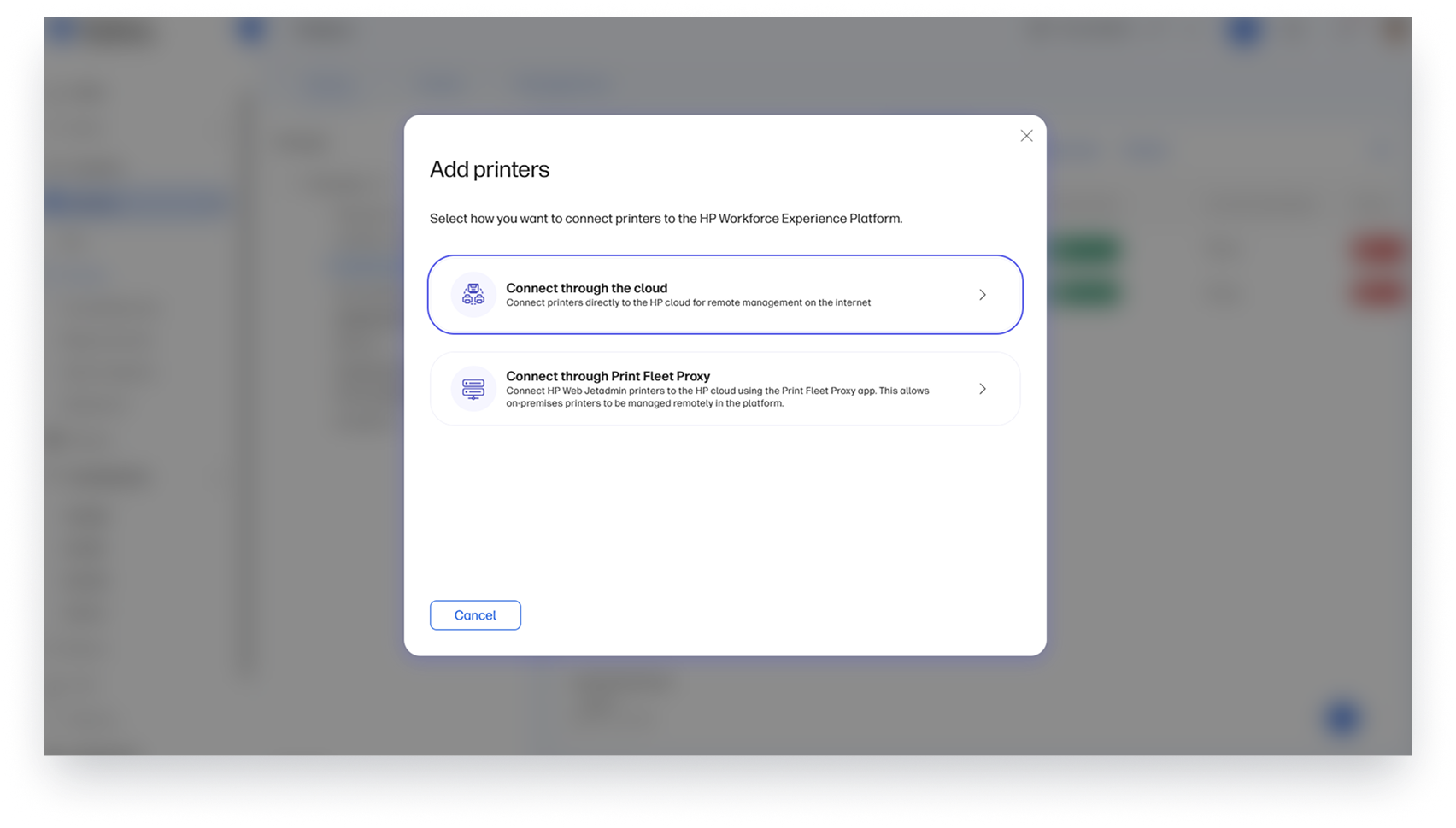
Extend cloud onboarding and management capabilities to additional HP FutureSmart 5 (FS5) compatible printers. This enhancement expands the number of supported devices that can be onboarded and managed through WXP Print Management, helping organizations bring more of their print fleet under a single management experience.
By supporting a broader range of FutureSmart 5 devices, customers can reduce barriers to managing their entire fleet, increase adoption of cloud-based print management, and simplify administration across diverse printer environments.
Steps to access:
- From the left navigation menu, click on Devices and select Printers.
- Click Add Printers.
- Add via cloud.
HP Workforce Experience Platform is a comprehensive and modular digital employee experience solution that enables organizations to optimize IT for every employee’s needs.
Subscribe for future product release updates and the HP Workforce Experience Blog to learn how to optimize your IT capabilities today.
If you want to learn more about the HP Workforce Experience Platform, we would love to speak to you! Simply fill out the form below, and a team member will be in touch.
- HP Workforce Experience Platform (WXP) is available in various tiers and for multiple term license durations, and some features require optional add-on solutions. WXP is for commercial customers and some features and capabilities may require additional purchase of HP services and/or commercial hardware capable of supporting the HP Insights agent for Windows, Mac, & Android. WXP is ISO27001, ISO27701, ISO27017 and SOC2 Type2 certified for Information Security. Activation and restrictions may apply. Select HP solutions require an HP Insights agent for Windows, Mac, & Android, available for download at https://workforceexperience.hp.com/software. For full system requirements and services that require the agent, please visit https://workforceexperience.hp.com/requirements. The agent collects telemetry and analytics around devices and applications that integrate into the Workforce Experience Platform. Internet access required. WXP Collaboration license required for audio and video collaboration technology monitoring.
- HP Workforce Experience Print Management includes access to HP Workforce Experience Platform Starter. Printer management capabilities require HP Workforce Experience Platform, available in various tiers, supporting monitoring of HP and third-party printers through WebJetAdmin and management of select HP enterprise printers that are compatible with HP FutureSmart 5 firmware. Available in North America from HP Direct. HP Workforce Experience Print Management is for commercial customers and some features and capabilities may require additional purchase of HP services and/or commercial hardware capable of supporting the HP Insights agent for Windows, Mac, & Android. WXP is ISO27001, ISO27701, ISO27017 and SOC2 Type2 certified for Information Security. Activation and restrictions may apply. Select HP solutions require an HP Insights agent for Windows, Mac, & Android, available for download at https://workforceexperience.hp.com/software. For full system requirements and services that require the agent, please visit https://workforceexperience.hp.com/requirements. The agent collects telemetry and analytics around devices and applications that integrate into the Workforce Experience Platform. Internet access required.
From the blog
The latest industry news, interviews, technologies, and resources.





Frequently asked questions
Here's everything you need to know about WXP.
- What is the HP Workforce Experience Platform (WXP)?
- How does WXP work?
- Can WXP be customized to fit specific business needs?
- How is WXP modular?
- Is WXP compatible with different vendors and operating systems?
- How does WXP integrate with other IT tools to provide a more comprehensive solution?
- What is a Workforce Experience score?
- How is AI used within WXP?
- How can I buy WXP and find out about new releases?